A delivery comes in, two boxes go to the shop, a crate gets dropped. By evening nobody remembers the numbers, so someone fills in the inventory tracking sheet from memory, if at all, and the monthly count finds gaps nobody can explain. A sheet works only when someone enters the rows at the moment things move. A form in a Telegram bot makes that a few taps on a phone: staff pick the operation, the item and the quantity, and you get a record with the sender's name on it.
The form logs movements. It does not know how much stock you hold, it does not stop anyone from dispatching more than you have, it has no barcode scanner and it sends no low-stock alerts. The balance comes from your own sheet and takes one extra step: a webhook, which is a web address that receives each record and passes it on to the sheet. Webhooks are not included in every plan. Without one you still have the Telegram messages and the dashboard, which has no export. The form is also not an inventory count sheet to sign: if you searched for a printable one, this is not it.
Where to start
You set everything up on the easy-post.app website. Sign up, and the first screen asks you to pick a template: pick "Inventory Management". Easy Post builds a "pipeline" at once, which is your form together with the list of records it collects. That list on the site is the "dashboard" from here on; the Submissions button on the pipeline page opens it. The bot your staff talk to is Easy Post's own, so you do not create one. Every record arrives in your Telegram as a message, so on the pipeline page press "Test the form in Telegram" to link your account. This setup needs no Telegram channel (a feed that publishes posts to readers), so leave the channel box in the "Still to do" block of the pipeline page empty. If you already have an account, the "+ New pipeline" button on your project page (the page that lists your pipelines) opens a page where you pick the template, if your plan has room for another pipeline.
Cut the seven questions down to what you will read
This is the Inventory Management template in Easy Post. It has seven questions, which is too many for a person who logs movements all day, because every movement is one run through the whole form. Open Form Settings (the Form button on the pipeline page) and cut it down. Every question is a card in the list. Each card has a "Field name" box (the label in your Telegram message), a "Bot prompt" box (the question staff see), a Type menu (Text, Number, Buttons and others) and a × in the corner that deletes the question. When you choose Buttons, a box for the button names appears under the prompt. The no-code form builder guide compares other ways to build such a form. Keep a question only if you will read the answer.
- Operation (required; prompt "Operation type:"; buttons Receiving, Dispatch, Write-off). Keep it. Your sheet formulas will compare these words exactly, so settle the names now. All the names go in one box, separated by commas, so a name cannot contain a comma.
- Item (required; prompt "Item name or SKU:", where SKU is the stock code on the item or the shelf). It is free text, which is the weak spot: "Cola 0.5", "cola 0,5 l" and "Coca-Cola small" become three items in your sheet. With up to a dozen items, change the type to Buttons and list the exact names in the box. Keep each name under about 55 characters (Telegram's limit is 64 bytes, and accented letters, Cyrillic and emoji take more than one): Telegram refuses a longer button name and the step breaks. With more items, keep the text field and ask for a code that you print on each shelf label, such as W-014. A code is shorter to type and easier to keep identical.
- Quantity (required; prompt "Quantity:"; type Text). Change the type to Number and the prompt to "Quantity, digits only:". A word such as "forty" is then refused with "Please enter a number." The Number type still lets "40 boxes" through, because a short unit beside the number is allowed, and the answer is saved exactly as typed. Put the unit into the item name ("Water 500 ml (case)"), not into the answer.
- Condition (optional; buttons New, Used, Damaged; skip button "N/A"). Delete it unless you stock used goods.
- Storage Location (optional; prompt "Storage location:"). Keep it only if you have more than one place to store goods, and then make it Buttons too, for example "Shelf A, Shelf B, Cold room".
- Photos (optional photo; prompt "Attach photo:"; up to three photos; skip button "No photo"). Keep it. Ask for a photo of the delivery note when goods arrive and of the damage when something is written off. Photos are not in your Telegram message. They sit in the dashboard as small pictures that open at full size.
- Notes (optional; prompt "Additional notes:"). Keep it and change the prompt to "Note (for a write-off, say why):". A question cannot appear for one operation only, so every movement gets it, and staff skip it with one tap.
After deleting a question, scroll to "Post Template" under the list. It is the layout for channel posts, which you do not use, but a length check still reads it, and the line of a removed question stays in it and counts as written. Delete that line, for example the one that ends in {condition}, and press Save under the list. If a record with a photo comes to more than 1,024 visible characters, the bot deletes it, the sender sees "Your submission is too long to publish with photos (max 1024 characters)…" and has to answer every question again. Tell staff to keep notes short. The maintenance request form walks through the same clean-up.
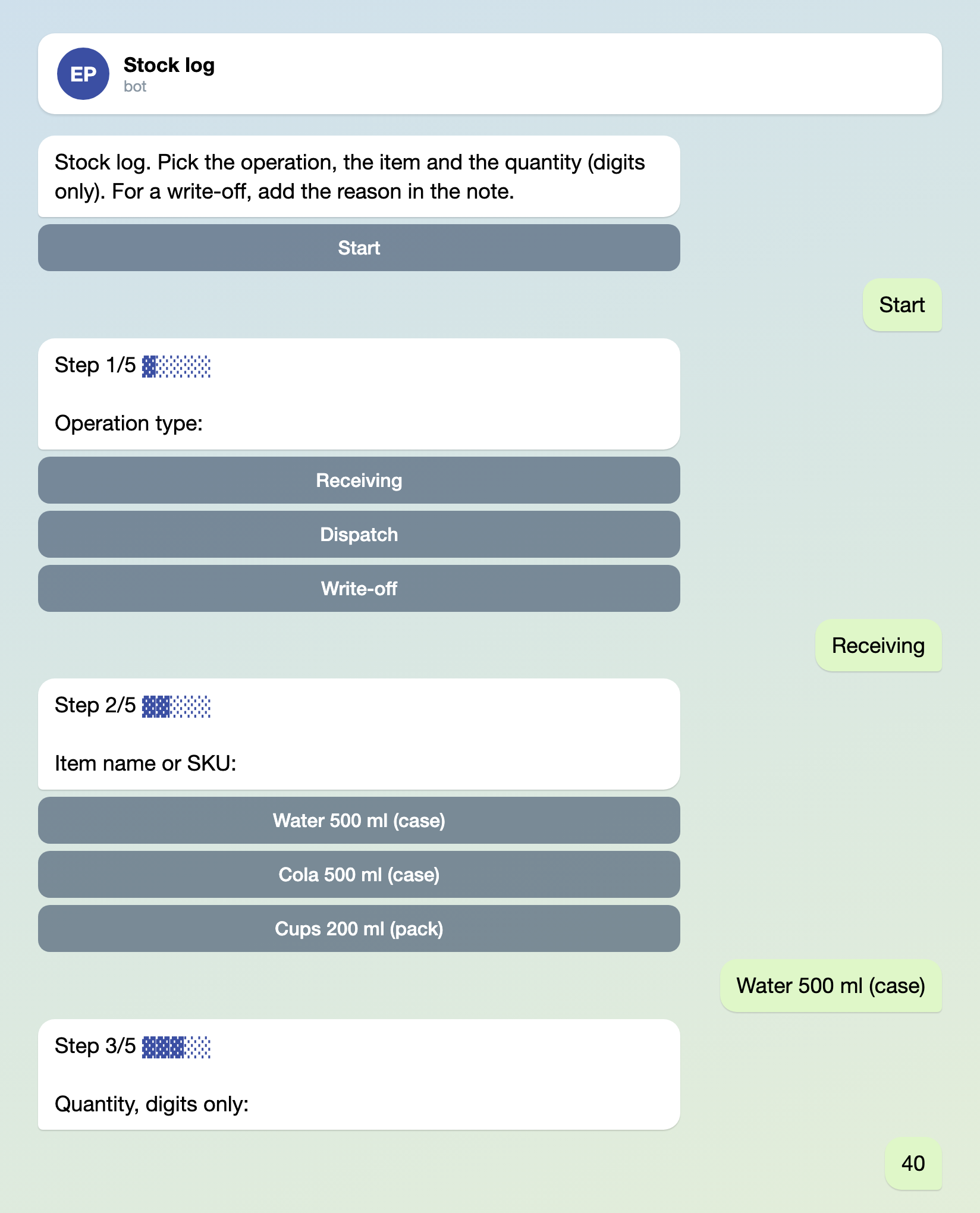
Illustration: the texts are the bot's own, while the questions and buttons are the ones you write; some steps are left out; names and data are made up.
Three texts and two limits to change
In Form Settings, under "Bot Messages", "Welcome Text" is the first message the bot sends; the default is "Welcome! Press the button to submit your entry." Say what the form is for.
Stock log. Pick the operation, the item and the quantity (digits only). For a write-off, add the reason in the note.
"Completion Text" is what the bot sends after the last answer. Its default, "Thank you! Your submission is awaiting review.", is wrong here, because nobody reviews anything. Replace it.
Logged. Tap the button below to add the next movement.
Under the thank-you the bot shows a "Submit another" button. Rename it in the "Add More Button Text" box, for example to "Log another movement". You can rename it but not switch it off, and it lets staff log the next movement without opening the form again.
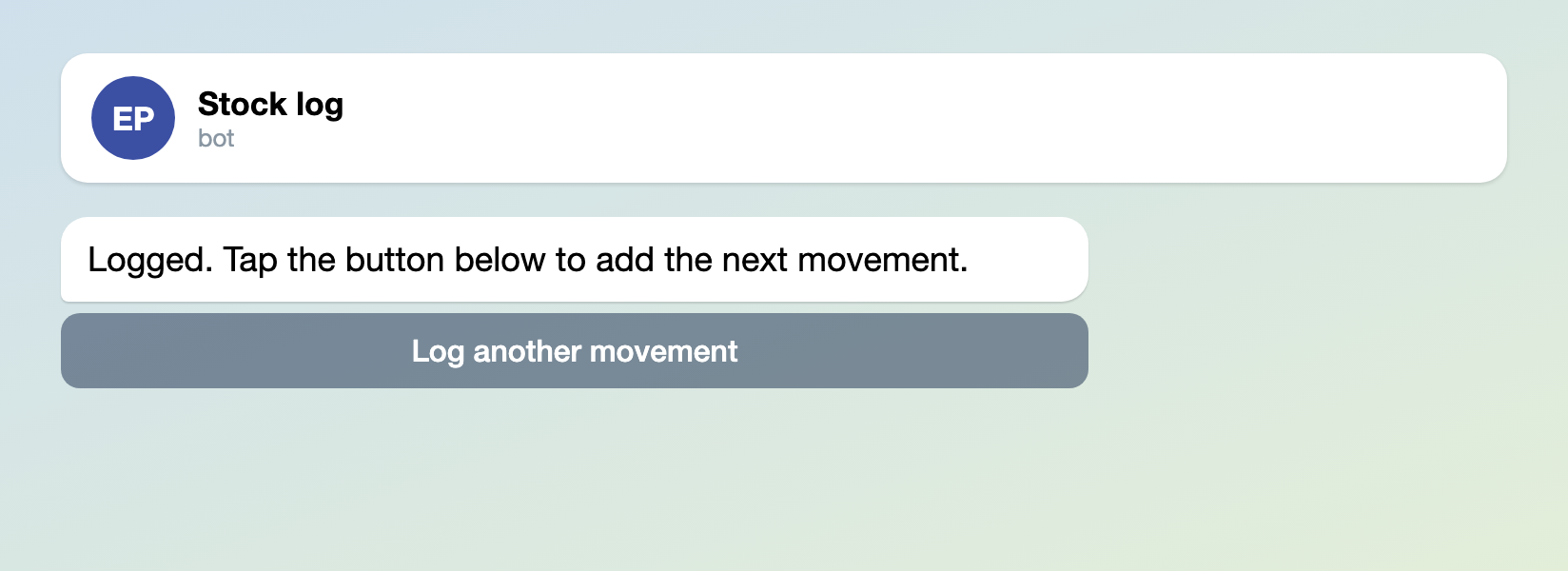
Illustration: the text is the one pasted above; names and data are made up.
Further down the same page, "Submission Limits" come set to 20 records a day and 100 a month per person, counted for each Telegram account and each form. Every movement is one record, so a busy person at the loading dock can reach 20 a day by lunch and 100 a month within a week. Raise "Daily Limit" and "Monthly Limit" to what your busiest person needs, then press Save at the bottom of the page.
What reaches you when someone logs a movement
A worker opens your form link in Telegram, taps Start, picks "Receiving", picks the item, types 40, and adds a photo of the delivery note and a short note. A message arrives in your Telegram. Its heading is "New submission in Inventory Management" (the pipeline's name; change it on the pipeline's Edit page). Below it come the line "Saved in your dashboard", the answers, "From: Anna (@anna_wh)" and a link to the records. There are no buttons, because nothing waits for your decision. Everyone you invite under "Members" (a button on your project page; you invite by email, and the person needs an Easy Post account) gets the same message once they have linked their Telegram. Invite your warehouse manager there, but not the staff: members can also change the form and its actions. The dashboard shows each answer under the question's internal name, such as quantity, and your Field name appears only in the message.

Illustration: the texts are the bot's own, and the field names are the ones you set; names and data are made up.
On a busy day that is one message per movement, so mute the bot's chat in Telegram and read the day in the dashboard or in the sheet. The dashboard lists the records newest first, 20 to a page, with tabs by status. It has no search by item and no export.
Turn the records into an inventory tracking sheet
Easy Post can send each record, as a package of data (the format is called JSON), to a web address you choose; that is a webhook. A tool such as Make or Zapier can receive it and add a row to a Google Sheet. Webhooks are not included in every plan, so check the pricing section on the home page first. Without one you can still use the sheet below: type each record into the Log tab yourself, from the dashboard. Prepare the receiving end first, because Easy Post asks you for its address:
- Create a Google Sheet with a tab called Log and this header row: Time, Operation, Item, Quantity, Sent by. If you kept the location, notes or photos, add Location, Note and Photo link as columns F, G and H, after Sent by, so the formulas below keep working.
- In Make, start a scenario with the "Custom webhook" module; in Zapier, start a Zap with "Webhooks by Zapier" and the "Catch Hook" event. Either one shows you a web address. Finish the automation with a step that adds a row to your Google Sheet. This part happens in that tool, not in Easy Post, and its screens may change. If it is new to you, set it up with a freelancer, or skip it and type the records into Log yourself.
- On the pipeline page open "Actions". In the Add Action form choose Webhook, give it a name and paste the web address from the tool.
- Tick Auto-approve, which tells Easy Post that nobody has to accept each record. It is off by default, and without it every message gets Approve and Reject buttons and the webhook runs only after you press Approve. With it on, your message is headed "Auto-approved submission in…" and no longer says "Saved in your dashboard"; there are still no buttons.
- Press Add and send a test record. From now on every record goes to that address. In the tool, match its parts to your columns: submitted_at to Time (it is the moment the person started the form, in UTC), data.operation to Operation, data.item to Item, data.quantity to Quantity and bot_user.name to Sent by. Location is data.storage_location, Note is data.notes, and the photo links are in images. Photo links open without signing in, so pass them only to a tool you trust.
Add a second tab called Stock, one row per item. It uses SUMIFS, a spreadsheet formula that adds up the numbers that meet your conditions, here the item and then the operation. Column A holds the item name exactly as staff send it, and column B the count on the day you start.
| Column | Header | Formula in row 2 |
|---|---|---|
| A | Item | the item name, typed once |
| B | Opening | the count on the day you start |
| C | Received | =SUMIFS(Log!D:D, Log!C:C, A2, Log!B:B, "Receiving") |
| D | Dispatched | =SUMIFS(Log!D:D, Log!C:C, A2, Log!B:B, "Dispatch") |
| E | Written off | =SUMIFS(Log!D:D, Log!C:C, A2, Log!B:B, "Write-off") |
| F | Balance | =B2+C2-D2-E2 |
Copy row 2 down. The words in quotes must match your Operation buttons letter for letter, and the names in column A must match the item buttons or codes. If your sheet wants semicolons instead of commas inside a formula, swap them. The balance adds all places together. For one place only, keep Location in column F and add Log!F:F, "Shelf A" inside each of the three SUMIFS. SUMIFS skips text, so if a balance looks too small, look for Quantity cells that hold text, such as "40 boxes" or "1 000", or a number your tool wrote as text (it sits on the left of the cell).
Where it gets stuck
- Anyone who gets the form link can add a movement. Keep it in the staff chat and off public pages. Your message shows the sender's Telegram name and @username, if there is one, and the webhook adds a number that identifies the sender and never changes.
- A mistake is fixed in two places. In the dashboard, Edit changes typed answers such as the quantity or a note, but not a button, so a wrong Operation means deleting the record and logging it again. Editing or deleting in the dashboard does not reach the sheet, so correct or delete the row there too.
- A half-finished entry gives no message and no webhook. The partial answers sit under a "Pending" tab in the dashboard, which shows only when there is one, so look at it now and then.
Set it up in five steps
- Sign up, pick the Inventory Management template and press "Test the form in Telegram". Leave the channel empty.
- In Form Settings cut the questions as above, write the three bot texts, raise the daily and monthly limits and clean up the Post Template.
- Press "Copy link" in the "Where people send submissions" block on the pipeline page, open the link in Telegram and send yourself one record of each operation. Check the message, the dashboard and the thank-you.
- If your plan has webhooks, build the Log and Stock tabs, add the webhook and send a test record. Without webhooks, type the records into Log yourself.
- Put the same link in the staff chat.
Curious how Telegram bots work? How to create a Telegram bot without code explains it, and you do not need it for this setup. For a webhook that forwards only some records, see the quote request form article.