When providers post "I offer services…" in your business channel or chat, each in their own way, you end up asking the same things every time: what exactly, for whom, how much it costs and how to reach them. A business proposal form asks all of that once. You tap Approve, and the proposal goes out in the channel as a finished post. Here is one that runs in a Telegram bot: seven fields, ready-made texts for the settings and publishing to a channel.
The form does not write a document: there is no printable form to fill in, no signature and no PDF. It collects a short card of seven fields and does not check whether the sender really works at the company they name. If you searched for a business proposal sample to write your own, this is not one. If proposals come to you, here is how to set that up. For client requests that ask you to calculate a price, see the article on the quote request form.
Where to start
You set everything up on the easy-post.app website. Sign up and pick the "Business Services" template: Easy Post creates a "pipeline" at once, that is, your form together with the channel it publishes to and a list of proposals. The pipeline page, Form Settings and the list of proposals (the "dashboard" from here on) open on the site. The cards with the Approve button arrive in your Telegram once you link it (more on that below). If you already have an account, the "+ New pipeline" button creates a new pipeline; the number of pipelines may depend on the plan.
The seven fields of a business proposal form
This is the Business Services template in Easy Post. It was made for a catalog channel, so the fields already look like a listing. Open Form Settings (the Form button on the pipeline page): there you can rename, delete or add fields. Each field has a "Bot prompt" (the question the author sees) and a "Field name" (the label on your card). The no-code form builder guide compares other ways to build such a form. The bot's short built-in replies ("Must be at least 5 characters.", "Please send a photo.") come in the author's Telegram language, while your questions and buttons stay as you wrote them. Keep a field only if you will read the answer.
- Service (required; prompt "Service category:"; buttons "IT", "Marketing", "Legal", "Accounting", "Consulting", "Design", "Other"). Rename the buttons to the sections of your catalog, and proposals will land in the same groups instead of under whatever names authors invent. All the names sit in one box, separated by commas, so a name cannot contain a comma. Keep each name to about 55 characters: Telegram rejects a longer one, and the author will not see the first question. "Accounting and legal services for small and medium-sized companies" is already too long.
- Title (required; prompt "Service title:"; 5 to 100 characters). Under 5 characters, the bot answers "Must be at least 5 characters."; over 100, "Must not exceed 100 characters. You entered 120." (the 120 depends on the author's text). You cannot change the limits in the editor.
- Company (required; prompt "Company name:"). The bot does not check that the sender is really from this company. You do that before you tap Approve.
- Description (required; prompt "Service description:"; 20 to 1,000 characters). Say in the prompt what you expect: what the service includes, who it is for, how long it takes. Otherwise the author will write a one-line slogan.
- Pricing (optional; prompt "Pricing model:"; skip button "Contact for pricing"). If the author taps "Contact for pricing", nothing is saved and the post has no price line: the reader sees neither a price nor the words "Contact for pricing". Whatever the author types is saved as written. If you want a price in every post, open the field and check Required: the skip button is then gone.
- Contact (required; prompt "Contact email or phone:"). Free text with no format check, so a typo in the address goes through. The post shows exactly what the author typed. The author's Telegram name and @username are only on your card, not in the post.
- Website (optional; prompt "Website URL:"; skip button "Skip"). This one is not checked either: any text goes through.
Try the Business Services form →
How a proposal reaches the channel
- Share the form link with providers, for example in the channel's pinned post or in the chat description. The "Copy link" button in the "Still to do" block on the pipeline page copies it. The author taps Start and answers the questions one at a time, with a progress bar.
- The proposal reaches you in Telegram with the buttons "Approve", "Reject", "Edit" and "Delete". The card shows the answers (each cut at 300 characters), the author's Telegram name and the @username, if there is one. Everyone you added under "Members" who has linked Telegram gets the same card and can approve too.
- Check the proposal: open the author's website, or find them by @username and write to them. The "Edit" button opens the editor on the site (you need to be signed in). There you can fix the text fields, for example the contact, but not the category, which the author chose with a button.
- "Approve" publishes the post in the channel. The author gets two messages: "Your post is published! Share it so more people see it." with the buttons "Open post" and "Share", and your approval text. "Reject" sends your rejection text. "Delete" removes the proposal with no reply to the author.
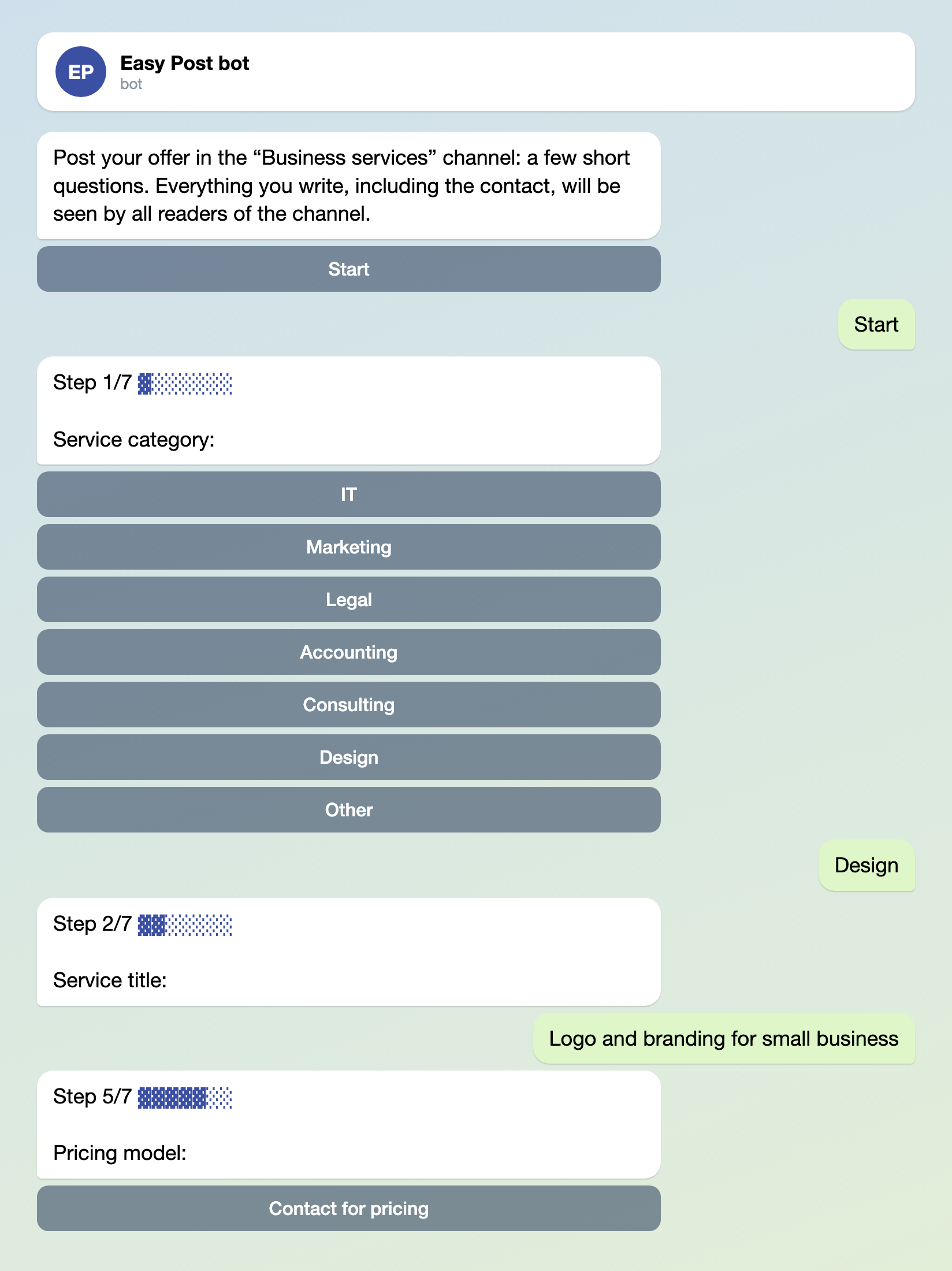
Illustration: the texts are the bot's own, while the welcome message and the channel name are the ones you write; some steps are left out; names and data are made up.

Illustration: the texts are the bot's own; the pipeline name on the card is yours; names and data are made up.
Connect a public channel
For a catalog the channel must be public: only then does the author get the "Open post" and "Share" buttons. Everything the author writes, including the contact, will be seen by all readers, so say so in the Welcome Text (below).
First, press "Test the form in Telegram" on the pipeline page. The button opens the bot: your Telegram gets linked to your account (the cards will arrive there), and the form opens so you can go through it as an author. This is your own test, so take it to the end.
Then press "Choose a channel in Telegram" in the "Still to do" block. The bot opens and sends a "Choose a channel" button: press it and confirm in the Telegram window. The window lists only channels where you are an administrator with the right to post; the bot becomes an administrator itself and connects the channel. A group chat does not work for this. The link behind the button works for 15 minutes; after that, press the button again.
You can also connect the channel by hand: add the bot to the channel as an administrator with the right to post, type the channel @name or a t.me/name link in the "Still to do" block and press "Save". You can check access on the pipeline page, in the "Posting access" row, with the "Check that the bot can post" button.
As soon as you name a channel, Easy Post turns on publishing of approved proposals. Leave "Auto-approve" off. The checkbox is on the Actions page: press Edit on the publishing action. With the box ticked, the post goes out without you, and the card arrives without buttons. Connect the channel before you hand out the link: the "Still to do" block disappears as soon as a real provider fills in the form.
The form link opens the shared Easy Post bot, so authors see a bot named Easy Post, not one named after your channel. You can connect your own bot with "Connect your own bot" in the same block; it is not available on every plan.
How the post looks
By default the post is made of the lines "Title: …", "Company: …", "Description: …", one per field, with "Share" at the bottom, so it reads like a questionnaire. In Form Settings, under the fields, there is "Post Template". Replace it with this listing:
<strong>{title}</strong>
{company} · {service}
{description}
💰 {pricing}
📞 {contact}
🌐 {website}
<a href="{share_link}">📤 Share</a>
The words in curly braces are the internal field names: title ("Title"), company ("Company"), service ("Service"), description ("Description"), pricing ("Pricing"), contact ("Contact"), website ("Website"). You do not need to type them: under "Post Template" the "Insert tokens" row lists these names, and a click inserts one. Leave the <strong> and <a> tags as they are. A line in which the field is empty disappears from the post, so a skipped price or website will not leave an empty "💰". The last line adds "Share" under the post; Easy Post fills it in after publication. If you remove that line, the post will have no "Share" under it.
If you delete a field from the form, delete its line from the Post Template as well. Otherwise the word in curly braces goes into the channel as it is. If the post contains a link (a site, t.me), Telegram may show a preview card under the post for the first link, usually the author's site.

Illustration: a channel post made with this template; names and data are made up.
Build your own services board →
Texts for the settings
Form Settings has five texts, and the author sees each at a different moment:
- "Welcome Text": the first message, before the Start button. The bot may add a line about Easy Post under it.
- "Completion Text": after the last answer. The default "Thank you! Your submission is awaiting review." works here, because the proposal really is waiting for your decision. Change it if you turn on auto-approve.
- "Approved Message" and "Rejected Message": after your buttons. The defaults "Your submission has been approved!" and "Your submission was not approved." tell the author nothing, so replace them.
- "Published Message": is sent on its own once the post is live in a public channel, with the buttons "Open post" and "Share". An empty field means the default text "Your post is published! Share it so more people see it."
You can put Telegram formatting tags in these fields, such as <b>bold</b>. A stray "<" or "&" in the text can break the formatting of the message.
In the "Welcome Text" field:
Post your offer in the “Business services” channel: a few short questions. Everything you write, including the contact, will be seen by all readers of the channel.
In the "Approved Message" field:
Your offer is approved and published in the “Business services” channel.
In the "Rejected Message" field:
Thank you for your offer. We are not publishing it in the channel this time: we are only looking for services for businesses. Questions: t.me/yourcontact
Replace "Business services" and t.me/yourcontact with your own, and promise only what you will do.

Illustration: what the author receives after approval; names and data are made up.
Where a proposal gets stuck
- The bot does not know who it is talking to. An author can name someone else's company and website. Before you tap Approve, open the site or find the author by @username and write to them: the sender's name is on your card, not in the post.
- The same provider can submit a proposal twice, and the form does not flag it. Search the channel for the company name.
- The template allows 3 starts of the form a day and 10 a month per Telegram account, and the day follows server time. Every press of Start counts, even if the author abandoned the form. An agency that submits proposals for several clients from its own account will hit the limit quickly. Raise both numbers under "Submission Limits" in Form Settings.
- An unfinished proposal gives no card: the card appears only after the last answer. The partial answers are in the dashboard under the "Pending" tab (the tab shows only when there is something in it). Proposals waiting for your decision are under the "Waiting" tab.
- The template has no field for a logo. If you add a "Photo" field, the post text with a photo must fit in 1,024 visible characters: the bot deletes a longer proposal, and the author has to fill in the form again.
The dashboard lists proposals newest first, with tabs by status, but it has no search by word or field. To find a company name, use Telegram's search in the channel itself.
Set it up in five steps
- Sign up at easy-post.app and pick the "Business Services" template (if you already have an account, press "+ New pipeline").
- On the pipeline page press "Test the form in Telegram", then "Choose a channel in Telegram", and connect your public channel.
- In Form Settings rename the categories, change the prompts for the description and the pricing, replace the Post Template and paste the three texts.
- Submit a proposal yourself, press Approve, and look at the post in the channel and at the author's messages.
- Copy the link with the "Copy link" button and put it where the providers gather.
New to bots? How to create a Telegram bot without code shows how to make one. The same approval with publishing to a channel works in the vendor registration form.