If candidates write to you in chat ("Is the job still open?", a photo of a CV, a number with no name), every message comes in a different shape, and what you need most, which position it is for, is easy to miss. This form asks the same six questions of everyone.
Here is a job application form that runs in a Telegram bot: six questions for every candidate, two fields for you to add, a confirmation to paste in, and a limit on applications per person that you will want to raise. If you searched for a job application template to print or fill in Word, this is not one. The form collects applications and does not run a hiring process, and it takes no CV files. If your candidates must send files, tell support what you need.
Six fields for a job application form, and two to add
This is the Resume Board template in Easy Post. It is built for people who post their own resumes, and its fields fit a candidate's application just as well. After you pick it, you can rename, delete or add fields in Form Settings (the Form button on the pipeline page); the no-code form builder guide compares the ways to build such a form. Keep a field only if you will read the answer.
- Desired position (required; prompt "What position are you looking for?"). For one vacancy this is the wrong question: you know the position, the candidate has to say which one. Change the prompt to "Which position are you applying for?". If you have a few open roles, change the field's Type to Buttons and list them, separated by commas: every application then arrives labeled. Keep each name under about 50 characters, and under 25 in Cyrillic, because Telegram caps what a button can carry.
- Experience (required; prompt "Years of experience:", buttons: "< 1 year", "1-3 years", "3-5 years", "5+ years"). The ranges overlap at 3 and at 5, so someone with exactly three years can tap either of two buttons. Rename them so each whole number of years fits one button: "Less than 1 year", "1 to 2 years", "3 to 4 years", "5 or more years". A candidate who types "2 years" instead of tapping is told "Please select one of the available options."
- Skills (required; prompt "Key skills:"; up to 500 characters). Ask for what the job needs: "Which tools or equipment have you worked with?" gets a shorter answer than "Key skills".
- About (required; prompt "Tell about yourself:"; 20 to 1,000 characters). This is the field that stops people. Under 20 characters the bot answers "Must be at least 20 characters."; over 1,000 it answers "Must not exceed 1000 characters. You entered N." and the candidate has to send a shorter text. The editor has no box for these limits, and Skills is fixed the same way. What you can change is the prompt and the wording of the refusals under "Button and error texts" on the field. Ask for one honest paragraph: "Why this job, and when could you start?"
- Location (required; prompt "Your city:"). Typed text, so "Kyiv", "Kiev" and "київ" arrive as three cities. If you hire in two or three cities, change the Type to Buttons and list them.
- Contact (required; prompt "Contact info:"). One line with no check, so a mistyped number passes. Change the Type to Phone and the bot asks again unless the answer has at least seven digits and only digits, spaces and + - ( ). Phone refuses an email or a @username, so add an email field if you need one. The editor says a Phone field has a share button; the bot has none, and the candidate types the number.
- Full name (add this one yourself). The card shows the sender's Telegram first name and, if they have one, their @username, and a Telegram name can be "Mike 🚀". Add the field with "+ Add Field", write its Bot prompt, check Required, and press the up arrow next to it to move it to the top, because a new field goes to the end of the form. Then you call a person, not a nickname.
- CV or portfolio link (add this one yourself; leave Required unchecked). The form takes no CV files, so a link to a cloud file or a portfolio is how a CV reaches you. Write in the prompt: "Link to your CV or portfolio (send a link, not a file; optional):". Under "Button and error texts" on the field, you can change the skip button to "No link".
From application to a phone call
- Put one link under the job posting, or pin it in your hiring chat. After your own test, "Still to do" on the pipeline page shows "Send the form to real people" with a "Copy link" button. The candidate taps Start and answers one question at a time, with a progress bar. Nothing in the form checks who the sender is: anyone who gets the link can apply.
- The application reaches you in Telegram at the same moment. The bot writes to you and to everyone on your project who has linked Telegram: the answers, the candidate's Telegram name (with @username, if they have one) and a "Review submissions" link to the list in the dashboard. There are no buttons, because nothing here waits for your approval.
- Read the full answers in the dashboard. The card cuts every answer at 300 characters, and About can be 1,000. The dashboard shows the whole text.
- Call or write. Tap the @username on the card, or use the contact the candidate typed. The bot chat is one-way, so you cannot answer a candidate through it.
- The candidate sees your confirmation right after sending (text below).
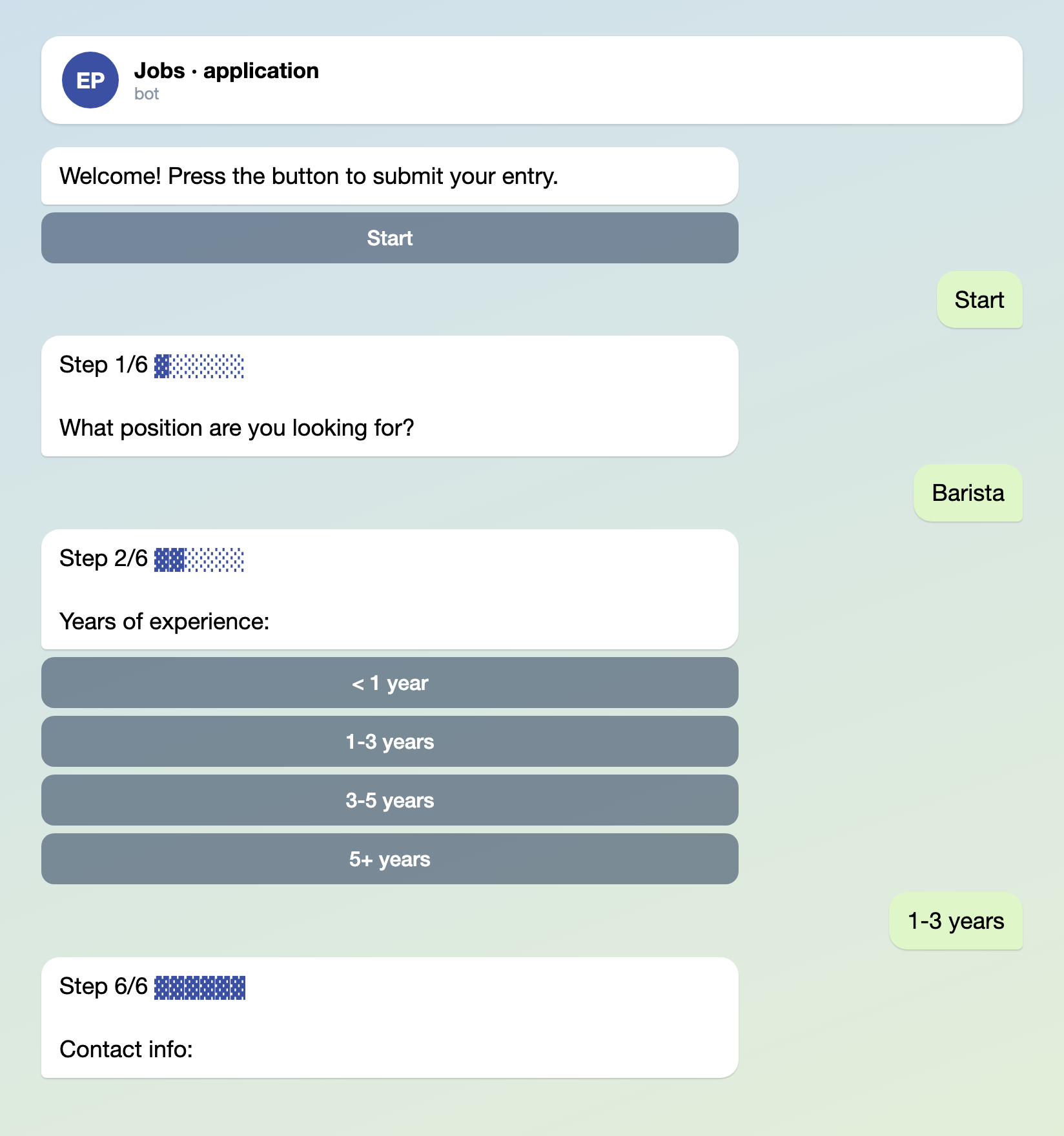
Illustration: the texts are the bot's own, with steps 3 to 5 left out; names and data are made up.

Illustration: the texts are the bot's own, and "Full name" and "CV link" are the fields you add yourself; names and data are made up.
Nothing waits for you here because no destination is switched on: in onboarding you only pick the template, and the pipeline is built at once without a channel. On the pipeline page press "Test the form in Telegram": it links your Telegram, so the cards can reach you. Leave the channel under "Still to do" empty. Candidates talk to the shared Easy Post bot unless you connect your own, and the card heading carries the pipeline's name, which starts as "Resume Board": rename it on the pipeline's Edit page. This is the same setup as the bug report form.
Two texts to paste into the settings
Two boxes in Form Settings decide what a candidate reads first and last. "Welcome Text" is the first message; the default is "Welcome! Press the button to submit your entry." Say there what job this is and how long the form takes. "Completion Text" is what the bot sends after the last answer; the default is "Thank you! Your submission is awaiting review." Nobody reviews anything in this setup, and a candidate who waits for a review waits for nothing, so replace it. Telegram HTML tags such as <b> work in both.
Thanks, your application is in. We read every one and call the candidates we shortlist within 5 working days. If you have not heard from us by then, we are not moving forward with this application. Questions: t.me/yourhr
Replace t.me/yourhr with your own contact, and write only what you will do. Say when candidates will hear from you and what silence means. Under the confirmation the bot shows a "Submit another" button, which starts a new application and counts toward the limit below; the "Add More Button Text" box lets you rename it, for example to "Apply for another role".

Illustration: the text is the one pasted above; names and data are made up.
Where applications live
Every application is kept in the dashboard, in the form's list of submissions, whether or not anyone has read the Telegram message. The list is newest first, 20 to a page, with tabs by status. There is no search and no filter by field, so "everyone who knows espresso machines" is a question the dashboard cannot answer. If you hire often, send the applications to a spreadsheet with a webhook, where you can filter:
- On the pipeline page open Actions.
- In the Add Action form choose Webhook, name the action and enter the URL.
- Check Auto-approve. It is off by default, and without it every card gets Approve and Reject buttons and the webhook runs only after you press Approve.
- Press Add. Easy Post then sends each application as JSON to that URL: the answers and the candidate's Telegram name, username and chat ID. With this action on, your card is headed "Auto-approved submission in…" and no longer says "Saved in your dashboard".
You write the receiving end, or point it at an automation tool that accepts webhooks and adds a row to a spreadsheet. Webhooks are not included in every plan, so check the pricing section on the home page first.
To have several people read the cards, add them to your project. Each needs an Easy Post account first: on the project page press Members, enter their email and press Invite. Each also has to link their own Telegram, with the "Link Telegram" button under "Still to do" while signed in as them, or in their profile; otherwise no cards reach them. Members can also change the form, so add only people you trust with it.
Do not publish applications into a public channel. A channel post carries whatever the Post Template shows, and the default shows every answer, including the candidate's phone number and city.
Where an application gets stuck
- The limit per candidate. The template allows 2 form starts a day and 3 a month per Telegram account. Every press of Start counts, including an abandoned attempt, your own tests and the "Submit another" button, so a candidate who applies for three roles, or gave up halfway once, is turned away. They are told when they press Start, and you are not. This limit is made for people who post a resume, not for people who apply: raise Daily Limit and Monthly Limit under "Submission Limits" in Form Settings.
- Files. A CV sent as a file is not saved, because the form has no field that takes it. At a required step the bot answers "This field is required."; at the optional link step it moves on without a word, and the candidate believes the CV arrived. That is why the link prompt says "send a link, not a file".
- Typed instead of tapped. At a button question such as Experience, a typed answer is refused with "Please select one of the available options." You can reword that refusal under "Button and error texts" on the field.
- Duplicates. The same candidate can apply twice, and nothing flags it. When you call, check the list.
What the form does not do
- It has no hiring stages: no "shortlisted", no "interview scheduled", no notes. The dashboard lists the applications, and the rest of the process stays with you.
- It does not answer a candidate for you. In this setup there are no Approve and Reject buttons.
If you want a shortlist inside Easy Post, connect a private channel instead of leaving it empty. Add @easy_post_publisher_bot to the channel as an administrator with the right to post messages. A private channel has no @name, so enter its numeric Chat ID under "Still to do": forward any post from the channel to @userinfobot and paste the number it gives you (it starts with -100). An invite link is refused. Then press "Check that the bot can post" in the "Posting access" row of the pipeline page, and put the tokens of "Full name" and "CV link" into the Post Template under "Insert tokens", or the channel post will not show them. The card now has Approve and Reject buttons. Approve posts the application into your channel, which becomes the shortlist you can search, and sends the candidate your approval text; Reject sends your decline. Rewrite "Approved Message" and "Rejected Message" first: the defaults say "approved", and a candidate reads that as an offer. Every candidate then waits for your tap, so use this only if you will answer everyone. The vendor registration form uses the same approve-as-the-answer logic.
If your task is to collect client enquiries rather than candidates, see the client intake form for agencies.
Set it up in five steps
- In onboarding, or "+ New pipeline" if you already have an account, pick the Resume Board template.
- On the pipeline page press "Test the form in Telegram". This links your Telegram, so the cards can reach you. Leave the channel under "Still to do" empty.
- In Form Settings change the position question and the experience buttons, rewrite the About prompt and its error text, and decide whether Contact becomes Phone.
- Still in Form Settings add "Full name" (required, moved to the top) and "CV or portfolio link" with "+ Add Field", write your Welcome Text and Completion Text, and raise the limits under "Submission Limits".
- Submit an application yourself and check the card, the dashboard and the confirmation. Your test counts toward the limit, so raise it first. Then press "Copy link" under "Send the form to real people" and put the link under your job posting.
New to bots? How to create a Telegram bot without code shows how to make one.