Your beta testers are already in a Telegram chat, so that is where the bug reports land: "it crashed", a screenshot between two memes, no phone model, no steps. You ask three questions, and by then the tester has moved on.
This page sets up a bug report form that runs in a Telegram bot. One setting decides whether a long report with a screenshot survives, so do not skip it. Two limits first. The form is not a bug tracker, and it takes screenshots as photos only, not videos or log files. If you need files, write to support, or ask testers to paste a link in the description.
Six fields for a bug report form, and one to add
This is the Bug Report / Feature Request template in the Easy Post template list. After you pick it, you can rename, delete or add fields in Form Settings (the Form button on the pipeline page); the no-code form builder guide shows the editor. Keep a field only if you will read the answer.
- Type (required; prompt "Report type:", buttons: Bug, Feature Request, Question). Keep it if ideas and questions arrive too. If you only want bugs, delete the field.
- Priority (required; prompt "Priority:", buttons: Critical, High, Normal). A tester's "Critical" is a feeling, not a measurement. Either rename the buttons to something you can check, such as "Can't continue", "Annoying", "Minor", or delete the field and set the priority yourself.
- Title (required; prompt "Short title:", 5 to 100 characters).
- Description (required; 10 to 2,000 characters; prompt "Describe the issue or idea (steps to reproduce for bugs):"). Change the prompt to "What did you do, what did you expect, what happened?" Three questions in one prompt give you steps without a long form. Long answers need the setting in the next section.
- Screenshot (optional; up to 5 photos; the skip button says "No screenshot"). Testers must send screenshots as photos, not as files. A file sent first gets "Please send a photo." A file sent after a photo is lost, because the bot reads it as the end of the screenshot step.
- Platform (optional; buttons: iOS, Android, Web, Desktop; skip says "Skip"). Rename the buttons to the platforms you really support.
- App version (add this one yourself; a required text field). The template does not ask for it, and without it you cannot tell whether a bug is already fixed. Add it with "+ Add Field" in Form Settings.
The one setting that keeps long reports
When a report has a screenshot, the post built from the Post Template must fit 1,024 visible characters. The default Post Template carries every text answer, and Description allows 2,000, so a detailed report with a screenshot, exactly the kind you want, can break the limit. The report is then deleted. The tester is told to shorten it and start again, everything they typed is gone, and you are not told.
The fix is one setting. In Form Settings find the "Post Template" box and replace its text with <strong>{title}</strong>. You do not publish to a channel, so nothing is lost: the dashboard still shows every answer in full, and the card shows the beginning of each.
From report to fix
- Share one link: pinned in the beta chat, in the app's feedback menu, in the release notes. After your own test, "Still to do" on the pipeline page shows "Send the form to real people" with a "Copy link" button. The tester taps Start and answers one question at a time, with a progress bar.
- The tester sees a confirmation right after sending (text below).
- At the same moment the report reaches you in Telegram. The bot writes to you and to everyone on your project who has linked Telegram: the answers, the tester's Telegram name (with @username, if they have one) and a "Review submissions" link to the list in the dashboard. There are no buttons, because there is nothing to approve.
- Open the report in the dashboard. The card cuts every answer at 300 characters and has no screenshot. The full text and the screenshots are in the dashboard.
- If you need to ask something, use the @username on the card if there is one, and otherwise ask in the beta chat. The bot chat is one-way.
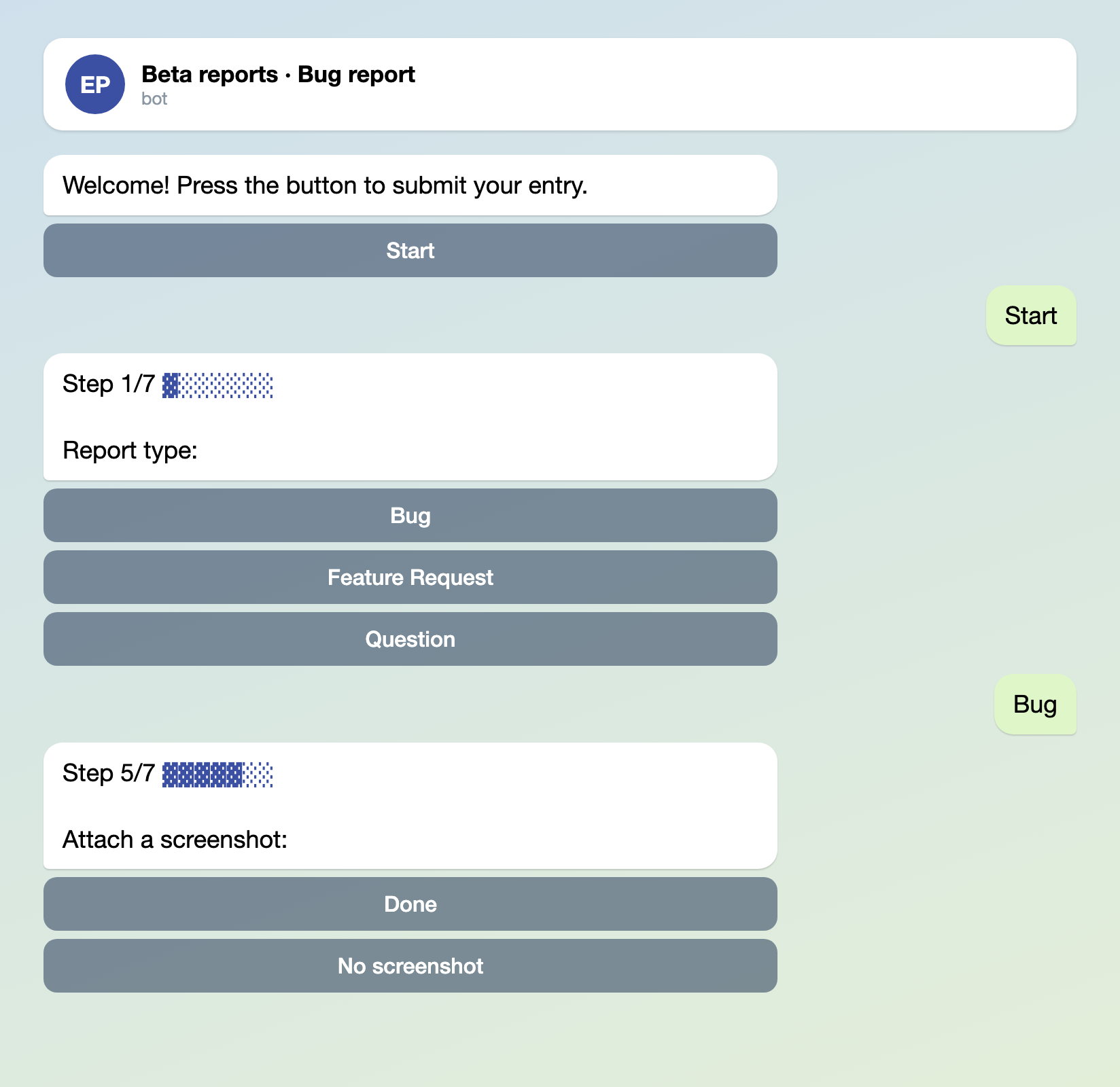
Illustration: the texts are the bot's own; names and data are made up.
Nothing waits for you here because no action is switched on: in onboarding you only pick the template, and the pipeline is built at once without a channel. On the pipeline page press "Test the form in Telegram": it links your Telegram, so the cards can reach you. Leave the channel under "Still to do" empty. This is the same setup as the transport request form.
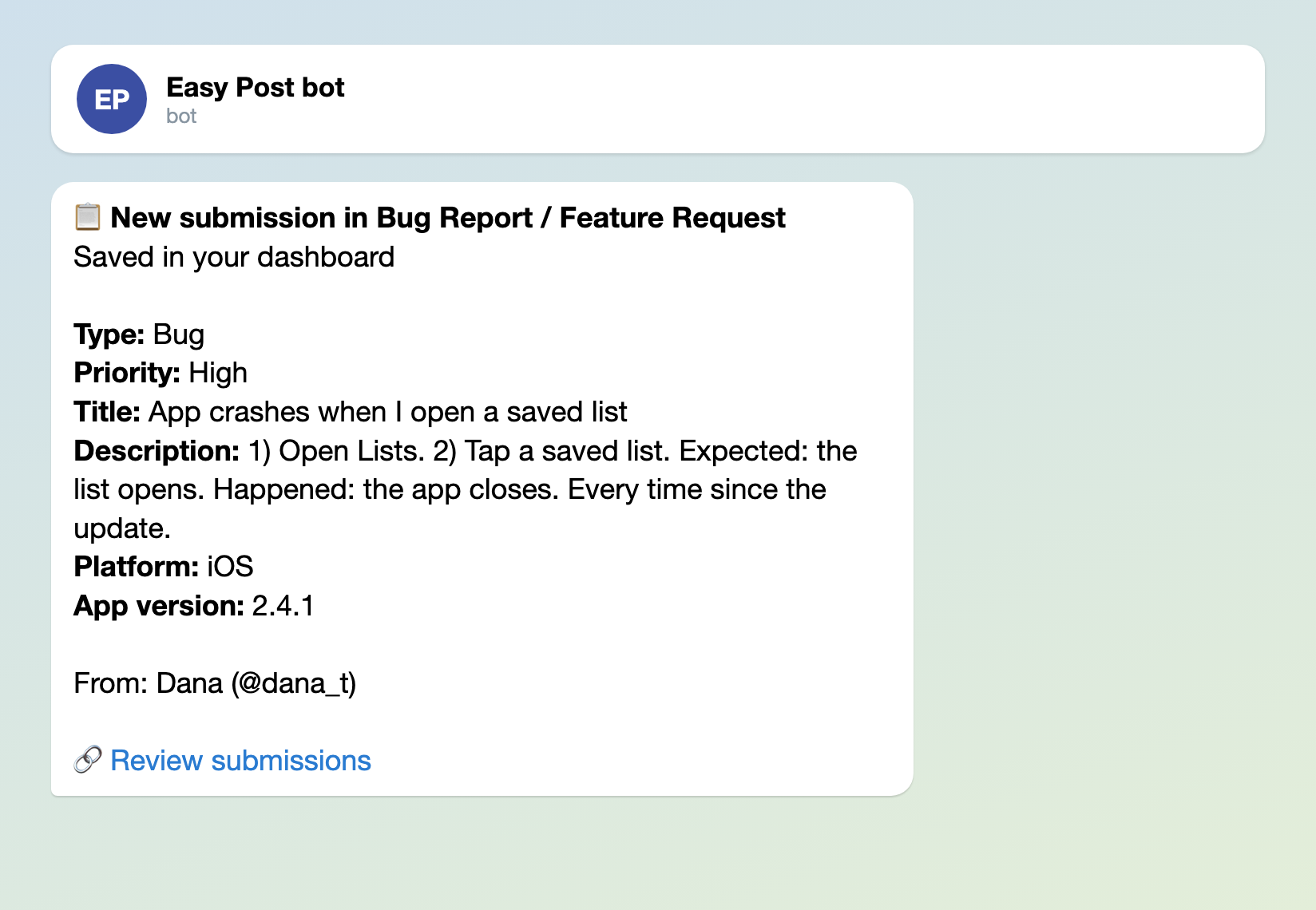
Illustration: the texts are the bot's own; names and data are made up.
One confirmation to paste into the settings
The form settings have a box called "Completion Text": what the bot sends the tester after the last answer. The default is "Thank you! Your submission is awaiting review." Nobody reviews anything in this setup, so replace it. Telegram HTML tags such as <b> work.
Report received. We read every report. If we need more details, we will ask in the beta chat.
Promise only what you will do. If you do not read every report, cut that line.

Illustration: the texts are the bot's own; names and data are made up.
Where reports go
Once the Post Template is shortened, every report is stored in the dashboard, in the form's list of submissions, whether or not anyone has read the Telegram message. To have several developers get the cards, add them to the project. Each developer needs an Easy Post account first. On the project page press Members, enter their email and press Invite. They link Telegram on their profile, or with "Test the form in Telegram" on the pipeline page.
If you want reports in your tracker, add a webhook. On the pipeline page open Actions. In the Add Action form choose Webhook, name the action, enter the URL, tick Auto-approve and press Add. Easy Post then sends each report as JSON to that URL: the answers, links to the screenshots, and the tester's Telegram name, username and chat ID. You write the receiving end, or point it at an automation tool that accepts webhooks. Webhooks are not included in every plan, so check the pricing page first. With this action on, your card is headed "Auto-approved submission in…" and no longer says "Saved in your dashboard".
A public channel is a bad fit for this form. A channel post carries whatever the Post Template shows, and the default template shows every answer, including the emails, tokens and private screenshots that bug reports often hold.
Where a report gets stuck
- Duplicates. Ten testers who hit the same bug send ten reports, and nothing groups them.
- The per-tester limit. The template allows 10 reports a day and 50 a month per tester. A tester who reaches a limit is turned away with a message, and you are not told. Raise Daily Limit and Monthly Limit under "Submission Limits" in Form Settings.
What the form does not do
- It is not a bug tracker: no bug statuses such as open or fixed, no assignees, no "fixed" message back to the tester. It does not create tickets in Jira or GitHub by itself either: a webhook sends the report to a URL, and the rest is yours.
- There are no Approve and Reject buttons in this setup. If you want a button that answers the sender, see the event registration form.
If your team already works in a tracker, use this form as the front desk for testers who will never open it.
Set it up in five steps
- In onboarding, or "+ New pipeline" if you already have an account, pick the Bug Report / Feature Request template.
- On the pipeline page press "Test the form in Telegram" and leave the channel under "Still to do" empty.
- In Form Settings change the Description prompt, add App version with "+ Add Field", replace the Post Template with the title only, raise the limits if you need to, and paste the confirmation into "Completion Text".
- Add your developers: each needs an Easy Post account. On the project page press Members, enter their email and press Invite.
- Send a report yourself, with a long description and a screenshot. Check the card, the dashboard and the confirmation. Then press "Copy link" under "Send the form to real people" and share it.
New to bots? How to create a Telegram bot without code shows how to make one.