
A designer offers her services in the comments of your hiring thread. Above her, "need a dev ASAP" has no budget, no deadline and no way to reach its author. The same logo job arrives three times, and one offer asks applicants for a "training fee". You sort it all by hand.
This article is for whoever runs a Telegram channel or community for freelancers (designers, translators, developers, video editors) and wants a freelance job board in it. Looking for a job, or for a freelancer to hire? This is not the place. Easy Post is a website where you build a form (see the no-code form builder guide). The people who post, called posters here, fill it in inside Telegram, in the shared Easy Post Bot, so you need no bot of your own. Each post reaches you as a Telegram message, the "card", with Approve, Reject, Edit and Delete buttons; Approve puts it in your channel. Easy Post calls a poster's entry a "submission" and the ready-made Freelance Marketplace form a "template".
Easy Post is not Upwork or Fiverr: it takes no payments, holds no money in escrow, writes no contracts, keeps no ratings and does not search or match people. Subscribers find posts with Telegram's own search inside the channel. It does not check who posts or what skills they claim. You cannot edit a posted job or mark it "filled" from Easy Post, and a post has no expiry: it stays until you delete it in Telegram. Nothing warns you when the same post comes twice, and every poster, agencies included, has the same limit on posts. You cannot block a poster either.
A "filled" mark on a post, a warning about a repeat of the same post and a separate limit for agencies are not in the form today. They can be built as an add-on or as custom work on top of it: describe your case on the Easy Post support page.
Where to start
Any button in this article signs you up through Google and opens the first screen ("What do you want to receive?") with a large "Start with the 'Freelance Marketplace' form" button. Signed up another way? None of the choices on that screen builds this form: press "pick from all ready-made forms" and choose it under Business. Easy Post then builds a "pipeline", your form with its settings and posts.
If your Telegram is not linked, "Last step: connect Telegram" comes next: scan the QR code (on a phone, press "Connect Telegram") and press Start in Telegram. "Go to the dashboard" opens the pipeline page.
The page on the Telegram channel bot for listings and jobs shows the whole setup. Next, in order: questions, the post, texts, channel, checks, limits, a test.
A freelance job board in Telegram: the questions to ask
Press Form on the pipeline page. In Form Settings each question has a "Bot prompt" box, the text the poster reads; button names go in a box under it, separated by commas. The form asks eight questions: Type, Category, Title, Description, Budget, Timeline, Contact and, optionally, up to five Portfolio photos. Change these four (paste the texts without the quotation marks) and keep the rest:
Question | Set it to |
|---|---|
Type | Prompt: "Are you hiring, or offering your own work?" Buttons: Hiring, Available |
Description | Prompt: "Describe the work in up to 600 characters (about 100 words):" |
Budget | Prompt: "Budget or hourly rate, with the currency, for example 300 USD fixed:" |
Contact | Prompt: "How to reach you, for example your Telegram @username. Everyone will see it:" |
Budget and Timeline are optional, with skip buttons "Negotiable" and "Flexible". A skip stores nothing, so a poster who taps "Negotiable" gets a post with no Budget line (typing the word skips too). To show a budget in every post, tick Required on Budget: the button disappears, and a typed Negotiable is published as written.
Keep Contact on the Text answer type, where anything is accepted, links included. The Phone type would refuse an @username and an email, and would show a "Send my number" button that fills in the poster's own Telegram number for the public post. Press Save at the bottom of the page now: if a later save fails, you lose unsaved question edits.
How a job looks in the channel
By default the post has a labelled line per question ("Type: Hiring") and a Share line, a forwarding link added in a public channel; portfolio photos go above the text (several as an album). The Post Template box under the questions builds it. Keep its last line, the one that reads 📤 Share, and replace everything above it with:
<b>{title}</b>
#{type} #{category}
Budget: {budget}
Timeline: {timeline}
{description}
Contact: {contact}
Each word in braces, a token, becomes the poster's answer, and the b tags make the headline bold: paste the block as it is. Tapping a hashtag shows a subscriber the channel's other posts with it; a hashtag ends at the first space, so keep Type and Category names to one word. A skipped question drops its whole line, so keep Budget and Timeline on separate lines.
Under photos Telegram allows 1,024 visible characters. The template's own words (labels, # signs, Share line) take 43 of them. That leaves room for a Description of about 800 characters next to ordinary-length answers, though the form accepts 1,000 and puts no limit on the other answers. Easy Post deletes a post with photos that goes over 1,024 when the poster finishes: the poster is told "too long to publish with photos" and you hear nothing. Asking for 600 characters in the prompt keeps ordinary posts safe; without photos the 1,024 limit does not apply.
After Approve anyone who can open the channel sees all of it, contact and photos included. Easy Post keeps photo copies at addresses that open without signing in; Reject and Delete leave them.
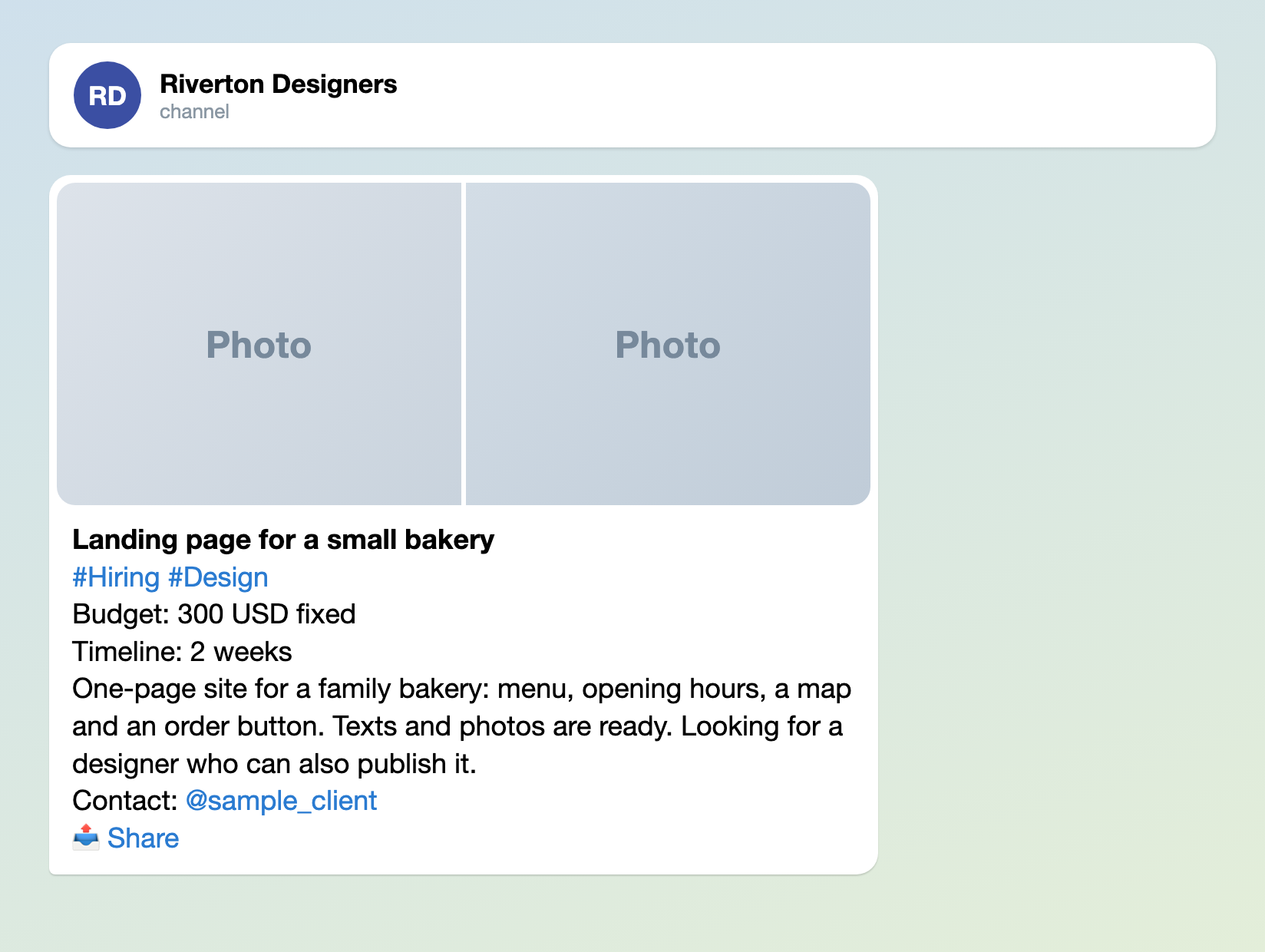
Illustration: the photos are plain tiles; names and data are made up.
The texts posters read
"Welcome Text", under "Bot Messages", is the first message a poster sees. "Approved Message" and "Rejected Message", under "Status Notifications", go to every poster as written; the Approved Message can stay as it is. Swap the sample names for yours.
Welcome Text:
Hiring or offering your work in Riverton Designers? After the admin checks it, your post goes public with the contact you give. We do not post offers that ask applicants to pay, or jobs already in the channel. When a job is filled, write to @sample_admin.
Rejected Message:
We cannot post this: it may repeat a job already in the channel or break its rules. If neither applies, check the type, the budget currency and the contact (an @username or email), then send it again.
Press Save (either of the two Save buttons saves everything).
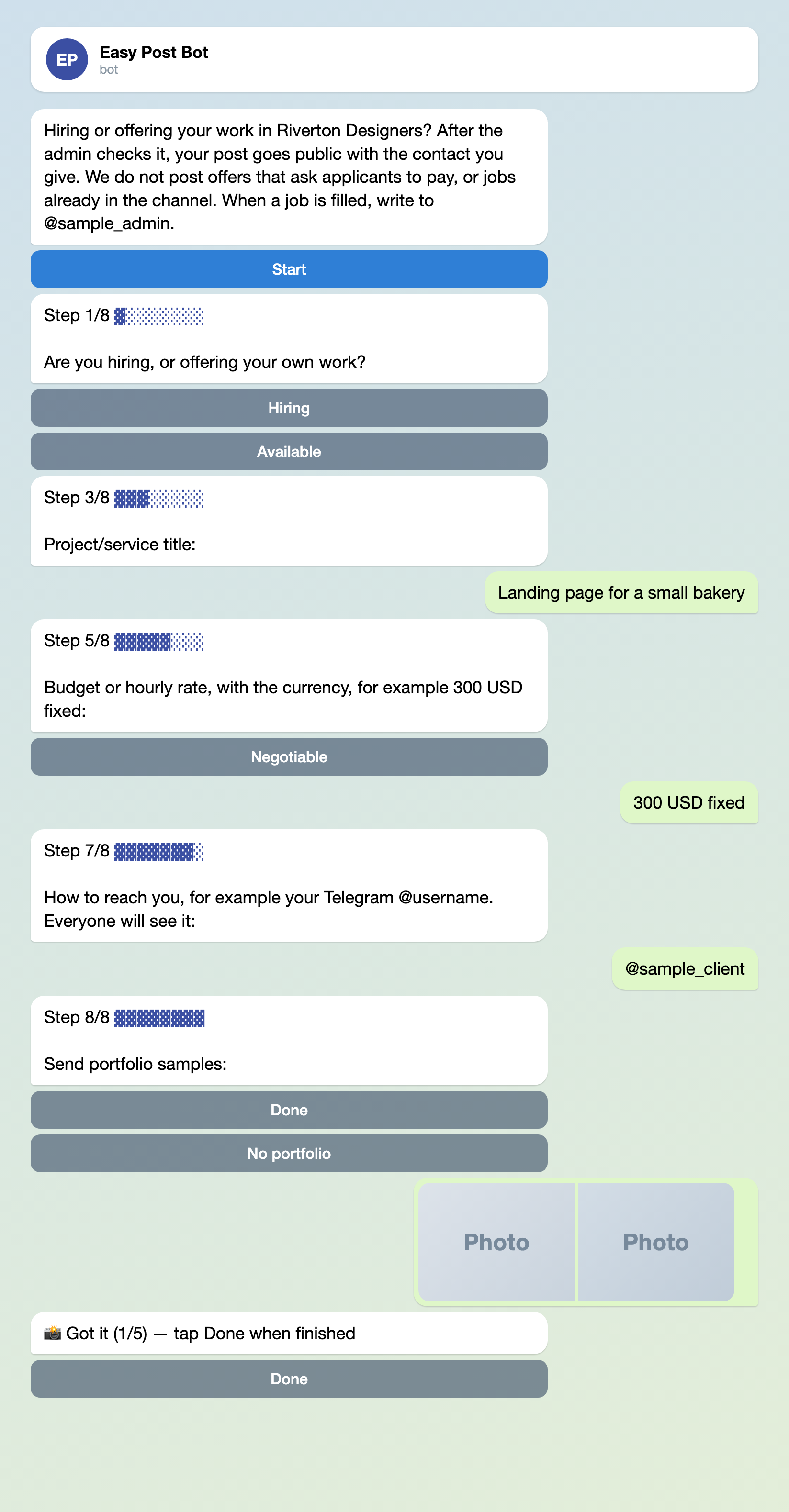
Illustration: some steps are left out; names and data are made up.
Connect your channel: three steps
Approve needs a channel to post to (the classifieds and car ads forms work the same way).
- On the pipeline page press "Choose a channel in Telegram" in the "Still to do" block; the bot sends a "Choose a channel" button. The page button's link works for 15 minutes.
- Press "Choose a channel" in Telegram, pick your channel and confirm. Telegram lists only channels where you are an administrator who can post; the bot becomes an administrator itself, with one right: posting.
- The bot answers "Done". To check, press "Check that the bot can post" in the "Posting access" row of the pipeline page.
Leave "Auto-approve" unticked (the default): ticked, it posts every submission without your review. It sits under Actions on the pipeline page, then Edit on the row "Publish to Channel". Connect the channel before you share the link with posters: a post that arrives earlier has no Approve button.
Optional: to keep the two kinds apart, send Available posts to a second channel. On the Actions page, in the "Add Action" block, enter its @username in "Target Chat ID (optional)" and name the action. Open "Conditions", press "+ Add condition", pick Type, keep equals, type Available exactly as the button is named and press Add. Then press Edit on the row "Publish to Channel", add Type not equals Available and press Save, or Available posts go to both. The bot must be an administrator there too; several actions per pipeline are not in every plan.
Build your freelance job board →
Before you press Approve
The card shows no photos and cuts each answer at 300 characters; its "Review submissions" link opens the Submissions page with full answers and thumbnails. The form checks none of the following, so you do:
- The work. A description of 20 characters passes, so check that it says what is needed or offered.
- Money. A budget with a currency, or no Budget line (that is how "Negotiable" shows). No request to pay to apply, no "training fee", no payment link.
- Contact. A way to reach the person, not "DM me for details", and no link in it unless your channel allows links. A portfolio link in the description is the poster's own business.
- Repeats. The same job posted twice: search the channel for its title. Different jobs from one poster are not repeats.
Edit opens the submission on the site to fix typed answers, but not the Type, Category or photos: for a wrong type, Reject. Approve posts it. The poster gets your Approved Message even if posting failed; you then get "A submission was not published" with the reason (once a day per pipeline at most), so tell the poster yourself. Reject sends your Rejected Message without a reason. Delete tells the poster nothing and leaves the channel alone.
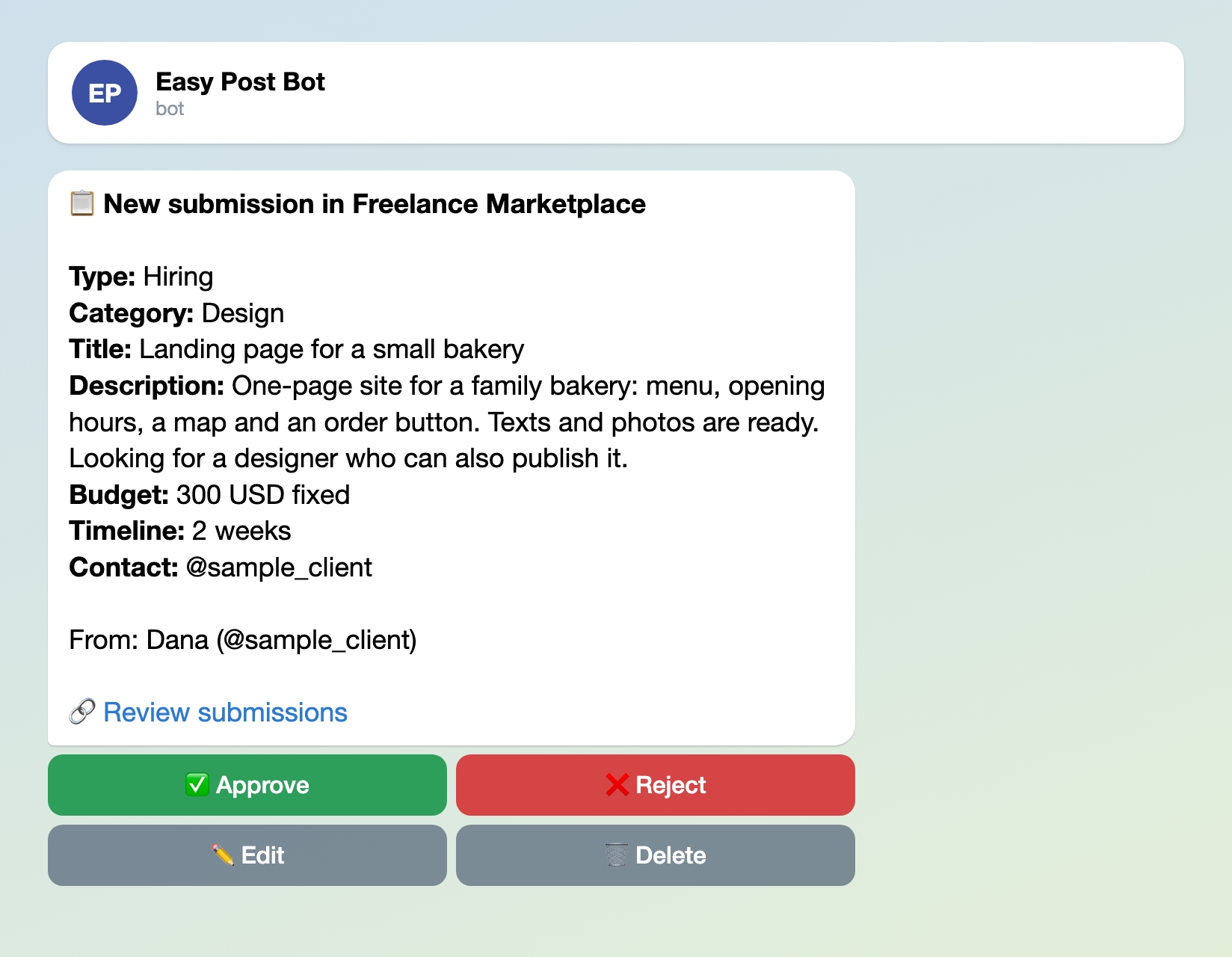
Illustration: the card has no photos; names and data are made up.
Limits and the web page
- The template allows 3 posts a day and 10 a month per poster in Telegram. Past a limit the bot replies "Daily limit of 3 submissions reached. Try again tomorrow!" or "Monthly limit of 10 submissions reached.", and you hear nothing. Unfinished and rejected posts count. An agency with several open roles hits the daily limit first. Set Daily Limit and Monthly Limit under "Submission Limits" in Form Settings (whole numbers, the same for every poster), say 5 and 30, and press Save.
- The "Web form" part of the "Where people send submissions" block (on by default) puts the same questions on a web page. Someone without Telegram can post a job there, but only the bot reports whether it was approved. The page ignores both limits. Switch it off if every poster uses Telegram.
Test it, then share it
Your tests count toward the limits, so set Daily Limit to 10 and press Save. Press "Open bot" on the "Telegram bot" part of the "Where people send submissions" block, send yourself a job with photos and press Approve. The post goes to your real channel and subscribers may be notified, so delete it in Telegram at once and set Daily Limit back. "Copy link" on the same part gives the link for posters: put it in your channel description.
Other forms for similar jobs: classifieds board, job application form and car for sale ad form. All forms are listed by job in the guide to forms in Telegram.
More articles for channel admins, grouped by job, are listed in Telegram channel bots: what to automate.
New to bots? The guide to creating a Telegram bot without code explains the basics; this form needs no bot of your own.