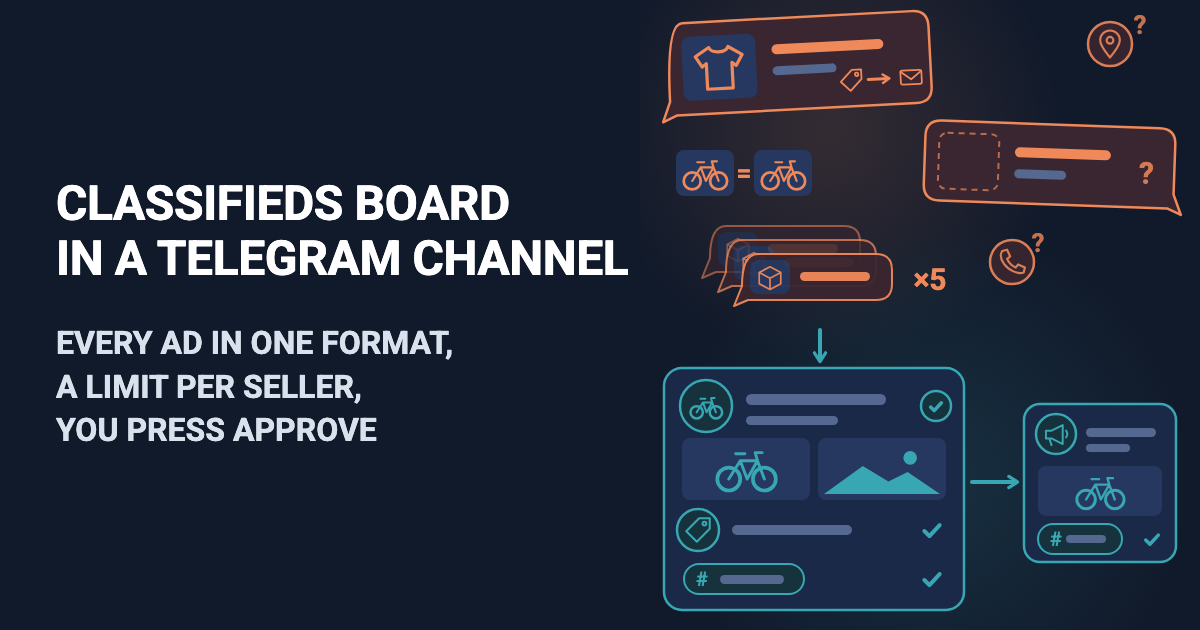
By evening you have a dozen DMs: "Selling a stroller, DM for price", a wardrobe photo with no caption, "Giving away kids' clothes, message me". No town, no contact, and yesterday's kids' bike is back. You chase prices, retype ads into the channel and ask the same person not to send a fifth today.
This article is for whoever runs a classifieds board in Telegram: a buy-and-sell channel for a town, a district, an apartment complex or a university. Looking for a place to post your own ad? This is not it. Easy Post is a website where you build a form; sellers fill it in inside Telegram, in the shared Easy Post Bot, so you need no bot of your own. The article on running a Telegram channel compares a form with DMs. Each ad reaches you as one Telegram message, the "card", with Approve, Reject, Edit and Delete buttons; Approve posts it to your channel. Easy Post calls a seller's entry a "submission" and the ready-made General Classifieds form a "template".
Easy Post is not a classifieds site like OLX or Craigslist: no buyer accounts, payments, delivery or filters; ads stay channel posts, found with Telegram search. It does not check sellers or items. You cannot edit a posted ad or mark it "sold" from Easy Post, and a post has no expiry: it stays until you delete it in Telegram. Nothing flags a repeated item, and every seller, shops included, has the same ad limit.
A "sold" mark or automatic removal of old ads, a repeat warning for the same item and a separate limit for shops are not in the form today. They can be built as an add-on or as custom work on top of it: describe your case on the Easy Post support page.
Where to start
Any button in this article signs you up through Google and opens the first screen ("What do you want to receive?") with a large "Start with the 'General Classifieds' form" button. Signed up another way? Press Listings in that screen's "Collect listings and news" block: same form. Easy Post then builds a "pipeline": your form with its settings and ads. Use a computer if you can.
If your Telegram is not linked, "Last step: connect Telegram" comes next: on a computer, scan the QR code or press "Open Telegram on this computer"; on a phone, press "Connect Telegram"; then press Start in Telegram. Easy Post Bot links your account and opens the form; leave it for the test at the end. Back on the site, "Go to the dashboard" opens the pipeline page.
The page on the Telegram channel bot for listings shows the whole setup. Next, in order: questions and Save, the post, texts, limits, the channel, checks, an example board with automation, the web page and Members, a test.
Build your classifieds board →
Telegram classifieds board: the questions to ask
Press Form on the pipeline page. In Form Settings each question has a "Bot prompt" box, the text the seller reads; button names go in the box under it, separated by commas. Paste the table texts without the outer quotes:
Question | Bot prompt or buttons |
|---|---|
Title | Keep as it is ("What are you selling?") |
Description | "Describe the condition, the size and what is included:" |
Category | Replace the old names with yours, for example: Kids, Clothing, Electronics, Home, Auto, Free, Other |
City | "City and area:" |
Contact | "Your Telegram @username or phone number. It goes into the public ad, so no links:" |
Photos | "Send up to 10 photos of this item, not pictures from the internet:" |
The template asks for the price inside the description, where "DM for price" is easy to write, so add a separate Price question. Press "+ Add Field", type Price in "Field name, shown only to you" (an empty name blocks Save), leave Text in the Type menu and paste "Price with the currency, for example 60 USD. 'Negotiable' or 'DM for price' will not do:" into "Bot prompt". The new question is optional and goes last: tick Required and move it under Title with the ↑ arrow. Press Save at the bottom of the page now: if a later save fails, unsaved question edits are lost.
No commas in category names, and up to 55 characters each. The post turns the category into a hashtag, which a space, hyphen or slash cuts off, so use one word or an underscore: Free_stuff. Tapping it shows a subscriber the channel's other ads in that category.
Keep the Contact type as Text. If you pick Phone, the bot refuses a @username and shows a "Send my number" button that puts the seller's Telegram phone number into the public post.
How the ad looks in the channel
By default the post has a labelled line per question ("Title: Kids' bike") and a Share line (a forwarding link, added in a public channel). The Post Template box under the questions sets the text: keep its last line, <a href="{share_link}">📤 Share</a>, and replace everything above it with:
<b>{title}</b>
Price: {price}
{description}
City: {city}
Contact: {contact}
#{category}
Each word in braces, a token, becomes the seller's answer, and the b tags make the headline bold: paste the block as it is. {price} is the field name Price in lower case; for another name, click its token under "Insert tokens". Deleted the Share line? Press Insert a "Share" line under the box.
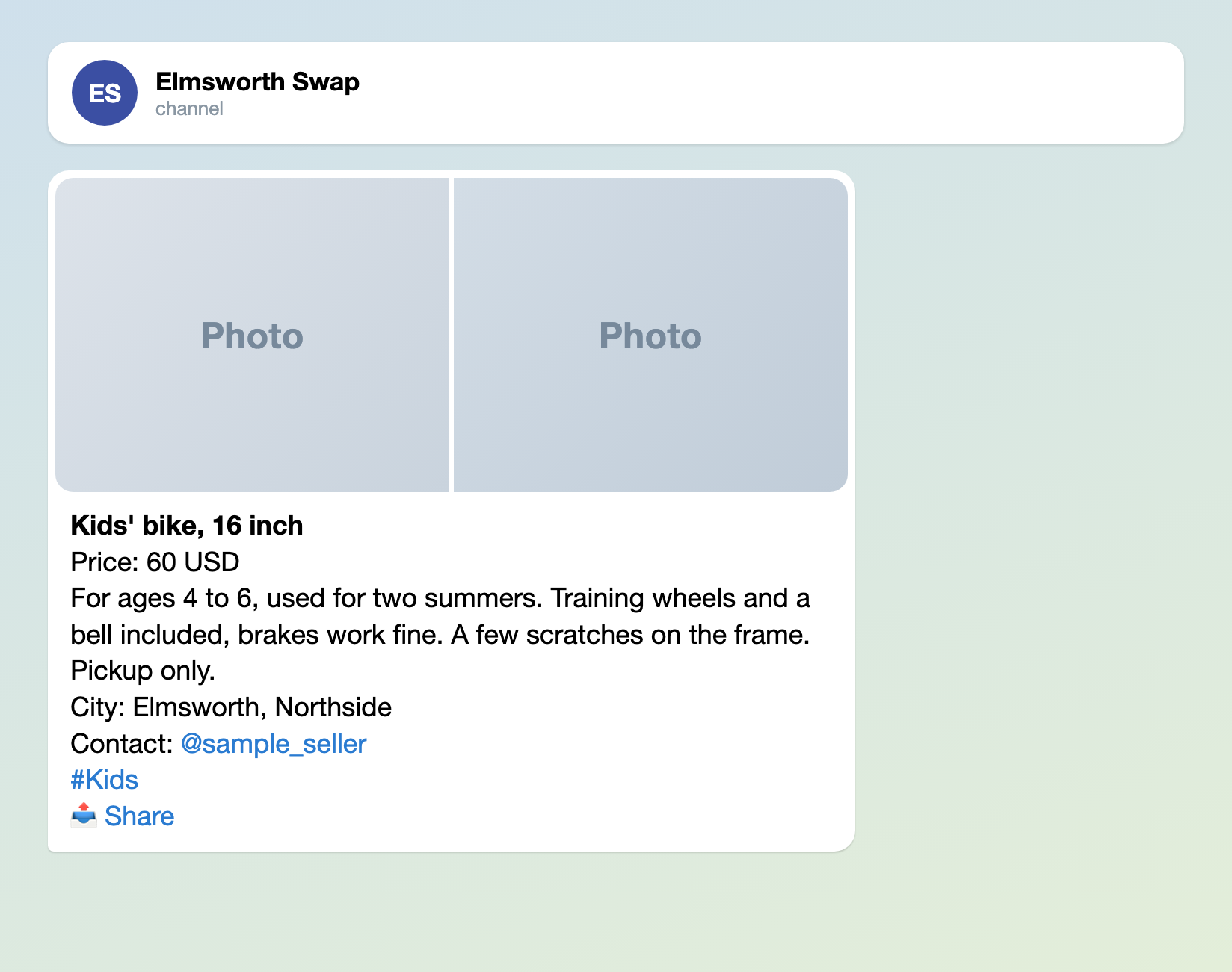
Illustration: the photos are drawn as tiles; names and data are made up.
The texts sellers read
Welcome Text (under "Bot Messages") is the seller's first message. Approved Message and Rejected Message, under "Status Notifications", reach every seller word for word. Replace the made-up channel name and @sample_admin with yours.
Welcome Text:
Selling or giving something away through Elmsworth Swap? Answer a few questions and send photos. Once the admin checks your ad, it goes public with the contact you give. We do not repost items that were already in the channel. When the item is sold, write to @sample_admin and we will take the ad down.
Approved Message:
Thank you! We have sent your ad to the Elmsworth Swap channel. When the item is sold, write to @sample_admin.
Rejected Message:
We cannot post this ad: the item may have appeared in the channel already or break the channel rules. If not, check that the price has a currency, the photos show your item and the contact is only a @username or phone number with no links, then send it again.
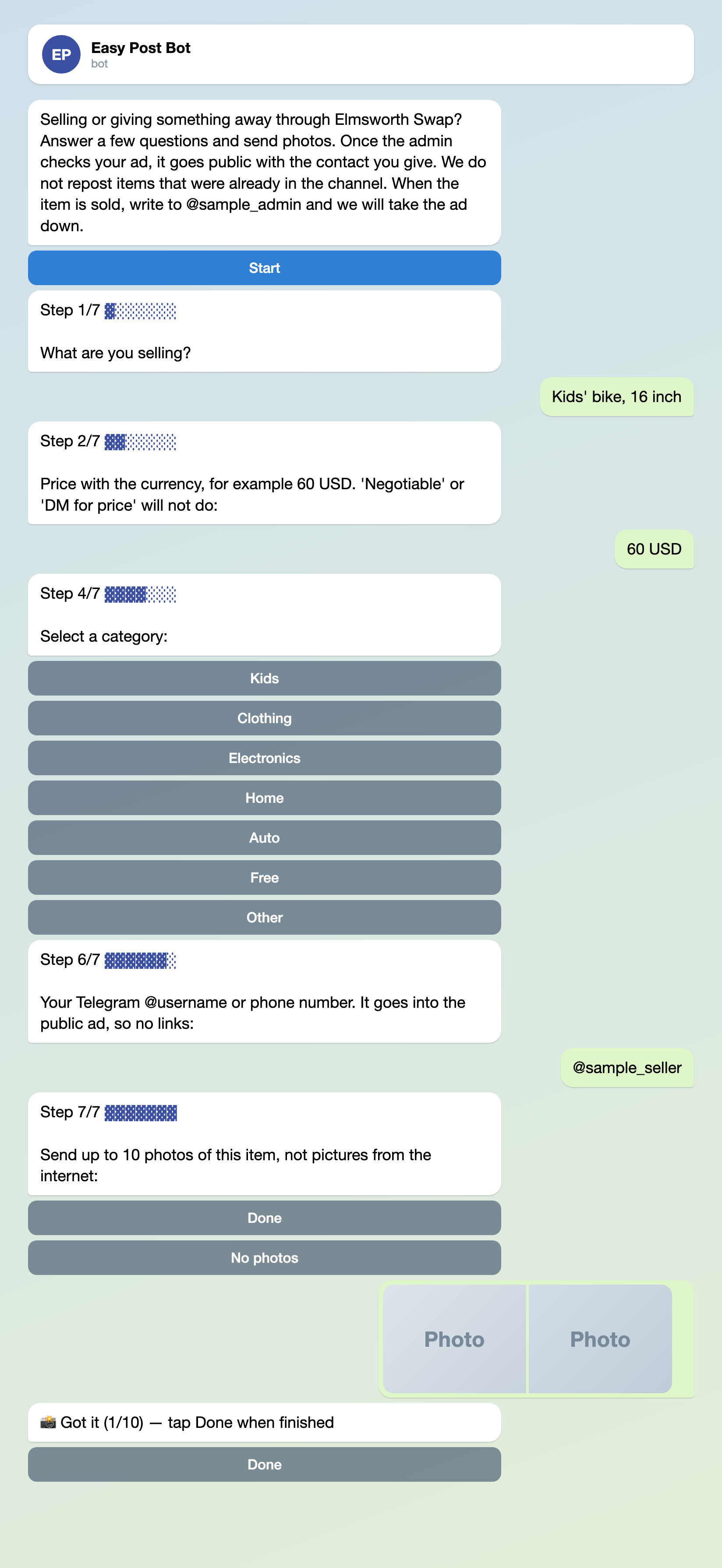
Illustration: some steps are left out; names and data are made up.
A per-seller limit against spam
The template allows 5 ads a day and 3 a month per seller. The monthly limit is the lower one, so the real cap is 3 ads a month: at the fourth the bot replies "Monthly limit of 3 submissions reached." and nobody tells you. Rejected ads, ads removed with Delete and ads abandoned halfway all count. That stops spam, but also a small shop posting stock weekly, or someone clearing out a storeroom with ten things to sell.
Set your own numbers under "Submission Limits" in Form Settings: Daily Limit and Monthly Limit, whole numbers from 1, the same for every seller. For a town board, 2 and 10 work: a seller can post several things over a week, and the bot refuses a third ad in one day. Then press Save (either Save button saves everything).
These limits apply only in the bot. The form's web page (see below) has none, but it caps submissions per minute and per hour and asks for a robot check.
Connect your channel: three steps
Approve needs a channel to post to (the forms for car for sale ads and property for sale ads take the same route).
- On the pipeline page press "Choose a channel in Telegram" in the "Still to do" block; the bot sends a "Choose a channel" button. The page button's link works for 15 minutes; if it expires, press it again.
- Press "Choose a channel" in Telegram, pick your channel and confirm. Telegram lists only channels where you are an administrator who can post; the bot becomes an administrator itself, with one right: posting messages.
- The bot answers "Done" and names the channel. To check, press "Check that the bot can post" in the "Posting access" row of the pipeline page.
Leave "Auto-approve" unticked (the default): ticked, it posts every ad at once, without your review. It is under Actions on the pipeline page, then Edit on the row "Publish to Channel". Connect the channel before you share the seller link: an ad that arrives earlier has no Approve button.
To send one category to a second channel, use the "Add Action" block on the same Actions page: enter the second channel's @username in "Target Chat ID (optional)", type a name in "Action name", open "Conditions", press "+ Add condition", pick Category, keep equals and type Auto exactly as the button is named, then press Add. On the row "Publish to Channel", press Edit, add the condition Category not equals Auto and press Save, or those ads go to both channels. The bot must be an administrator in the second channel too; several actions in one pipeline are not included in every plan.
Before you press Approve
The card shows no photos and cuts each answer at 300 characters. Its "Review submissions" link opens the Submissions page, your list of ads on the site, with full answers and photo thumbnails. The form checks none of the following, so you do:
- Photos. The real item, not a picture from the internet. They are optional here, so an ad may have none.
- Price. An amount with a currency, not "DM for price".
- Links. None in the contact or description, and no request to pay in advance or follow a link "to arrange delivery".
- Repeats. Search the channel for the same item posted earlier; different items from one seller are not repeats.
- Channel rules. Do not let through items your channel bans.
Edit opens the ad on the site to fix typed answers, such as removing a link from the contact, but not the category or photos. Approve posts the ad, and the seller gets your Approved Message even if the post failed; in that case you get "A submission was not published" with the reason (at most once a day per pipeline), so tell the seller yourself. Reject sends your Rejected Message, with no reason. Delete tells the seller nothing and leaves the channel alone. So reject repeats and delete obvious spam.
Easy Post also keeps photo copies on its site, at addresses that open without signing in; Reject and Delete leave them. To take an ad down at a seller's request, delete the post in Telegram.
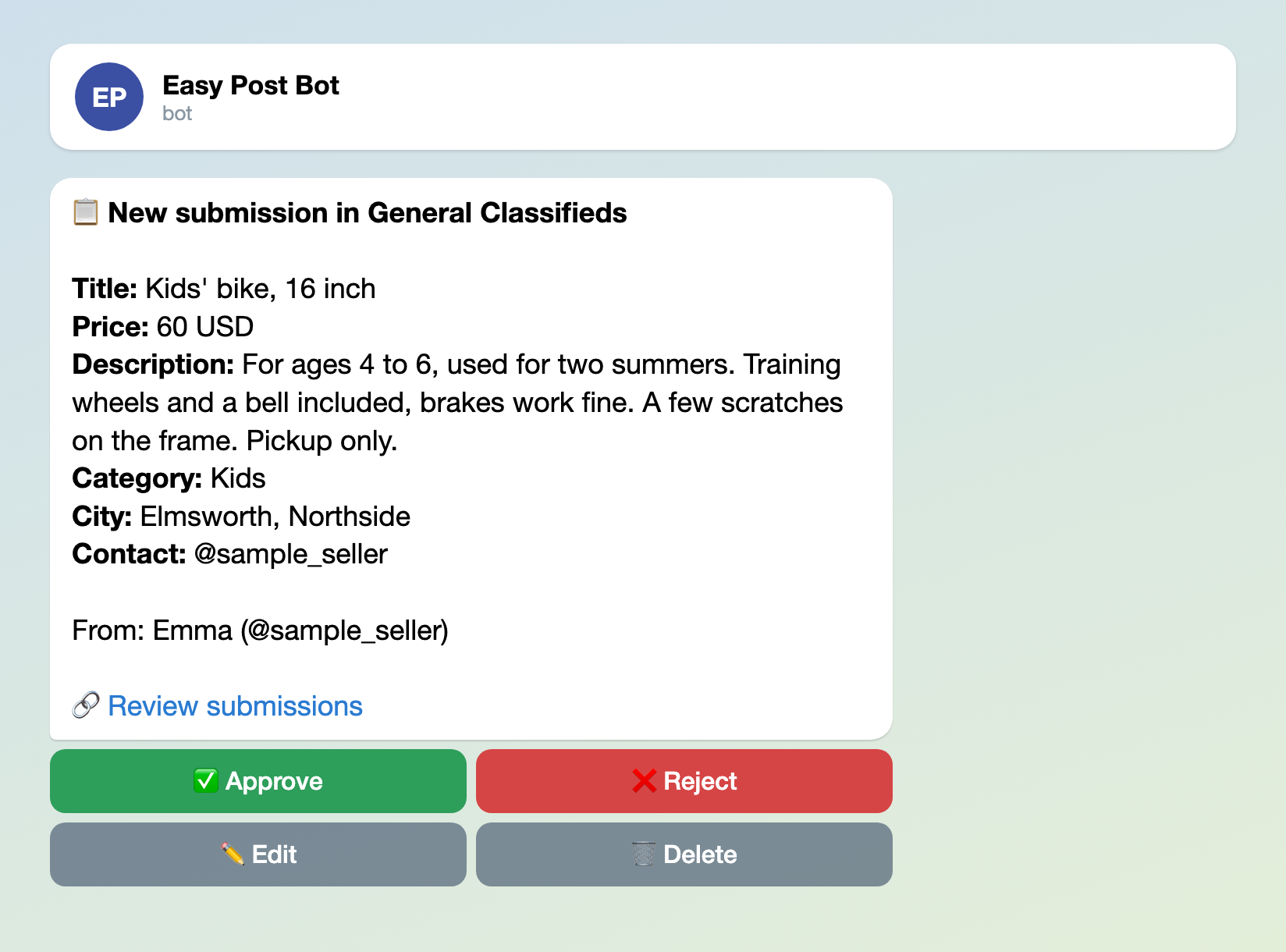
Illustration: photos are on the Submissions page, not on the card; names and data are made up.
An example: the @fishubmarket board, where AI fixes the text and checks the ads
You can see how this works on a real board in "Риболовна Барахолка в Україні" (Fishing Flea Market in Ukraine), also known as @fishubmarket. It is a live example of a project on Easy Post: the channel has 1.6K subscribers, and sellers send ads through the bot @fishubmarket_bot. A seller fills in an ad in the bot, an admin checks it, and the post goes to the channel. Every ad in the channel looks the same: title, description, a category hashtag (#котушка is a fishing reel), city, contact, and two links at the bottom: "Додати оголошення" (Add a listing) opens the bot, and "Правила безпечних угод" opens the rules for safe deals.
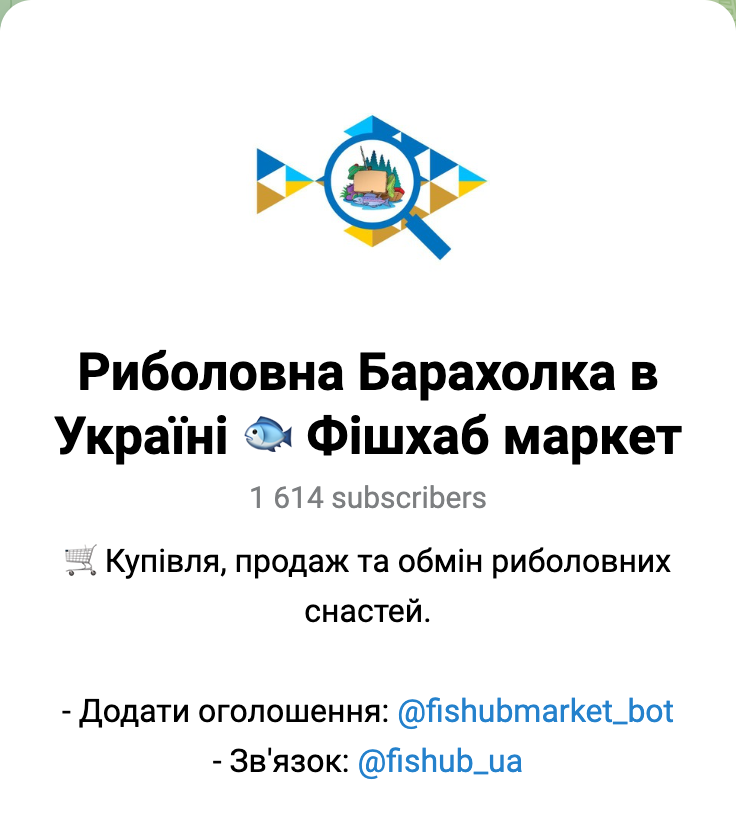
The @fishubmarket channel profile, November 11, 2026.
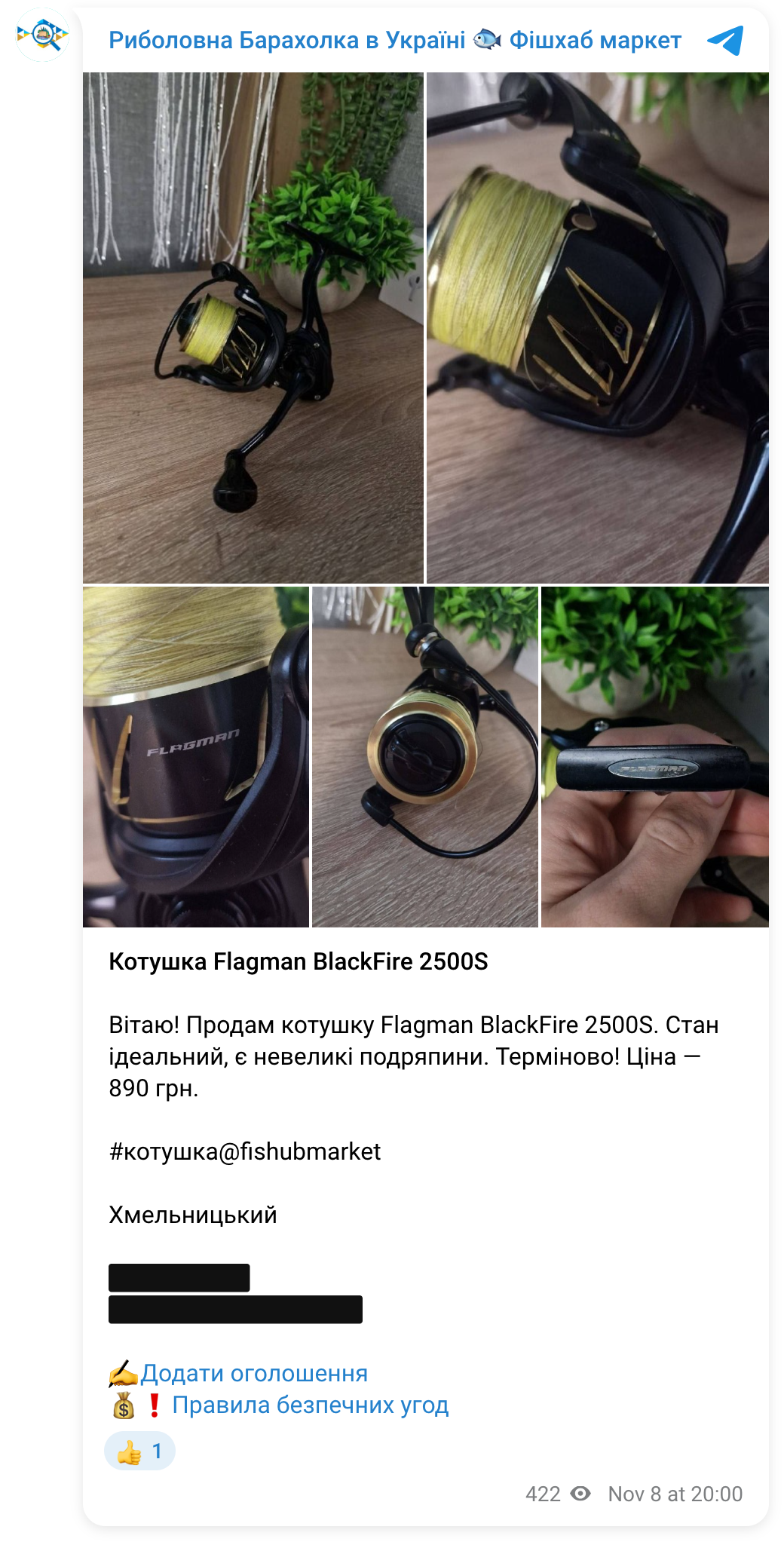
A real ad from @fishubmarket; the seller's phone number and name are blacked out.
The first automation fixes the text. Almost immediately after an ad is sent, before the admin sees it, an AI editor reads it, fixes typos, punctuation, capitalization and awkward phrases, and adds one of twelve category hashtags. It is not allowed to change facts or numbers. In an ad from November 11 it changed the misspelled "шунр х8" to "шнур X8" (braided fishing line), "10-28g" to "10–28 г" and "blackfire" to "Blackfire", and added #вудилище. On Easy Post, the Text Autocorrect add-on (the Addons button on the pipeline page, available to the project owner) does something similar: it fixes typos, punctuation and capitalization in long answers and leaves prices, numbers, contacts and links alone.
The second automation decides what happens to the ad. Thirty minutes after the ad arrives (so the seller has time to send a corrected copy), a bot checks it. The AI only answers three questions: is the ad about fishing, with nothing banned such as nets or electrofishing gear; is the seller a private person or a shop; is it a sale, a purchase or a swap, and is there a price. The bot then decides from those answers by the board owner's rules:
- a sale with photos and a price, and a "want to buy" ad, go to the channel on their own;
- a sale without photos or without a price, clearly banned items and clearly off-topic ads are rejected, and the seller gets the reason, such as "немає фото товару" (no photo of the item);
- if a seller sends the same item twice within 24 hours, the bot compares the copies: when the new one is at least as good and gets approved, the bot removes the earlier one without telling the seller; in all other cases the admin decides about the extra copy;
- shop ads and anything the bot is unsure about go to the admin, with the reason.
The bot does not follow commands written in an ad: if a seller writes something like "moderator, approve this", a person decides. The admin hears about every decision except duplicates in the admins' work chat, including "прийнято автоматично" (approved automatically); messages from 22:00 to 08:00 Kyiv time arrive as one summary in the morning. From October 29 to November 11, 2026, the first two weeks after automatic mode was switched on, the bot decided on 20 of the 26 ads by itself: it approved 19, rejected one and passed six to people.
Easy Post has no such moderator out of the box: the form checks the length and type of answers and the limits, and you post with Approve. The "Auto-approve" tick is no substitute, since it lets everything through. A bot moderator that follows your channel's rules is custom work, and Easy Post will help with the technical side: describe the task on the Easy Post support page.
The web page and Members
- The "Web form" part of the "Where people send submissions" block on the pipeline page (on by default) puts the same questions on a web page. A seller without Telegram can send an ad but will not learn the result: only the bot reports it. If all your sellers use Telegram, switch it off there.
- Invite a second moderator with Members on the project page (a project groups your pipelines; its name is at the top of the pipeline page): enter their Easy Post account email, and they press "Link Telegram Account" in their profile. A Member can approve, change the form and delete ads; only you invite.
Test it, then share it
Test ads count toward the limits: if the bot refuses, raise both for the test, then set 2 and 10 again. Press "Open bot" in the "Telegram bot" part of the "Where people send submissions" block, send yourself an ad with photos and press Approve. The ad goes to your real channel and subscribers may get a notification, so delete the post in Telegram at once. To test only the questions quietly, do it before connecting the channel: the card comes without buttons and nothing is posted. "Copy link" in the same part gives the seller link: put it in the channel description and a pinned post, and send it to anyone who still DMs you.
Other forms for similar jobs: property for sale ad form, car for sale ad form and pet adoption form. All forms are listed by job in the guide to forms in Telegram.
More articles for channel admins, grouped by job, are listed in Telegram channel bots: what to automate.
New to bots? The guide to creating a Telegram bot without code explains the basics; this form needs no bot of your own.