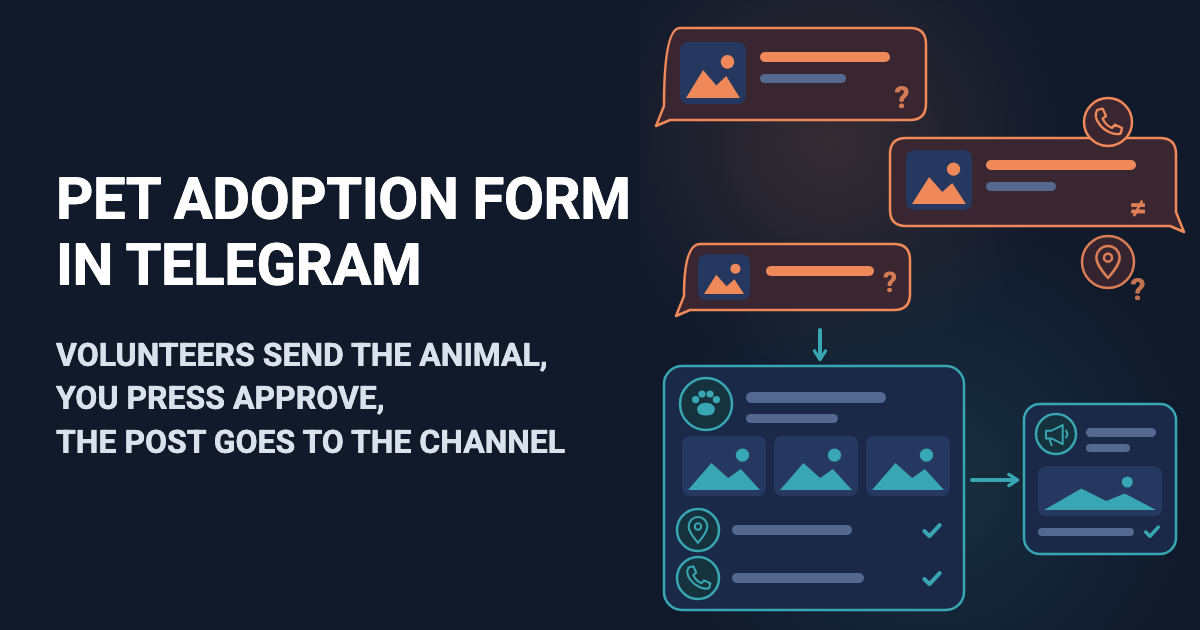
A volunteer posts a dog in the group chat: three photos, "nice boy, about two, call me", no city. Another sends a cat with the wrong phone number. You retype the animals into the channel yourself.
A pet adoption form asks about every animal the same way: type, name, breed, age, description, city, phone and photos. Easy Post is a website where you build it; volunteers fill it in inside Telegram, and you do not create a bot yourself. Each animal reaches you as one Telegram message, the "card", with Approve and Reject buttons; Approve posts it with its photos to your channel, the Telegram feed adopters read. A volunteer without Telegram can use a web page. Easy Post calls an entry a "submission"; this article says "animal" or "entry".
Easy Post's ready-made form for this, the Pet Adoption "template", is filled in by whoever has an animal to rehome; the adopter's application is a separate form, described below. It makes no printable adoption form or sheet in Word or PDF. A post already in the channel cannot be edited from Easy Post, so there is no "found a home" mark: you delete the post in Telegram. The form does not check who sends an animal, and the phone and city go into the public post.
An adoption agreement, an application matched to an animal, a "found a home" status, an animal register and follow-ups to foster homes are not part of the form today. They can be built as an add-on or as custom work on top of it: describe your case on the Easy Post support page.
Where to start
Sign up on easy-post.app. The first screen asks "What do you want to receive?" and lists tasks; none builds this form. Press "pick from all ready-made forms" and choose "Pet Adoption" in the Consumer list, or press the large "Start with the Pet Adoption form" button if you came through this article's button. Easy Post builds a "pipeline", your form with its settings and list of entries, and opens its page, the pipeline page.
If your Telegram is not linked yet, the screen "Last step: connect Telegram" links it, so that cards can reach you: scan its QR code or press its button. Then fill the form in as a volunteer with the "Test the form in Telegram" button on the pipeline page. Your card arrives in the chat with the bot, without buttons, marked "Saved in your dashboard" (the Submissions page, your list of entries).
Approve appears once a channel is connected. The Telegram channel bot for listings shows that route in short.
Try the Pet Adoption template →
Adjust the pet adoption form to your rescue
The template asks eight questions and works as it is. Press the Form button on the pipeline page to open Form Settings: each question has a "Bot prompt" box, which the volunteer reads (the no-code form builder guide compares builders). Three prompts are worth changing:
Question and its current prompt | Set the prompt to |
|---|---|
Description, "Describe the pet:" | "Character, health, good with children and other pets? Up to 500 characters" |
Contact, "Your phone:" | "Phone number for adopters. Type the rescue's number, do not tap Send my number" |
Photos, "Send pet photos:" | "Send 1 to 5 clear photos, then tap Done" |
The "Send my number" button, which the bot shows under the phone question, sends the volunteer's own number into the public post. Photos are required, but the Done button works before the first photo, so an entry can arrive with none.
Press Save under Submission Settings, further down the page; the Web form boxes, covered below, have their own Save buttons. If you delete a question, delete its line in the Post Template box under the questions too: a leftover line goes to the channel as written, and an amber "No field matches" note warns you.
What a volunteer sees
The volunteer opens your link (copied in the last section), presses Telegram's Start button, then Start under your welcome message (the Welcome Text, set below), and answers eight questions one at a time under a "Step 1/8" bar.
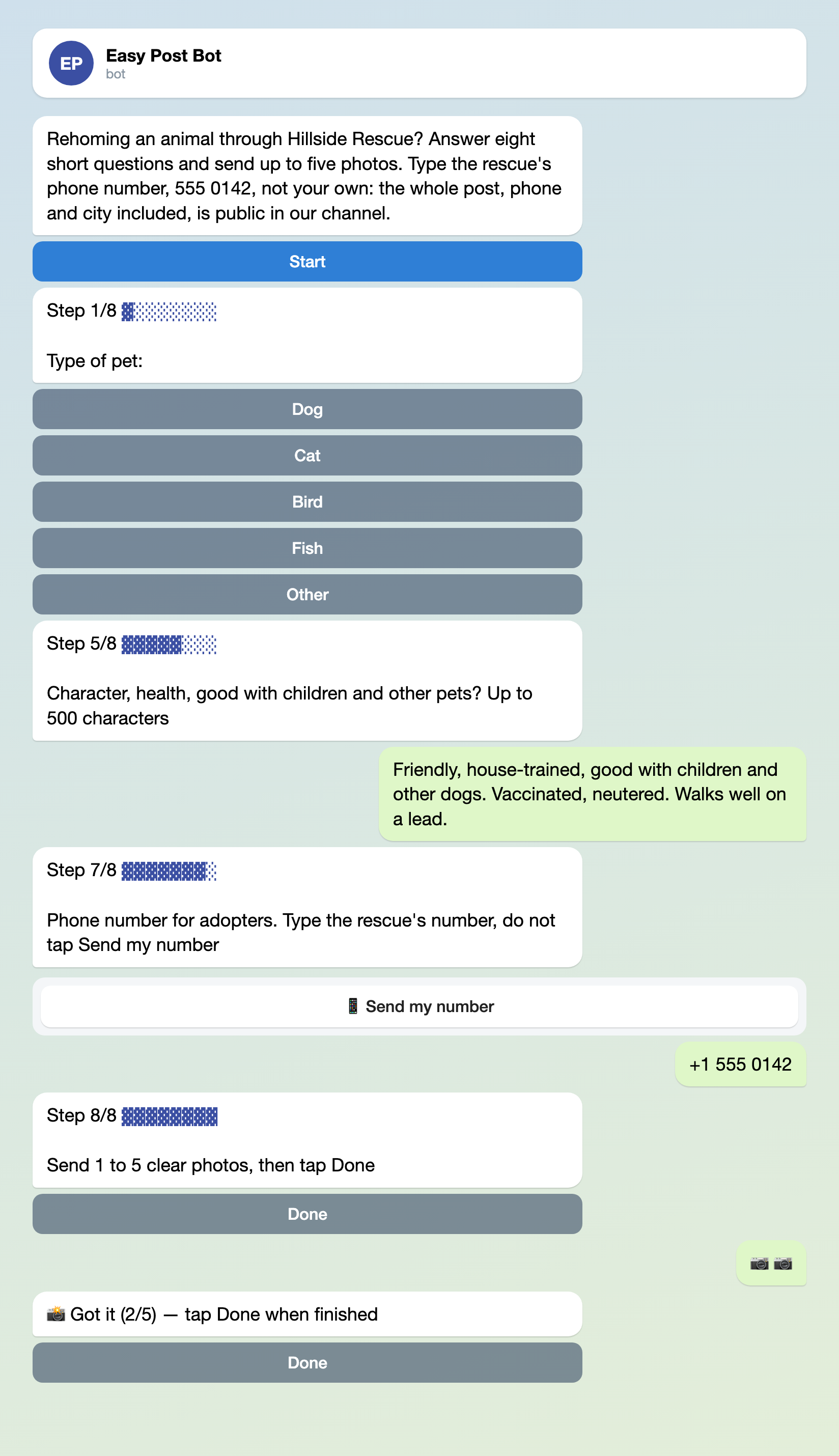
Illustration: the welcome message and the questions are yours; some steps are left out; names and data are made up.
Connect your public channel
Approve needs a channel to post to. Make it public, with a name adopters can open as t.me/name: only then does the volunteer get "Open post" and "Share" buttons and the post a Share line.
- Skip this step if your channel is already public. Otherwise, in Telegram choose New Channel, then Public and a link such as t.me/hillside_rescue.
- On the pipeline page press "Choose a channel in Telegram" in the "Still to do" block (it shows once your Telegram is linked). Telegram opens the bot, which sends a "Choose a channel" button.
- Press that button, pick your channel and confirm. The list shows only channels where you are an administrator with the right to post, and the bot becomes an administrator itself. The link works for 15 minutes.
- The bot answers "Done" and names the channel. Approve now posts there.
Leave "Auto-approve" unticked (it is unticked by default; ticked, it posts every animal to the channel without your Approve). To check it, press the Actions button on the pipeline page, then Edit on the row "Publish to Channel".
Connect the channel before you share the link. The "Still to do" block disappears when the first entry from anyone but you and your Members arrives, and an entry sent earlier has no Approve button.
What happens when a volunteer sends an animal
- After the last answer the volunteer reads your Completion Text (by default: "Thank you! Your submission is awaiting review."), and the card reaches you and the Members you invited (see below), if they linked Telegram. It lists the answers (each cut at 300 characters), the sender's name and @username, and the buttons Approve, Reject, Edit and Delete.
- The card shows no photos: open its "Review submissions" link to see them. Approve works there too.
- Before Approve, look at the photos, check that the phone is the rescue's number, and ask whether you know the volunteer. Nothing in the form blocks a listing that sells an animal, so Approve is your only filter; message the volunteer if in doubt.
- Edit opens the entry on the site, where you can fix typed answers such as the phone or the city, but not the pet type or the photos.
- Approve posts the animal to the channel, the photos as an album with the text under the first. The volunteer gets your Approved Message (set below) and "Your post is published!" with "Open post" and "Share". Reject sends your Rejected Message and posts nothing. Delete tells the volunteer nothing and leaves the channel alone.
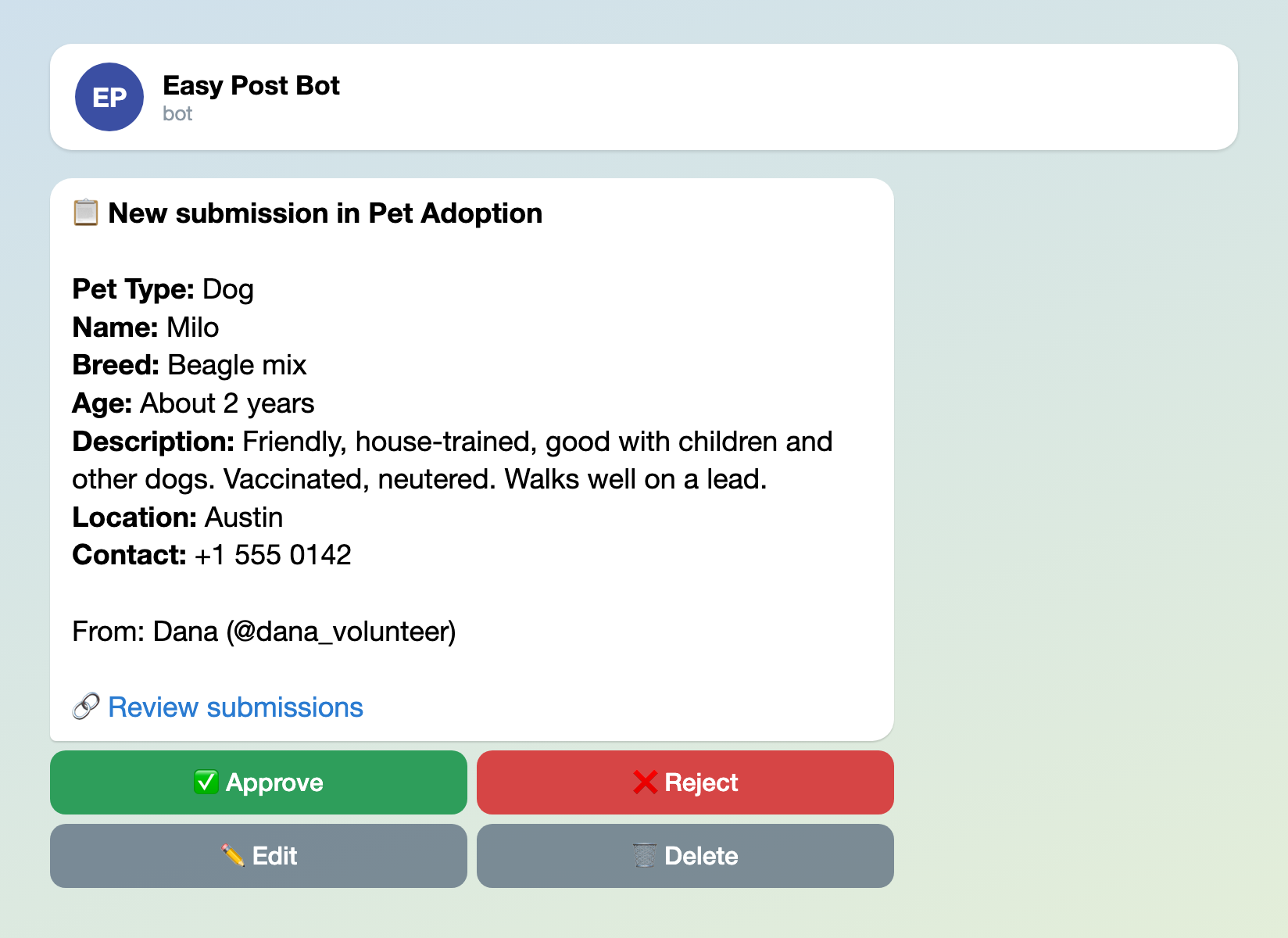
Illustration: the question names are yours; names and data are made up.
How the post looks
By default the post is one line per question ("Pet Type: Dog", "Name: Milo") with a Share line at the end, built from the Post Template box under the questions. Under photos Telegram allows 1,024 visible characters, labels and fixed lines included. Easy Post deletes a longer entry: the volunteer sees "too long to publish with photos" and starts over, and you are not told. A default post is about 300 characters and fits unless answers run very long. What you add counts too, such as a fixed line on every post.
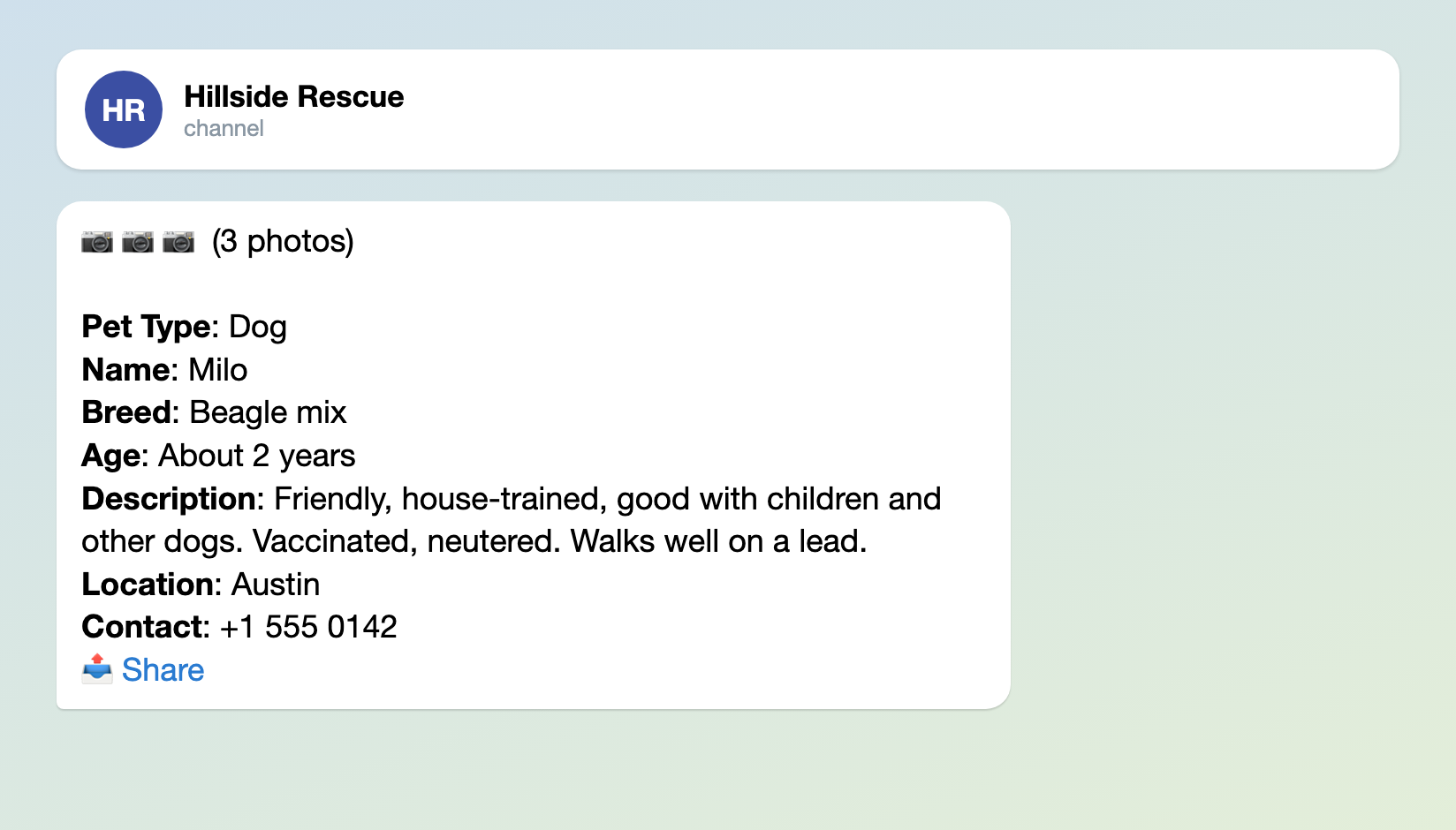
Illustration: the post is the default Post Template with an example animal, its three photos drawn as a text line; names and data are made up.
Three texts to paste into Form Settings
"Welcome Text" is under "Bot Messages"; "Approved Message" and "Rejected Message" are under "Status Notifications". Press Save under Submission Settings afterwards. The last two go word for word to every volunteer, so they cannot name the animal or give a reason for a rejection. Use your own name, phone and handle.
Welcome Text (the web page shows it too):
Rehoming an animal through Hillside Rescue? Answer eight short questions and send up to five photos. Type the rescue's phone number, 555 0142, not your own: the whole post, phone and city included, is public in our channel.
Approved Message:
Thank you! The animal goes to the Hillside Rescue channel. When it finds a home, tell the coordinator so the post can be removed.
Rejected Message:
We could not post this animal as it is. Questions: write to t.me/hillside_help.
A form for adopters
Adopters need their own form. Press "+ New pipeline" on your project page, type "Adopter applications" in the Name box and pick "Job Application" in the Business list: it already asks name, phone, city, experience and a free text, so little changes. The number of pipelines depends on your plan. Press its Form button, type each text from the right column into the "Bot prompt" box of the question named in the left column, make the change in brackets, and press Save:
Template question | Set the prompt to |
|---|---|
Vacancy (Type menu: Text; Field name: Animal) | "Which animal do you want to adopt?" |
Name, kept | "Your name:" |
Phone, kept | "Phone number:" |
City, kept | "Your city:" |
Experience (button names: Yes, No) | "Have you had a dog or a cat before?" |
About (tick Required) | "Your home: apartment or house, garden, other pets" |
Do not connect a channel to it, since the answers are private: each application reaches you as a card without buttons, and you phone the adopter. Pin its link ("Copy link" on its pipeline page) in the animal channel.
Before you share the link
- The template allows 3 animals a day and 5 a month per sender in Telegram; rejected and unfinished entries count too. A volunteer with a litter, or you posting every animal yourself, will read "Daily limit of 3 submissions reached. Try again tomorrow!" and you are not told. Raise both under "Submission Limits" in Form Settings.
- The "Web form" part of the "Where people send submissions" block puts the same questions on a web page; it is already on if you built the pipeline on the first screen. Its entry says "Sent through the web form" with no sender name, so the phone is your only contact. The volunteer sees your Approved Message only after pressing "Find out the result in Telegram", so a volunteer without Telegram hears nothing. The order form link guide covers the page.
- To give a second coordinator the cards, press Members on your project page (the project name at the top of the pipeline page), enter the email of their Easy Post account (they sign up first), press Invite, and ask them to link Telegram. A Member can approve, change the form and delete entries; only you invite.
Test it, then share it
Send yourself an animal with "Open bot" in the "Telegram bot" part of the "Where people send submissions" block, press Approve, check the post and the volunteer's messages, then delete the post in Telegram at once. Press "Copy link" there (and in the "Web form" part if you use it) and send the links to your volunteers.
Other forms for similar jobs: business proposal form, event registration form and suggestion box. All forms are listed by job in the guide to forms in Telegram.
More articles for channel admins, grouped by job, are listed in Telegram channel bots: what to automate.
Only getting started with bots? The guide to creating a Telegram bot without code explains the basics; this form works without a bot of your own.