A dispatcher needs a request that has everything the first time: where from and to, what, how much, when, and who to call. A Word template can't do that, because nobody fills one in on a phone. So the client writes "need to move some furniture tomorrow" in a chat, and then you spend five messages asking the rest.
This page covers a transport request form that runs inside a Telegram bot: the fields to ask, what to change in the ready-made template, how every request lands in your dispatcher's private messages, and what the form does not do. The main limit first: it does not print a signed transport order. Your client installs nothing. They open a link, tap Start and answer with buttons and short lines.
A transport request is eight answers
Easy Post has a Logistics & Shipping template. It is written from the carrier's side (service, vehicle, price, company), but a shipping request form is filled in by the client. So you change a few labels and add one field. The questions are in English and you can edit all of them in the form builder. For each field, here is what the template says and what to do with it.
- Type (required; prompt "Service type:", buttons: Cargo, Moving, Courier, Warehouse, Customs). Keep it as it is. The client picks, and you see at once which dispatcher it is for.
- Route (required; prompt "Route (from - to):"). The bot does not check addresses, so "London - Leeds" and "Londn-Leds" both go through. Say in the prompt what you want: a city, or a full address.
- Description (required; prompt "Service details:", 10 to 500 characters). For a request, change the prompt to "What are we moving: item, quantity". The 10-character minimum rejects a bare "furniture", so the client has to write at least "wardrobe and two sofas".
- Capacity (optional; prompt "Vehicle/capacity:", the skip button says "Skip"). This is a carrier's field. In a request it should ask about the load, so rename it "Weight and size of the load".
- When to load (add this one yourself; buttons: Today, Tomorrow, This week, We'll agree). A Date field does not open a calendar or check the format, it takes plain text. Buttons are safer: you get four clean answers instead of "tomorrow morning", "day after" and "Friday-ish".
- Price (required in the template; prompt "Price/rate:"). In a client's request, make it optional or remove it. You name the price, not the client.
- Company (required; prompt "Company name:"). Change the prompt to "Company name or your name".
- Contact (required; prompt "Contact:"). The template makes it a plain text field. Change the type to Phone and the bot checks that the answer has at least seven digits, so "abc" doesn't get through.
From request to trip
- Give the client one link: on a business card, in a profile, in a chat. They tap Start and answer one question at a time, with a progress bar.
- The request reaches you in Telegram the moment it is sent. The bot writes to you and to everyone on your project who has linked their Telegram: all the answers, the client's @username and a link to the request in the dashboard. There are no buttons, because there is nothing to approve.
- Call or write. The phone number is in the card. If the client mistyped it, you still have their @username.
- The client sees your message right after sending (the text is below), so they know the request arrived and when to expect your call.
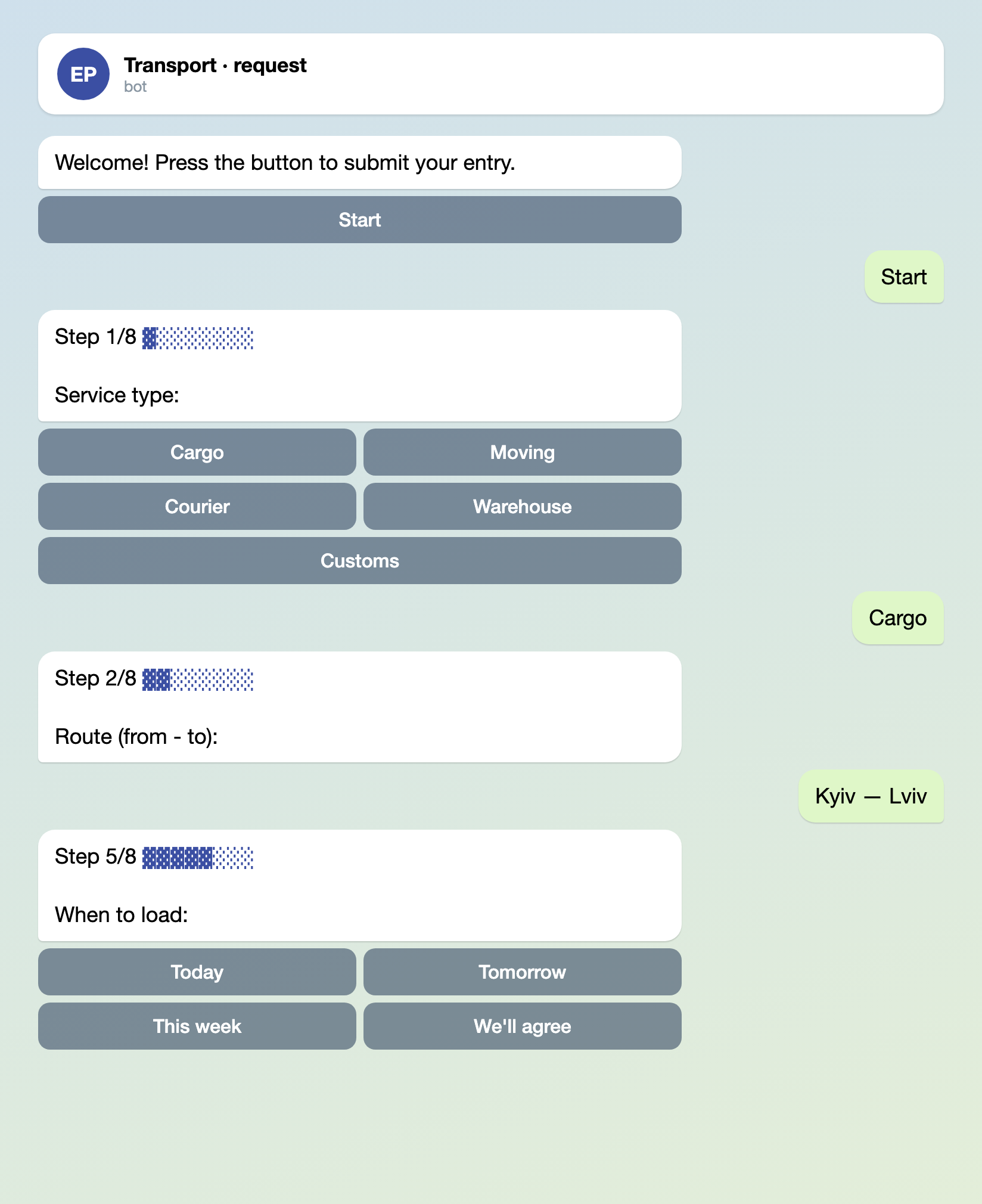
Illustration: the texts are the bot's own; names and data are made up.
This works because the form has no channel and no action that waits for you. In onboarding, when you choose where requests should go, pick "No channel — work in Easy Post". Every request is then saved in the dashboard at once, and the bot sends you the card as a notification.

Illustration: the texts are the bot's own; names and data are made up.
One message to paste into the settings
The form settings have a text field for what the bot sends the client after the last answer. The default is "Thank you! Your submission is awaiting review." Nobody reviews anything in this setup, so the client gets a promise you will not keep in that form. Replace it. Basic Telegram formatting, such as bold and links, works.
Request accepted. A dispatcher will contact you within 15 minutes to confirm the price and pickup time. Questions: t.me/yourdispatcher
An accepted request is not an agreed price, so say that in the text, as in the example.

Illustration: the texts are the bot's own; names and data are made up.
Where requests are kept
Every request is stored in the dashboard, in the form's list of submissions, whether or not anyone has read the Telegram message. The card in the chat is a notification with a link.
To have several dispatchers get requests, add them to the project under Members (Invite Member). Each of them links their Telegram account to Easy Post, and from then on gets the same card. Someone who has not linked Telegram sees requests in the dashboard only.
Don't connect a public channel to this form. A channel post carries every answer, the client's phone number included, and everyone could read it.
Where a request gets stuck
The costliest trap is a regular client hitting the limit. The template allows 5 requests a day and 15 a month per person. A client who sends twenty loads a month will, on the sixteenth, see "Monthly limit of 15 submissions reached." and can't submit another. Raise both numbers in the form settings before it happens.
What the form does not do
- It does not print a signed transport order. The form collects the data, you paste it into your own template, and the signatures and stamp stay on your side.
- It does not calculate distance or price, and it does not check addresses.
- There is no calendar, no trip or driver tracking, and no payment.
- There are no Approve and Reject buttons in this setup. The client is not told whether you will take the load, only that the request arrived. If you want a button that answers the client, as for a seat at an event, see the event registration form.
- There is no duplicate check. A client who made a mistake sends the request again, and you call the one with the right data.
A larger carrier that tracks trips needs a separate system. The form can feed it requests only through a webhook, and not every plan includes one. If you collect client enquiries for an agency rather than freight, see the client intake form for agencies.
Set it up in three steps
- In onboarding, pick the Logistics & Shipping template and choose "No channel — work in Easy Post".
- Add your other dispatchers under Members, and ask each to link Telegram.
- In the form settings, change the prompts as listed above, add "When to load", set Contact to the Phone type, raise the limits, paste the message with your own contact, and share the link.
New to bots? How to create a Telegram bot without code shows how to make one.