What you need from an event sign-up is simple: a list of people who are really coming, and the number before the day. This page gives you the form (six fields), the two messages to paste in, and the counting rule that stops you from selling a seat you don't have.
It fits a meetup, a workshop or a club night whose audience is already in a Telegram group. If they aren't, a Google Form does the same job, and nothing here should talk you out of it.
The six fields, and which to keep
This is the Event Registration template in Easy Post. You can rename, delete or add fields in the form builder after you pick it. Keep an optional field only if someone will use the answers.
- Full name (required). You cannot run a door list without it.
- Email (required). It is stored as plain text and not checked, so "name@gmail.con" goes through. Keep it required only if you will actually email people. You already have their Telegram chat, which is the better way to reach them.
- Phone (optional). Checked for format only: digits, spaces, plus, dashes and brackets, at least seven digits.
- Company and job title (optional). One free-text line. Keep it for a networking event, drop it for a hobby club.
- Track (optional, buttons: Technical, Business, Design, General; skip says "Any"). Buttons give you four clean counts instead of "tech", "Technical" and "IT stuff". Rename these to your real sessions first.
- Dietary needs (optional, buttons: No restrictions, Vegetarian, Vegan, Halal, Other). Keep it only if you serve food.
From announcement to the door, step by step
- Share one link in your group or channel. Anyone who opens it taps Start and answers the questions one at a time, with a progress bar and a skip button on the optional ones.
- Each registration waits for you. You get a private Telegram message with Approve and Reject buttons, plus Edit and Delete, or you approve from the dashboard, in bulk if you like. If an attendee mistyped an email or a phone number, correct it with Edit before you approve.
- Your approval is the seat. The person gets your confirmation message the moment you approve (text below).
- Count as you go. Stop approving at your number and switch the rejection text to "full" (text below).
- Keep the list. See "Where the list goes".
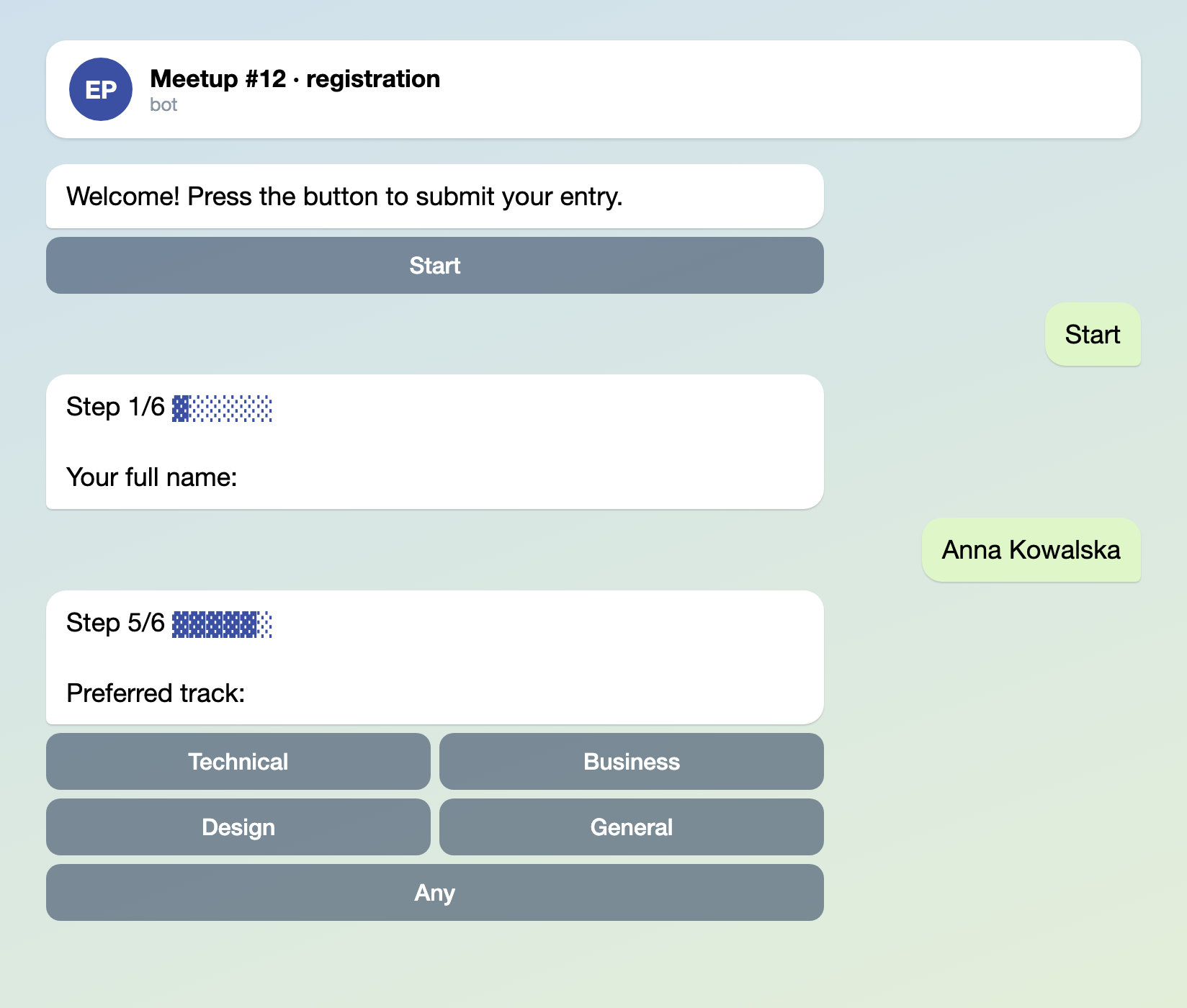
Illustration: the texts are the bot's own; names and data are made up.
Step 2 works because the channel has an action that waits for your approval, and the default one does. If every action on the channel is switched off, registrations are approved automatically: you get a notice with no buttons, and the person only sees "Thank you! Your submission is awaiting review." and never gets your confirmation text. Keep one action on.

Illustration: the texts are the bot's own; names and data are made up.
Two messages to paste into the form settings
In the form settings, the approval and rejection texts are plain text boxes, and basic Telegram formatting such as bold and links works in them. The defaults, "Your submission has been approved!" and "Your submission was not approved.", tell nobody where to go. Replace them.
Approval text:
You're in! Meetup #12, Thursday 19:00, Café Roots, 14 Main St. Doors open at 18:30. Questions or a change of plan? Write in the group: t.me/yourgroup
Rejection text, for when you are full:
Sorry, we're full this time. Watch the group for the next date: t.me/yourgroup
The approval message is the only confirmation the attendee gets, so put the venue, the time and a way to reach you in it.
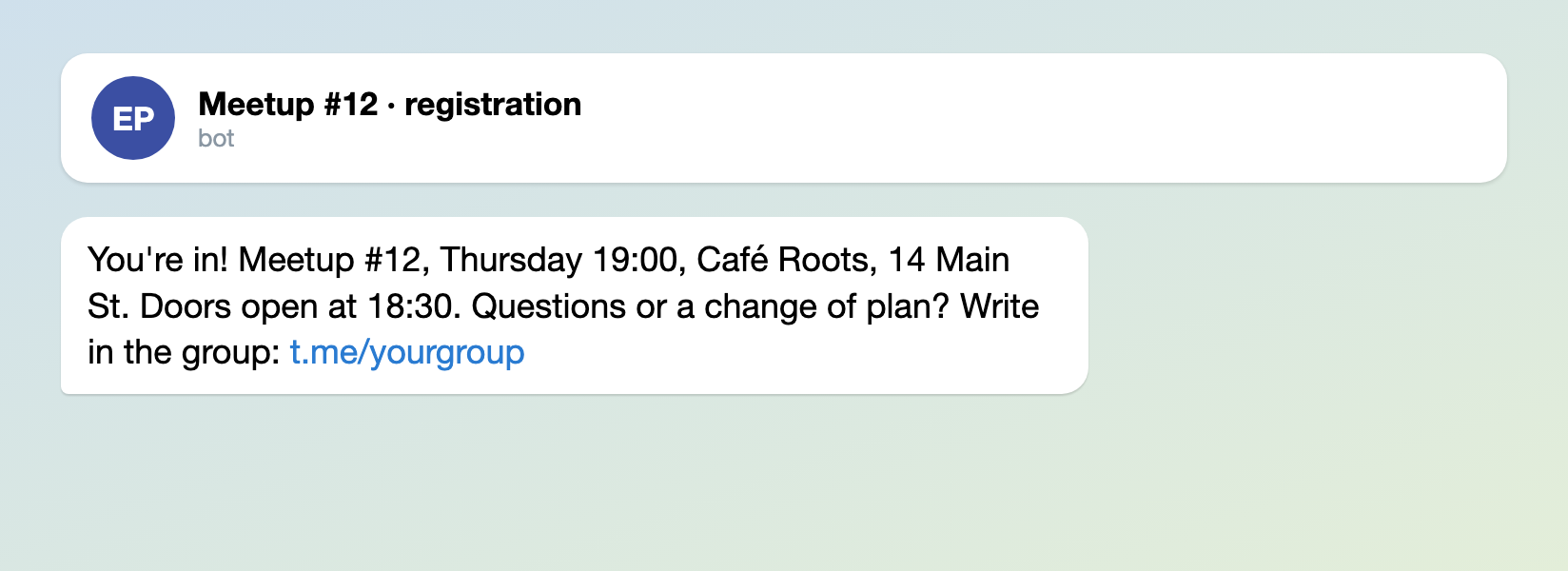
Illustration: the texts are the bot's own; names and data are made up.
Three ways it goes wrong, and the fix
- Overselling. There is no capacity counter. The limits in the template count one person's registrations, not the event's, so nothing stops the 101st person from registering for a 100-seat room. Count your approvals, and stop at your number.
- Duplicates. The same person can submit twice, and an attendee cannot go back to fix a typo, so a second submission is usually a correction. The Telegram username shown with each registration makes the pair easy to spot. Approve the new one and reject the old one. (A typo you spot yourself you can fix with Edit.)
- A public leak. The default action posts every answer, email and phone included, into the connected channel when you approve. If that channel is public, so is your attendee list. See below.
Where the list goes
Approving needs an action to run, and the default one publishes to a channel. So connect a private channel that only you and your co-organizers are in. Each approved registration appears there as a post, and that channel is your attendee list. It is enough for a meetup of a few dozen people.
If you would rather have the list in a sheet, add a webhook next to the channel. When you approve a registration, Easy Post sends it as JSON to any URL you give it: the answers, plus the person's Telegram name, username and chat ID. Point it at a Google Sheets script, Make, n8n or your own endpoint, and your sheet only ever gets people you confirmed. You can also route by field, for example the Technical track to one URL and the Business track to another. Webhooks are not included in every plan, so check the pricing page before you rely on one. One catch: approving the same registration again sends it again, so watch for duplicate rows.
It is a plain HTTP POST, not a ready-made Google Sheets integration. You supply the receiving end.
What this does not do
- No tickets, and no payment step in the form. If you charge for entry, take payment with a ticketing or payment service and use the form for the attendee list.
- No capacity counter and no waitlist. You count.
- No automatic reminders. With your own bot you can send a broadcast to everyone who pressed Start, once a day, but you cannot limit it to approved attendees.
- No email verification and no duplicate check.
- No check-in screen at the door. Use your private channel or your sheet as the list.
For a free meetup or a workshop run for an audience that is already in Telegram, that is a short list of gaps. For a 2,000-person conference with paid tiers, it is the wrong tool.
Set it up in five minutes
- In onboarding, connect a private channel for organizers and pick the Event Registration template.
- Open the form settings. Rename the tracks, delete the fields you won't use, and paste in the two texts with your venue and time.
- Share the link in your group or channel.
- Approve until you reach your number, then switch the rejection text to the "full" message.
New to bots? How to create a Telegram bot without code shows how to make one.