You can make a poll in Telegram in two ways: with Telegram's own built-in poll, or with a survey form that sends each answer to your Telegram as a separate message from a bot (we call that message a card). How to choose:
- One question with fixed answer options, and everyone you are asking is in your group or channel: the built-in poll. Telegram counts the votes for you.
- Several questions, answers in people's own words, or some people are not in your group or not on Telegram at all: a survey form in Easy Post. Each answer arrives straight away in the app you already open every day, so you see a worrying answer the same day without opening a spreadsheet.
- You need ready-made charts and a spreadsheet, and seeing the answers in Telegram does not matter: Google Forms, which draws the charts for you. Our Google Forms vs Easy Post article compares the two.
How to make a poll in Telegram groups and channels
Say you need your customer group to pick a meeting day out of three.
- Open a group or channel where you can post.
- On your phone, tap the paperclip next to the message box and choose Poll.
- Type the question and the answer options. According to Telegram, a question can be up to 300 characters long, with up to 12 options of up to 100 characters each.
- Send the poll.
For an ordinary vote you can leave the settings alone. Three of them may come in handy (these are their names in the Android app; on an iPhone the wording may differ slightly):
- "Show Who Voted" is off by default, so the vote is anonymous: people see how many votes each option has, but not who voted. Turn it on, and names appear next to the options.
- "Allow Multiple Answers" lets people pick more than one option.
- "Limit Duration" closes the poll at a set time.
The rest are for other purposes: a quiz with a correct answer, letting people change their vote, letting members add options, shuffling the options, hiding the results until the poll closes, and, in a channel, limiting voting to people who have been subscribed for more than a day.
Once people vote, they see how many votes each option got, and as the author you see the results without voting yourself. Telegram keeps the past and current polls of a group or channel on a separate tab in its profile.
A poll holds one question, so three questions become three separate messages, and you will not know who answered all three. People can answer only with an option from the list, and any explanation goes into the comments or the chat, where everyone sees it. In a group, only its members vote: someone who is on Telegram but not in the group can vote once you add them. In a public channel, anyone on Telegram who opens the post can vote, unless you have limited voting to subscribers. A person without Telegram cannot vote anywhere.
Which to choose: built-in poll or survey form
| Built-in poll | Survey form in Easy Post | |
|---|---|---|
| How many questions | one | as many as you need |
| How people answer | with an option from the list | with a button, a rating from 1 to 5, their own words or a photo |
| Who can answer | group members; in a public channel, anyone on Telegram unless you limit it to subscribers | anyone with the link, including people without Telegram |
| Who sees the answers | everyone sees the results, and with "Show Who Voted" also who voted for what | only you and the colleagues you add yourself |
| Where you see the answers | in the poll itself | each one as a separate card in your Telegram |
| Results | Telegram counts them | you count them from the cards |
When some people are in the group and some are not, the built-in poll does not fit: you need a survey form with a link that opens in Telegram, in WhatsApp and in an ordinary browser. If what matters most is a quick count, say how many people want evenings and how many want weekends, and you do not need the answers in Telegram, a Google Form is handier: it counts and draws the charts on its own. The Easy Post form is the better choice when you want every answer to land in your Telegram right away and never open a spreadsheet.
Where to start
The example used throughout: a dance studio is changing its schedule and wants to ask clients when they would like to come, how they like the classes and what to change. Some clients are in the studio's Telegram group, and the rest message the studio on WhatsApp or Instagram.
- Sign in to easy-post.app with Google. On the first screen, "What do you want to receive?", press "Questionnaires and surveys": Easy Post builds the form from the "Customer Feedback / NPS" template at once. NPS (Net Promoter Score, a measure of customer loyalty) is only in the name here: the template gives you a ready-made form with a rating, which you adapt to your needs. The pipeline page opens. A pipeline is what Easy Post calls your form together with its settings and answers, and you do everything below from this page. At the top there is a yellow "Still to do" panel, and below it a block called "Where people send submissions".
- You do not need a bot of your own, and there is nothing to do in BotFather: answers come through the Easy Post bot.
- In the "Still to do" panel, press "Test the form in Telegram". Telegram opens with the Easy Post bot: press Start. The bot replies that your Telegram is linked and that new submissions to this pipeline will arrive in this chat. Then it sends the form's welcome message with a Start button (on some plans with a "Powered by Easy Post" line), and the first question comes after you press it. Answer as a client would. When a card arrives in the same chat, everything works, and the pipeline page updates itself to say "The form works: your test submission came through. One thing left: send the form to people." Without this step, no cards arrive. If Telegram is not installed on your computer, open the pipeline page on your phone.
- The Form button in the row of buttons at the top of the pipeline page opens the form settings (Submissions and Edit are in the same row). The settings page has two Save buttons, one below the questions and one under "Submission Settings", and either one saves the questions and texts alike. Further down, the "Web form" box has a third "Save" that saves only its list of sites, not the questions or texts. Do not leave the page without pressing one.
- Answers collect in the list that the Submissions button on the pipeline page opens; Easy Post calls the answers to any form "submissions".
If you already have a pipeline, the "+ New pipeline" button creates another one (pick "Customer Feedback / NPS" in its list); how many pipelines you can have depends on your plan. When you test the web form (more on it below), the "Still to do" panel disappears, because Easy Post takes your test for a client's answer. The link and the QR code stay in the "Where people send submissions" block. If you tested the web form before linking Telegram, link it with the "Link Telegram Account" button in the "Get instant notifications" box on the pipeline page, or in your Profile.
Survey questions: what to change in the template
After you press Form, the questions are listed one under another. Each one has up and down arrows, a "Field name, shown only to you" box (the label on your cards), a type, a "Bot prompt" box (the question people see) and a "Required" tick box. The CSAT survey in Telegram article goes through every question of this template in more detail.
- "Rating": keep it. The scale of 1 to 5 stars cannot be changed. In "Bot prompt", replace "How would you rate your experience?" with your own question, for example "How do you like the classes at the studio?".
- "What You Liked": delete it. It is required and demands at least 5 characters even from someone who liked nothing.
- "Improvements": make it your main open question. Set "Bot prompt" to "What should we change in the schedule or classes?" and "Field name, shown only to you" to "What to change". The question is optional, so people with nothing to say simply skip it. In the bot, its skip button reads "Everything was great"; you can type a different label in this question's "Button and error texts" section.
- "Contact OK": delete it. An answer from the web form carries no contact at all, and from the bot you see only the person's Telegram name and their @username, if they have one. If you want to get back to people, add an optional text question "How can we reach you?".
- If you need to know who an answer is about (a school, for example, needs to know which student or group), add a text question "Student name / group" and tick "Required". It is also how you spot repeat answers. But then the survey is no longer anonymous, and your "Welcome Text" should say so.
- A choice question of your own. Press "+ Add Field" and pick the Buttons type. In "Field name, shown only to you" type "Preferred time", in "Bot prompt" type "What time works best for your classes?", and type the options separated by commas: "Morning, Afternoon, Evening, Weekends" (which is why an option cannot contain a comma). Without a field name, the form will not save.
- A new question goes to the end of the list and starts as optional. Tick "Required" and press the up arrow until the question is first.
- Press Save below the questions.
In a Buttons question, people pick only one option. If you need several, split the question into several Yes / No questions or ask people to write the answer in words.
That leaves three texts and one name. "Form Name" at the top of the settings comes from the template as "Customer Feedback / NPS", and it is the heading people see on the web form page: change it to something like "New studio schedule: your opinion". "Welcome Text" and "Completion Text" are in the "Bot Messages" section. The bot sends the first one at the start, and it also sits under the heading of the web form. People see the second one after they answer, both in the bot and on the web form. The default "Welcome! Press the button to submit your entry." reads oddly on the web form, because the page has no such button.
Into "Welcome Text":
Three quick questions about the new schedule. It takes a minute.
Into "Completion Text":
Thank you! We will send the new schedule to everyone by Friday. You do not need to press the button below: there will be no separate message in Telegram.
Press Save under "Submission Settings". The pipeline name heads each of your cards and also comes from the template. To change it, press Edit on the pipeline page, change the "Pipeline Name" field and press "Update Pipeline". The site then opens your project page rather than the pipeline: press the pipeline's name to get back.
How people answer: the bot and the web form link
For people who are not on Telegram, the "Where people send submissions" block has a "Web form" box. It should say "On · taking submissions": a pipeline made from the first screen starts with the form on. If it says "Switched off" (a pipeline made with "+ New pipeline"), press its switch. With the form on, you get "Link to the form", the "Copy link" and "Open the form" buttons, and a collapsed "QR code" section with a "Download QR code" link. The link opens in any browser, so you can send it on WhatsApp, on Instagram or by email, and put the QR code up in the studio.
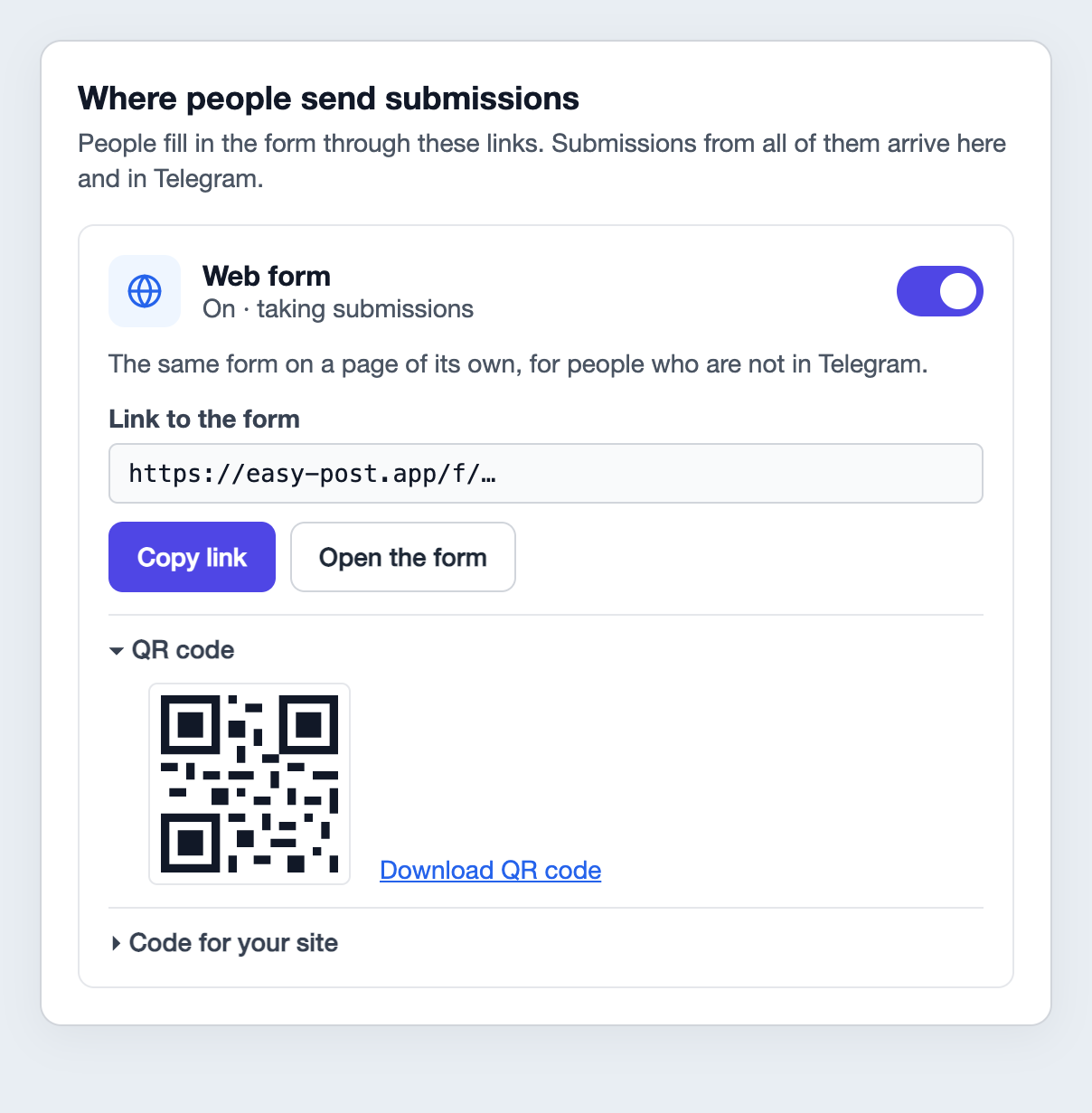
Illustration: the labels are Easy Post's own; the link is shortened.
On the web form page, all the questions are visible at once. Button questions and the rating turn into a list where people pick one option, the open question turns into a text box, and at the bottom there is a required tick box to agree to the privacy policy and a Send button. The page shows its own labels in the language of the person's browser if that is English, Ukrainian, Russian or Hindi. Your questions stay exactly as you wrote them. On some plans, the page has a "Made with Easy Post" line at the bottom.
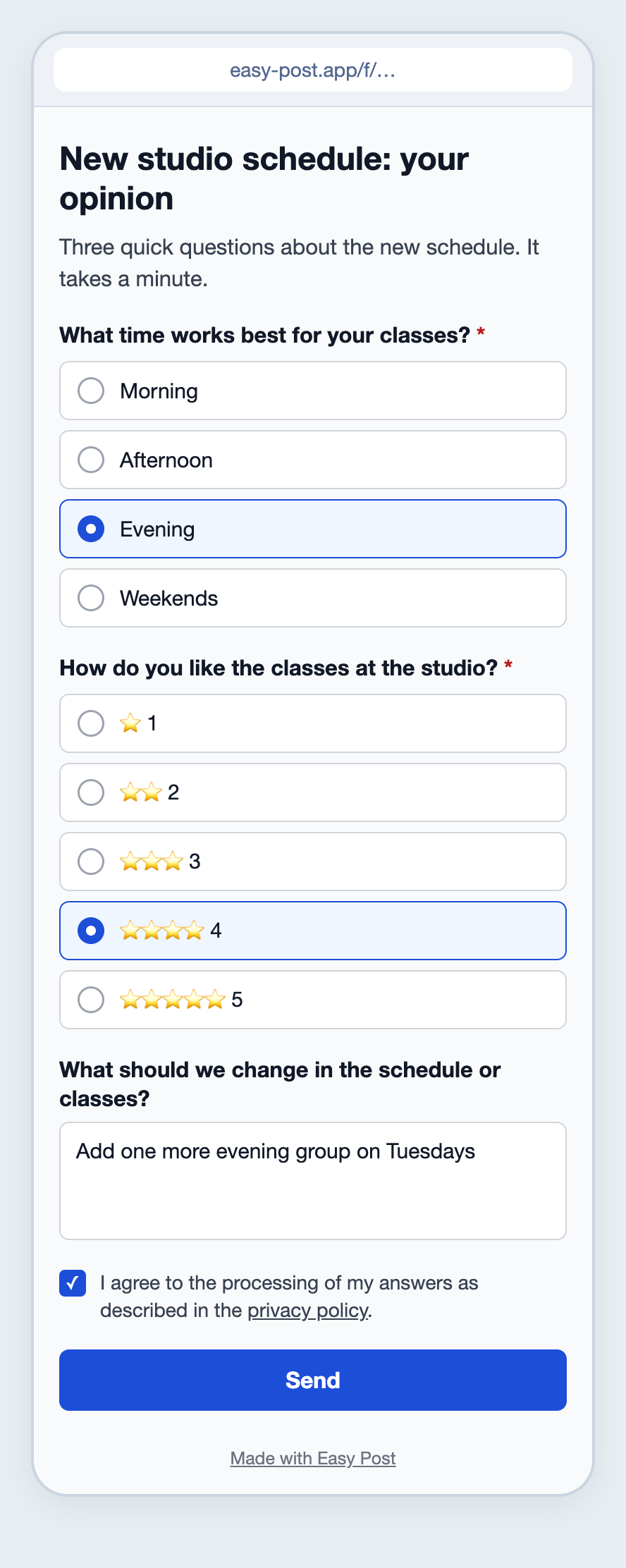
Illustration: the texts come from the product and the example above; the data is made up.
People on Telegram can also get the bot link: in the same block, the "Telegram bot" box has its own "Copy link" button. The person presses Start, then Start again under the welcome message, and answers the questions one at a time. An answer from the bot carries the person's Telegram name, so for an anonymous survey share only the web form link.
After pressing Send, the person sees a page headed "Sent" with your "Completion Text". Under it there is a "Find out the result in Telegram" button. A survey has no result to send: the bot will reply "Done. You will get a message here when your submission is reviewed." and send nothing more, and the person's answer gets tied to their Telegram account. You cannot remove the button, so say plainly in the "Completion Text" what happens next and that there is no need to press it, as the text above does.
What you get and how to count the results
Each answer reaches your Telegram as a separate card from the Easy Post bot. If you added colleagues under Members in your project (a project is the folder your pipeline sits in), they get the cards too once they link their own Telegram. The people who answer never see the cards. A card has the pipeline name, the line "Saved in your dashboard" (the answer is in the Submissions list), the answers and a "Review submissions" link. There are no Approve buttons, because nothing in a survey needs approving. A card trims each answer to 300 characters; the full text is under Submissions.
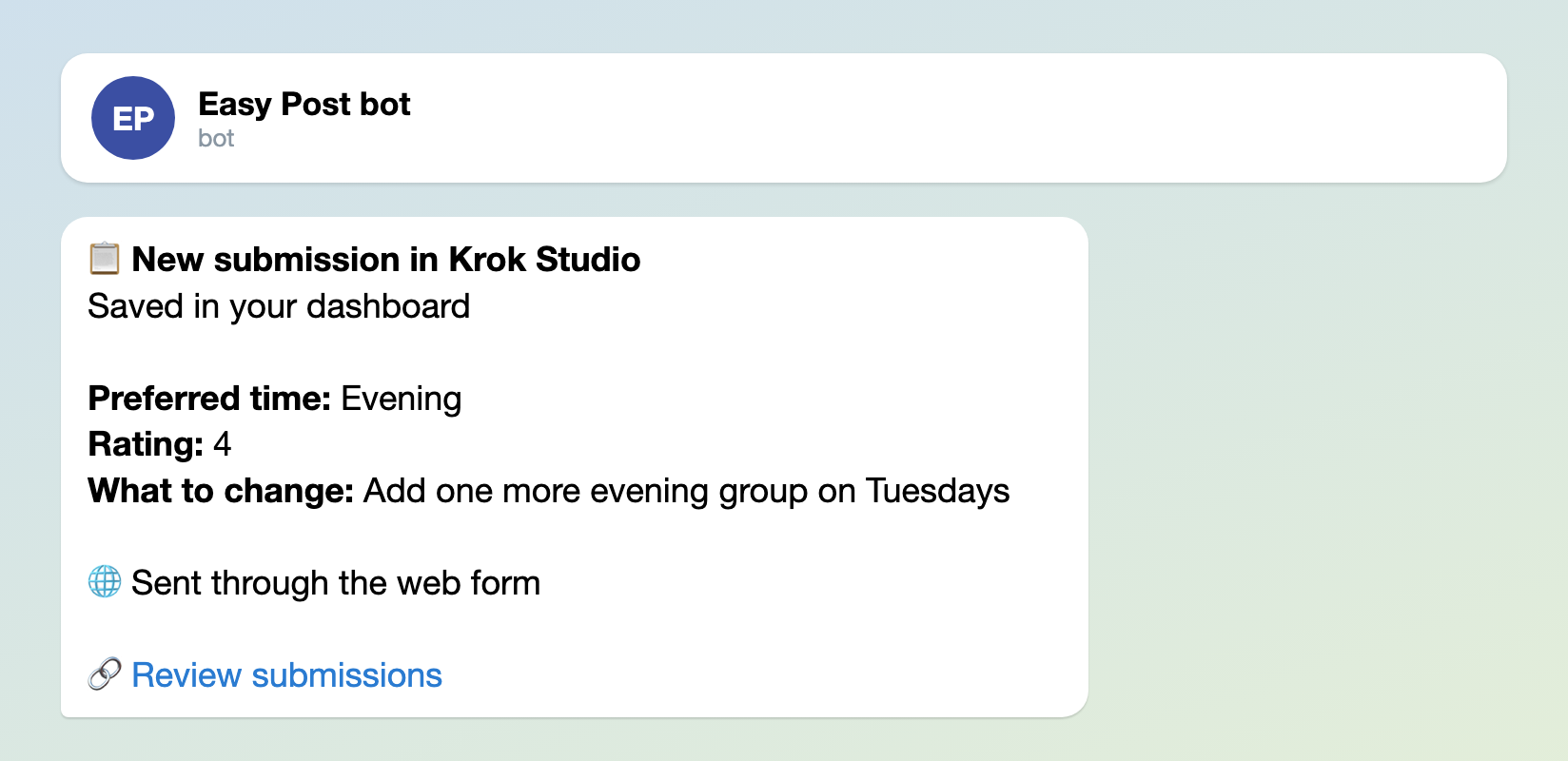
Illustration: the texts are the bot's own, and "Preferred time" and "What to change" are field names you set yourself; the data is made up.
An answer from the bot is signed with the person's Telegram name and @username. An answer from the web form is signed "🌐 Sent through the web form" and carries no name, account or IP address, unless the person presses "Find out the result in Telegram".
Easy Post does not count the results: you can only work out how many people chose "Evening" and what the average rating is from the cards or the Submissions list. There are no charts, and you cannot download the answers as a file. Counts, charts and a file download are not part of the form today; they can be built as an add-on or as custom work on top of it: describe what you need on the support page. The Submissions list labels the answers with the questions' internal names (rating, improvements, and preferred_time, which the editor made from your field name), while the names you set show only on the cards. For a few dozen answers that is enough. If you have hundreds, you can send them to a Google Sheet automatically and count them there; this depends on your plan, and the inventory tracking sheet in Telegram article shows how to set it up.
What can spoil the results
- Your test answers. Testing in the bot and on the web form leaves your answers among the real ones. Before counting, delete them under Submissions with the Delete button.
- Repeat answers. On the web form, one person can answer several times: the "Sent" page has a "Send another" link, and the form has no one-answer-per-person limit. You can spot a repeat only by a question like "Student name / group". The bot limits ("Daily Limit" and "Monthly Limit" in the "Submission Limits" block) will not help here: they also count a form someone left halfway, so a person who opens the link again to finish it gets "Daily limit of … submissions reached. Try again tomorrow!". Leave them at 20 and 100, as the template sets them.
- Many people on one Wi-Fi network. The web form accepts no more than 10 answers a minute from one IP address, and in a studio with one Wi-Fi network everyone shares that address, so the eleventh person in a minute sees "Too many submissions. Please try again in … seconds." and has to answer a little later. In total, the form accepts up to 120 answers an hour.
If some people are in the group and some are not
Give everyone the same web form link: it opens in Telegram, in WhatsApp and in a browser. If you need to know who an answer is about, add the "Student name / group" question. Without it the answers are anonymous, but you cannot tell a repeat answer from a new one. You count the results from the cards, after deleting your test answers.
- Sign in to easy-post.app with Google and press "Questionnaires and surveys" on the first screen (the "Customer Feedback / NPS" template).
- On the pipeline page, press "Test the form in Telegram", then Start, then Start again under the welcome message, and go through the form in the bot.
- Press Form, change the questions (add "Student name / group" if you need it), the form name, "Welcome Text" and "Completion Text", and press Save under "Submission Settings".
- In the "Where people send submissions" block, the "Web form" box should say "On · taking submissions" (if it says "Switched off", press its switch); check the form with "Open the form".
- Send the web form link to the group, on WhatsApp and by email, and put the QR code up in the studio.
- Before counting, delete your test answers under Submissions.
Other forms for similar jobs: customer satisfaction survey, suggestion box and Telegram quiz bot. All forms are listed by job in the guide to forms in Telegram.
New to bots? This survey needs no bot of your own. How to create a Telegram bot without code explains how Telegram bots work and what you can build with them.