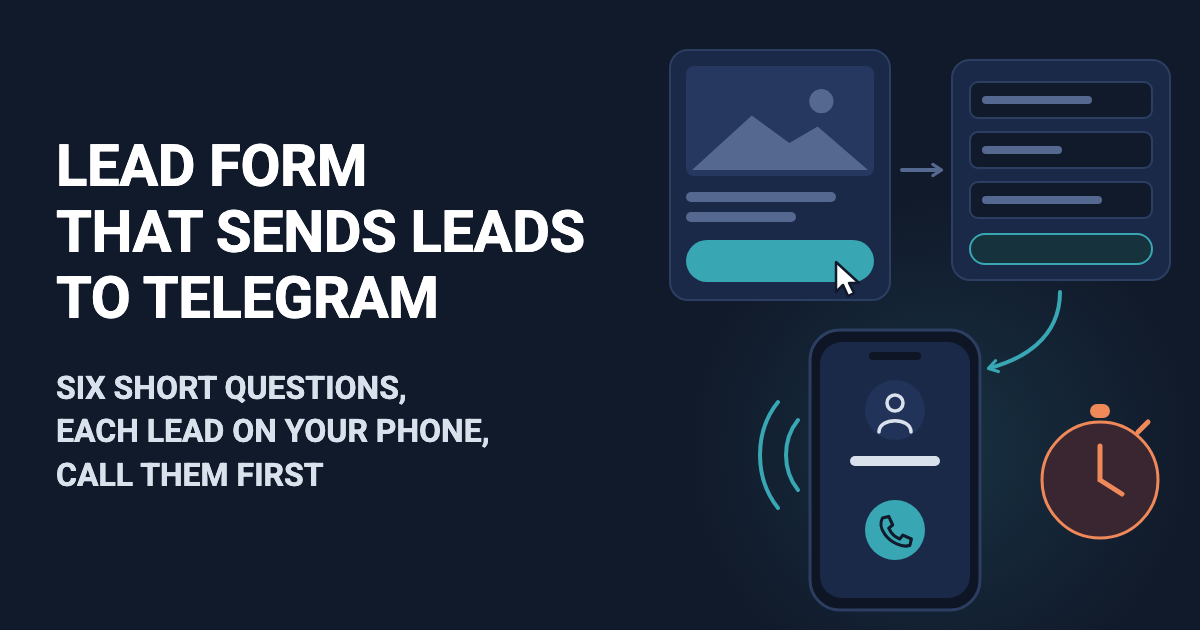
You pay for the click, a person fills in your form at 7:40 in the evening, and the email with their number gets read the next morning. By then they may have booked whoever called first. Sales teams call the time from form to first call "speed to lead". A lead form is the short form behind your ad: what the person needs, how soon, their name and a phone number. It has done its job when that number is on your phone while the person is still waiting for a call.
In Easy Post the lead form is a web form: a page with its own link that you put behind an ad, on a landing page or in your bio. Easy Post sends each lead to your Telegram as soon as the page accepts the form, one message per lead, and you call the number in it. It keeps a list of leads but has no "called" or "won" marks, it does not tell your ad account that a lead came in, and it does not record which ad someone clicked. "Called" and "won" marks, a signal to the ad account, a record of which ad was clicked and email alerts are not part of the form today; they can be built as an add-on or as custom work on top of it: describe what you need on the support page. The Google Forms comparison covers how the form differs from a Google Form.
First, find out where your ads send people
If someone else runs your ads, do this with them before you change anything. Open one of your ads on your phone and tap its button.
- If a form opens inside Facebook or Instagram, often with the person's details already filled in, it is Meta's instant form (LinkedIn's Lead Gen Forms work the same way). Those leads go to the platform's own tools or a CRM, and Easy Post cannot receive them. Stop here: whether to switch such an ad to a link is for whoever runs it to decide.
- If a web page opens, the ad sends people to a link, and this guide fits. If that page is your own site with a form that emails you, you can keep the ad and put the Easy Post form on that page instead.
Then tell whoever runs the ads one thing. The ad account counts leads from a page only if the page reports them back, through code such as a Meta pixel or a Google tag. The Easy Post form reports nothing, even on your own page next to a pixel, and does not keep which ad a lead came from, so the ad account will show no leads from it. A campaign set to find people who leave leads learns from the leads it is told about and will have fewer to learn from; whoever runs the ads decides whether that is acceptable. A form question, "Where did you see us?", tells you the site instead.
Where to start
You set everything up on the easy-post.app website. Sign in with Google. On the first screen, "What do you want to receive?", press "Bookings and service requests" under "Accept requests from customers": it builds your form from the Service Request template in Easy Post, which already asks for a name and a phone number. Easy Post opens the pipeline page; a pipeline is your form together with the leads it collects. At the top is a yellow "Still to do" panel, below it a block called "Where people send submissions", and the Submissions button at the top opens the list of leads.
First link your Telegram, because that is where leads will go. In the yellow panel, press "Test the form in Telegram"; Telegram opens with the Easy Post bot, and you press Start. The bot confirms the link and sends its welcome message with another Start button: press it and answer as a customer would. A message with your answers arrives in the chat, as each lead will, and the pipeline page says "The form works". Without Telegram on your computer, do this step from your phone.
The bot then sends a "Send the form" button and a question about a channel with "Choose a channel". Ignore both, and skip "Add a channel if you want to publish" in the yellow panel: "Send the form" shares a link to the bot, and your ads need the web form link. With an existing account, start from "+ New pipeline" at the top of the pipeline page; how many pipelines you can have depends on your plan (see the plans).
Try the Service Request template →
Turn the template into a short lead form
The template has seven questions for a home service visit. A lead from an ad answers on a phone, so the form below has five short questions and one optional box: what they need, how soon, where they saw you, name, phone, and details if they want. The service and timing buttons do the lead qualification before you dial.
First rename the pipeline: its name heads every Telegram message ("New submission in" and the name), and it starts as "Service Request". Press Edit at the top of the pipeline page, change "Pipeline Name" to "Ad leads" and press "Update Pipeline". The site then opens your project page; click the pipeline name to get back.
Then press Form at the top of the pipeline page to open the form settings. Each question is a card with a "Field name, shown only to you" box (the label in your Telegram message), a Type menu, a Required tick, a "Bot prompt" box (the question people read), arrows and a × that deletes it. Buttons go into the box under the prompt, separated by commas. The examples are for a cleaning company.
What the template has | What to do |
Form Name "Service Request", at the top | Rename it after what the ad offers, for example "Get a cleaning quote". It is the heading of the page people see. |
Service: buttons Service 1, Service 2, Service 3, Other | Keep it. Prompt "What do you need?", buttons "Regular cleaning, Deep cleaning, Move-out cleaning, Other". A renovation company might use "Kitchen, Bathroom, Whole apartment, Other". |
Details: "Briefly describe the task:", required | Untick Required, change the prompt to "Anything else we should know? Leave it empty if not." and press ↓ until it is last. Anything typed here must be at least 5 characters, so the prompt asks people to leave it empty rather than write "no". |
Address: required | Delete it, unless you only work in some areas: then keep it with the prompt "ZIP code or area". |
Preferred Time: As soon as possible, Today, Tomorrow, This week | Keep it as your urgency question: field name "When", prompt "When do you need it?", buttons "As soon as possible, This week, This month, Just comparing prices" (for renovation, "Within a month, In 1 to 3 months, Just comparing prices"). Call the most urgent first. |
Photos: up to 3, optional | Delete it, unless photos help you quote, as with repairs. Kept photos appear only under Submissions on the website, never in Telegram. Also give it a new prompt, such as "Send up to 3 photos if they help": the page would show the template's "(up to {max_files})" with the curly brackets. |
New question: "+ Add Field", under the questions | Field name "Source", type Buttons, prompt "Where did you see us?", buttons "Instagram, Facebook, Google, Telegram, A friend". Tick Required and press ↑ until it sits above Name. |
Name and Phone | Keep both. Put your number in the Phone prompt so the lead knows who is calling: "Your phone number. We will call from +1 202 555 0100." |
A question added with "+ Add Field" starts optional and goes last, and with an empty field name the form will not save. A Budget question works the same way ("Under 5000, 5000 to 20000, Over 20000, Not sure"): no thousands commas, since a comma splits a button, and under about 50 letters per button, or the form breaks in the bot.
Also, only if you deleted Address: its line stays in the Post Template box under the questions, with a yellow note "No field matches". Delete the line that ends with {address} so the note goes away; the Post Template matters only for publishing to a channel.
Then save, with the Save under the Post Template box or the one under "Submission Settings": both save the questions and texts. The third Save, in the "Web form" box at the very bottom, saves only that box's list of sites, and your other changes are lost.
Tell people when you will call
On the same settings page, scroll down to "Bot Messages". Two of the texts there, "Welcome Text" and "Completion Text", show on the web page, and the bot sends them too.
The "Welcome Text" sits under the page heading. Its default, "Welcome! Press the button to submit your entry.", talks about a button the page does not have. Replace it:
Tell us what you need and leave your number. We call back within 15 minutes, 8 am to 8 pm.
The "Completion Text" shows on the page people see after pressing Send. Say when and from which number you will call, so the lead picks up a number they do not know:
Thank you, we have your request. We will call you within 15 minutes from +1 202 555 0100. If you sent it after 8 pm, we call at 8 am. You can skip the "Find out the result in Telegram" button below: nothing will be sent there, we will phone you.
Under your text the page always adds a line about getting the result from the bot and that "Find out the result in Telegram" button. You cannot remove them, and nothing in this setup sends a result, so your text tells people the call comes instead. Use your own number and hours, promise only a time you can keep, and press Save under "Submission Settings".
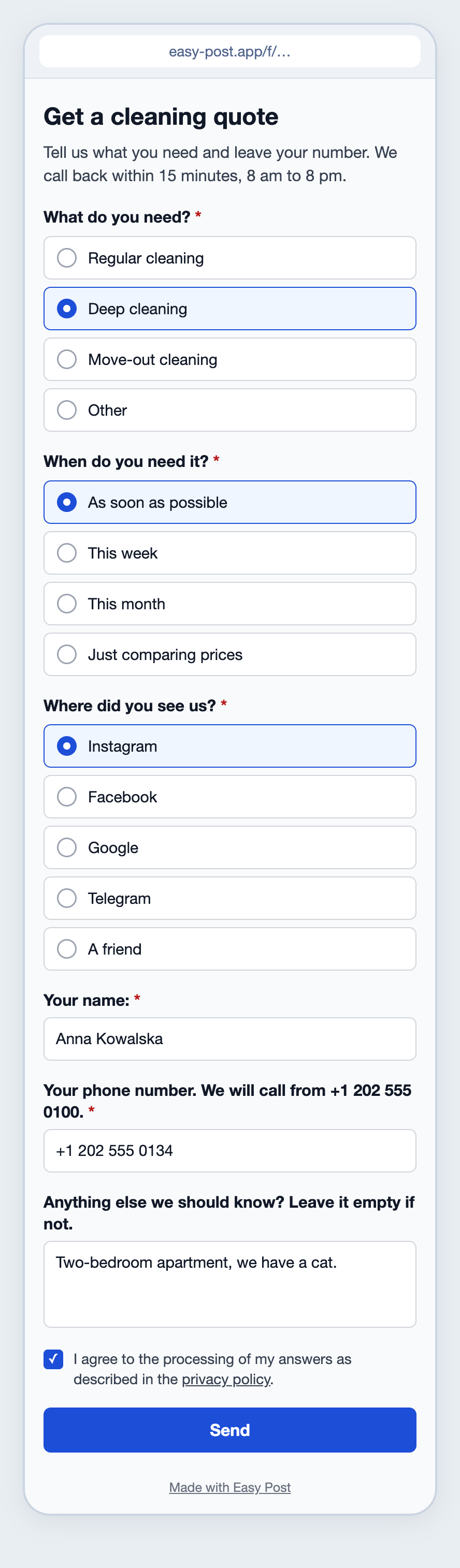
Illustration: the heading, questions and texts are the ones you write, the rest is the page's own; names and data are made up.
Put the link behind your ad
On the pipeline page, find the "Web form" card in "Where people send submissions". A pipeline made at sign-up has it on ("On · taking submissions"); if it says "Switched off", press its switch. The card shows "Link to the form" with "Copy link" and "Open the form". Take the link for your ads only from this card: the "Telegram bot" card and the yellow panel's sharing buttons give a link to the bot.
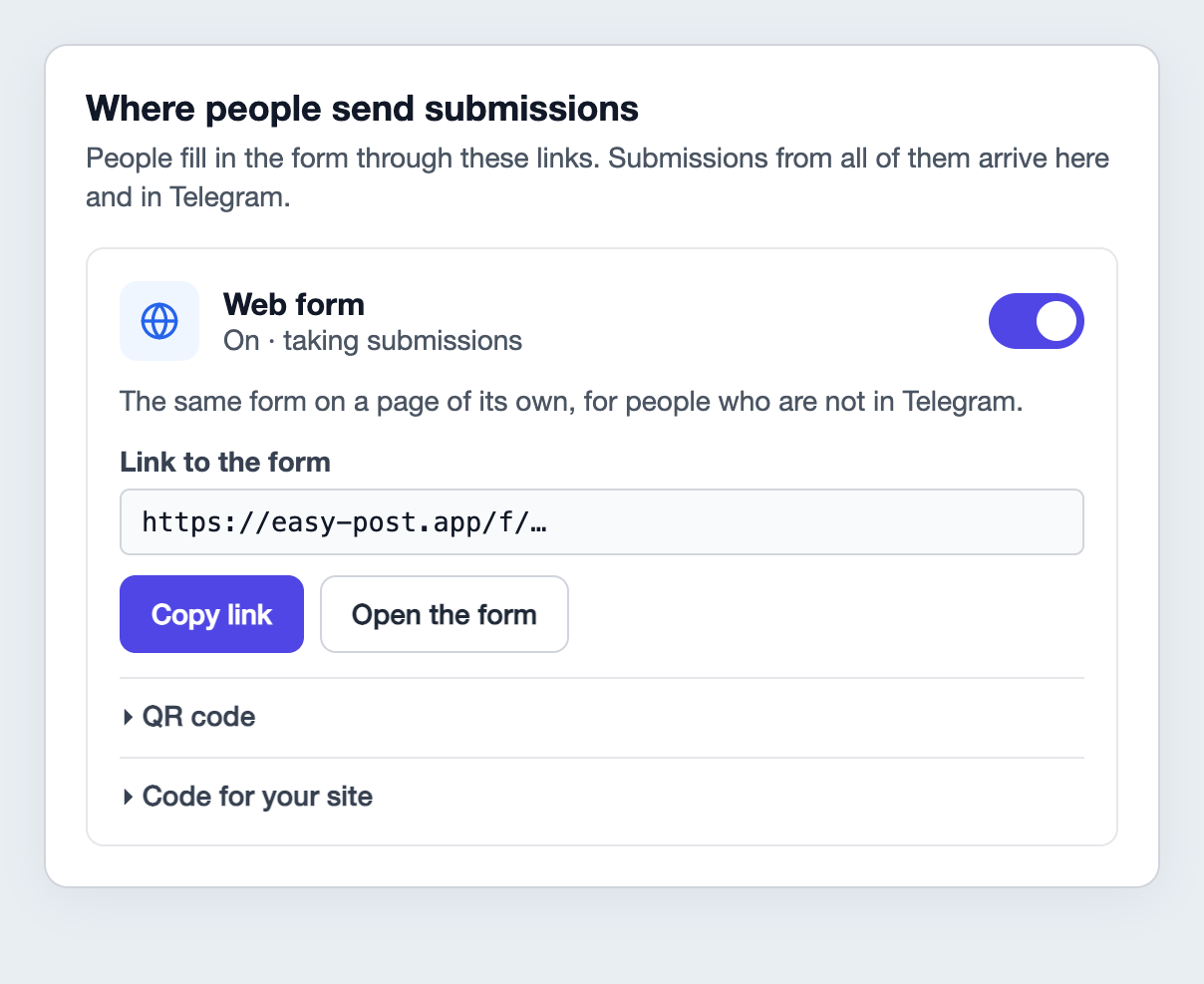
Illustration: the texts are the site's own; the Telegram bot card next to it is left out.
- Facebook and Instagram ads that open a page, and the link in your bio: paste the "Web form" link as the website people go to.
- Google Ads: never paste the easy-post.app link. A Google ad shows the address of the page it opens, here easy-post.app instead of your business, and Google can refuse an ad that leads to one page on someone else's website. Open "Code for your site" on the same card, press "Copy code" and paste it into an HTML block of your own page: that makes a lead capture form on your landing page.
- Telegram Ads: Telegram's ad rules do not allow ads that lead only to a "call me back" form. This form is one, on the page and in the pipeline's bot, where it runs as a Telegram bot form, so do not use it for Telegram ads.
The page has a robot check and takes up to 120 leads an hour, with no monthly cap. On some plans it shows "Made with Easy Post" at the bottom.
When a lead arrives: the message and the call
Each lead reaches your Telegram as a message from the bot: "New submission in Ad leads", "Saved in your dashboard" (the dashboard is your Submissions list), the answers under your field names, "🌐 Sent through the web form" and a "Review submissions" link. There are no buttons, because nothing waits for your decision: you read it and call.
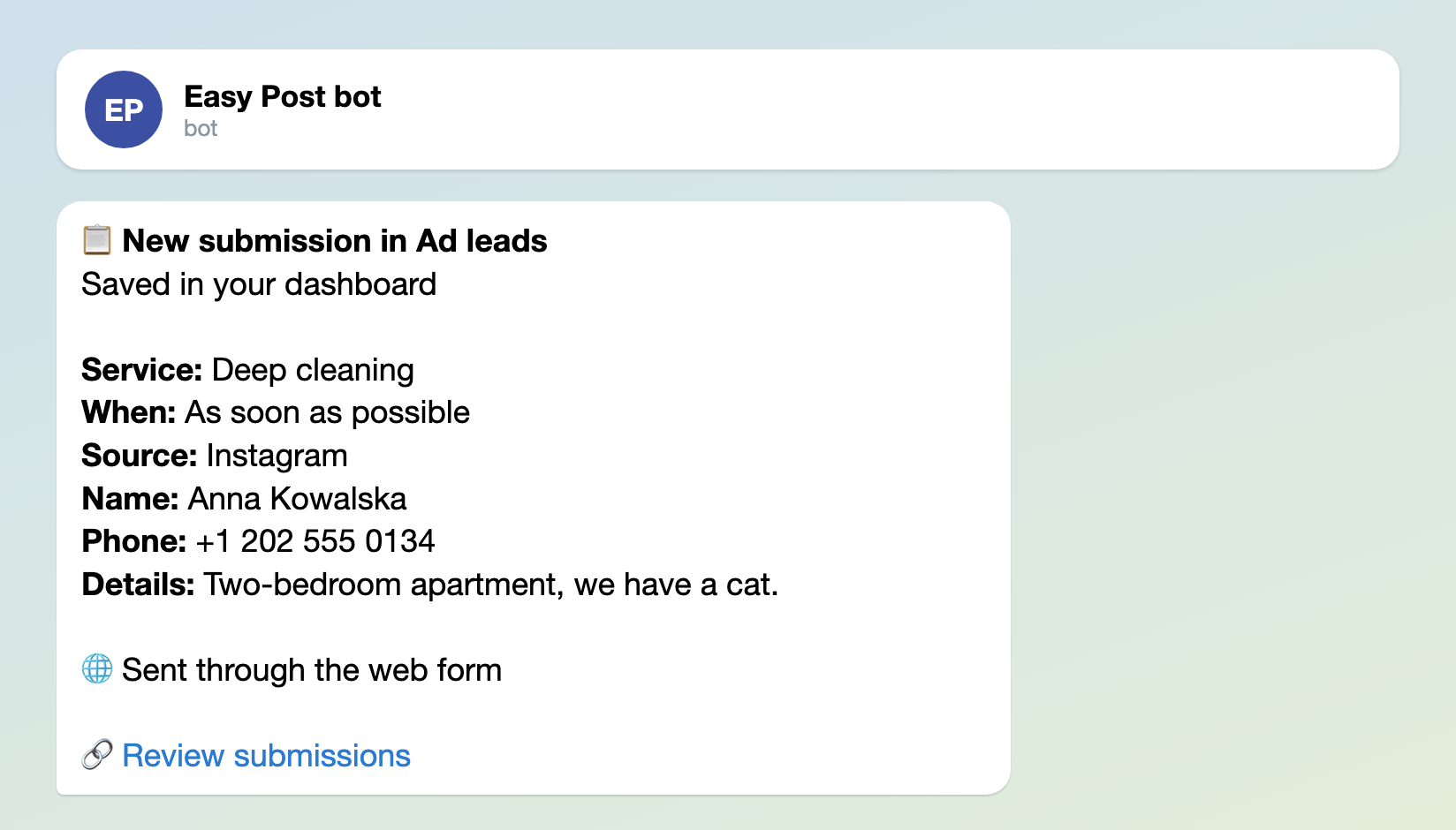
Illustration: the texts are the bot's own, and the field names are the ones you set; names and data are made up.
Each answer in the message is cut at 300 characters. The full text is under Submissions, where answers carry the template's internal names (When shows as preferred_time). A skipped question has no line. Keep notifications on for the chat with the bot and pin it, so a new lead does not sink under other chats.
Leads go to each person's own chat with the bot, not to a group chat. To add a salesperson, ask them to sign in at easy-post.app with Google first; they can ignore the first screen it shows. Then open your project page (the project name at the top of the pipeline page), press Members, type their email under "Invite Member" and press Invite; Easy Post does not tell them, so you do. They open easy-post.app/profile and press "Link Telegram Account": Telegram opens, they press Start, and the bot answers "Account linked!", with no test lead. Nothing in a message shows who has called, so agree who takes which leads. Members can also edit the form and delete leads.
Submissions has no export and no "called" status. To keep leads in a spreadsheet or a CRM, a webhook (an address the other service gives you for receiving data) can pass each one on; it is not on every plan, and the quote request form guide shows the setup. When you add it under Actions, tick Auto-approve, or every lead waits for your approval and the message gets Approve and Reject buttons.
Where it gets stuck
- Test the web page only after the Telegram test: a web test sent before it never reaches you. A web test also closes the yellow panel, which is expected; the links stay in "Where people send submissions".
- If you switch off the web form or the whole pipeline, the link answers "not found" while your ad keeps paying for clicks to it. Pause the ad first.
- The Phone question takes digits, spaces and + - ( ) with at least 7 digits, but cannot check that a number is real. If a lost lead costs a lot, add an optional Text question "Email" as a second contact; the Phone type refuses email addresses.
- Every lead must tick a consent box whose "privacy policy" link opens Easy Post's policy; you cannot link your own. If you need your own notice, put the form on your landing page next to it.
- Your test leads stay under Submissions. Delete them before the ads start, with the Delete button next to each one.
Set it up in six steps
- With whoever runs your ads, open an ad on your phone and tap its button. A form inside Facebook or Instagram: stop and decide with them first. A page: tell them this form will not report leads to the ad account.
- Sign in, press "Bookings and service requests", press "Test the form in Telegram", press Start twice and answer the form. Ignore "Send the form" and the channel question.
- Press Edit, rename the pipeline "Ad leads", press "Update Pipeline" and click the pipeline name to go back. Press Form: rework the form by the table, including Source, paste the two texts and press Save under "Submission Settings".
- Check that the "Web form" card is on, press "Open the form" and send a test lead; then delete your test leads under Submissions.
- For Facebook, Instagram or your bio, use "Copy link" on the "Web form" card. For Google Ads, put the "Code for your site" on your own page and send the ad there.
- Add your salesperson under Members and have them link Telegram in their Profile. Pin the bot chat and agree who calls which leads.
Other forms for similar jobs: quote request form, service request form and order form for a small business. All forms are listed by job in the guide to forms in Telegram.
New to Telegram bots? How to create a Telegram bot without code explains the basics; this setup needs no bot of your own.