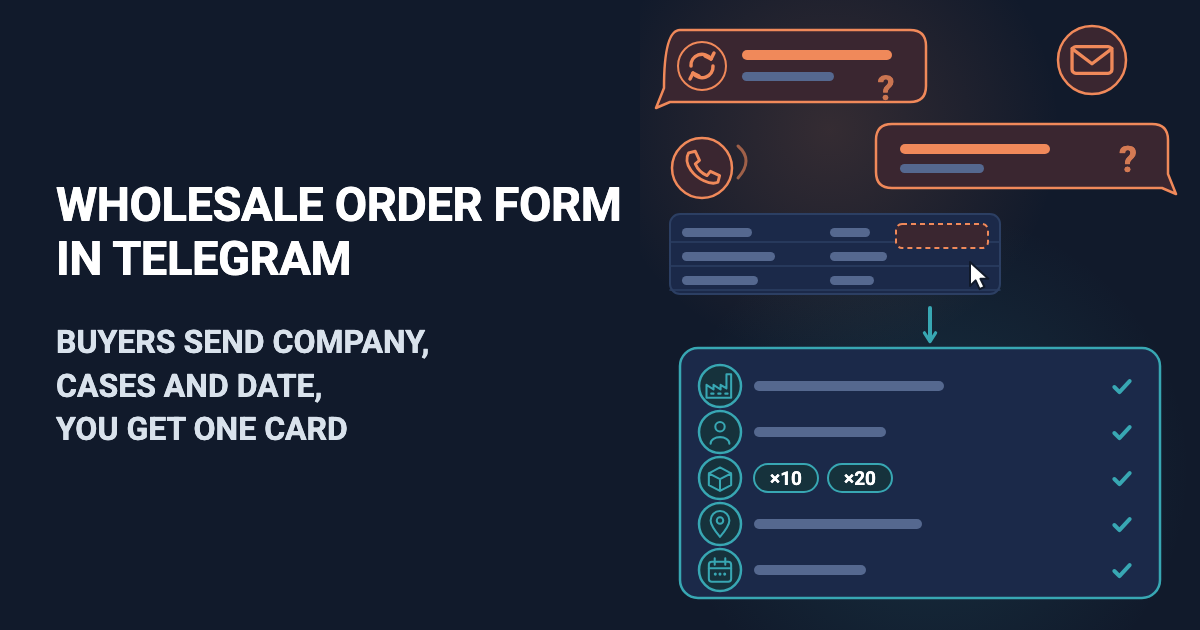
A buyer writes "send me the same as last time". No company name, no number of cases, no delivery date. Your manager asks three questions back and retypes the answers into a sheet.
A wholesale order form asks every buyer the same questions: company, contact person, what and how many cases or lots, delivery address and date. Easy Post is a website where you build such a form; buyers fill it in inside Telegram, and you do not create a bot yourself. Each order reaches you as one Telegram message, the "card", and the buyer then reads an "order received" text that you write. A buyer without Telegram can fill in the same form on a web page. Easy Post calls an order a "submission"; this article says "order".
Easy Post does not make a printable order form, a Word or Excel file or a Google Form. There is no cart: a question answered with buttons takes one choice, so the buyer writes the whole order as a line of text. The form adds no total, checks no stock or credit, sends no invoice, takes no payment and remembers no buyer, so a regular buyer answers the same questions every time. It cannot enforce a minimum order either: a Number question checks that an answer looks like a number, with no smallest value, so a buyer can send 3 cases where your minimum is 10, and you decline by message. By itself the form confirms no stock or delivery date; you do that by message or phone. It accepts photos only, so a buyer cannot send Excel or PDF files.
Gaps such as a cart, a minimum check, an invoice, a repeat of the last order, Excel files or a "done" status are not part of the form today. They can be built as an add-on or as custom work on top of it: describe your case on the Easy Post support page.
Where to start
Sign up on easy-post.app. The first screen asks "What do you want to receive?" and lists tasks; each task builds a ready-made form, which Easy Post calls a template. Two templates fit. "Order with Delivery", built by the "Orders" task, suits one product in a small quantity and has no company question; the guide to turning an order template into your own covers it. This article follows "Wholesale & Bulk" (more on forms in Telegram) for orders that list several products in cases: it asks for a company and a contact and takes the order as free text.
"Wholesale & Bulk" was made for a supplier posting an offer to a channel (a Telegram feed for subscribers); here it becomes the buyer's order form. If you came through a button in this article, press the large button on the first screen that starts with "Start with the". Otherwise press "pick from all ready-made forms" and choose it in the Business list. Easy Post then builds a "pipeline", your form with its settings and the list of orders it collects, and opens its page, the pipeline page.
If your Telegram is not linked, the screen "Last step: connect Telegram" links it. Press Start in Telegram to open the bot, then Start again under its welcome message, and answer as a buyer would; your own order arrives in the same chat as a card. The bot may then show a "Choose a channel" button. Ignore it, and leave "Add a channel if you want to publish" in the "Still to do" panel of the pipeline page empty: with a channel, each card gets an Approve button, and Approve posts the order, company and phone included, to the channel's subscribers.
Try the Wholesale & Bulk template →
Turn the template into a wholesale order form
The template has eight questions. Press the Form button on the pipeline page to open Form Settings. Each question has a "Field name, shown only to you" box (the label on your card) and a "Bot prompt" box (what the buyer reads); the × deletes a question. Make these changes:
Template question | Do | Set it to, or why |
|---|---|---|
Product, "Product name:" | Rename | Field name "Order"; prompt "What do you want to order, and how many cases? Minimum 10 cases in all. For example: 10 cases of olive oil, 20 cases of rice" |
Category, six buttons | Delete | Buttons take one choice, and an order spans product lines |
Min Order, "Minimum order quantity:"; Price, "Price per unit/lot:" | Delete both | Prices and the minimum go into the Welcome Text (the first message a buyer reads, open to anyone with the link), and the minimum into the Order prompt; a text question cannot enforce it |
Description, "Product details:" | Delete | Its 10-character minimum would refuse "50 cases" |
Company, "Company name:"; Contact, "Contact details:" | Keep, change the prompts | "Your company name:" and "Contact person and phone:" (a Phone question would refuse a name next to the number) |
Photos, "Product photos:" | Delete | A photo limits the message to 1,024 characters, labels included; a longer order is deleted and you are not told. Keep Photos only if buyers must send pictures |
(none) | Add | Field name "Delivery address"; prompt "Delivery address. For pickup, write: pickup" |
(none) | Add | Field name "Delivery date"; prompt "Delivery date. We deliver on Tuesdays and Fridays. For example: Friday 20 November" |
To add a question, press "+ Add Field" under the last one, fill in both boxes (the form will not save without a Field name), keep the Type menu on Text and tick Required: a new question starts optional and goes last, which suits these two. Nothing checks the answers, so a buyer can ask for a Wednesday.
Press Save under Submission Settings, further down the page; the Save buttons in the Web form boxes save only their own box. The amber "No field matches {category}, {min_order}, {price}, {description}" note under Post Template, the box for channel posts, and the same warning after Save can stay.
What the buyer sees
The buyer opens your Telegram link, presses Telegram's Start button, then the Start button under your welcome message, and answers five questions one at a time under a "Step 1/5" bar: order, company, contact, delivery address, delivery date. At the end the buyer reads the "order received" text you write below (the Completion Text) and sees a "Submit another" button. Buyers talk to Easy Post Bot, so your company's name appears only in your texts.
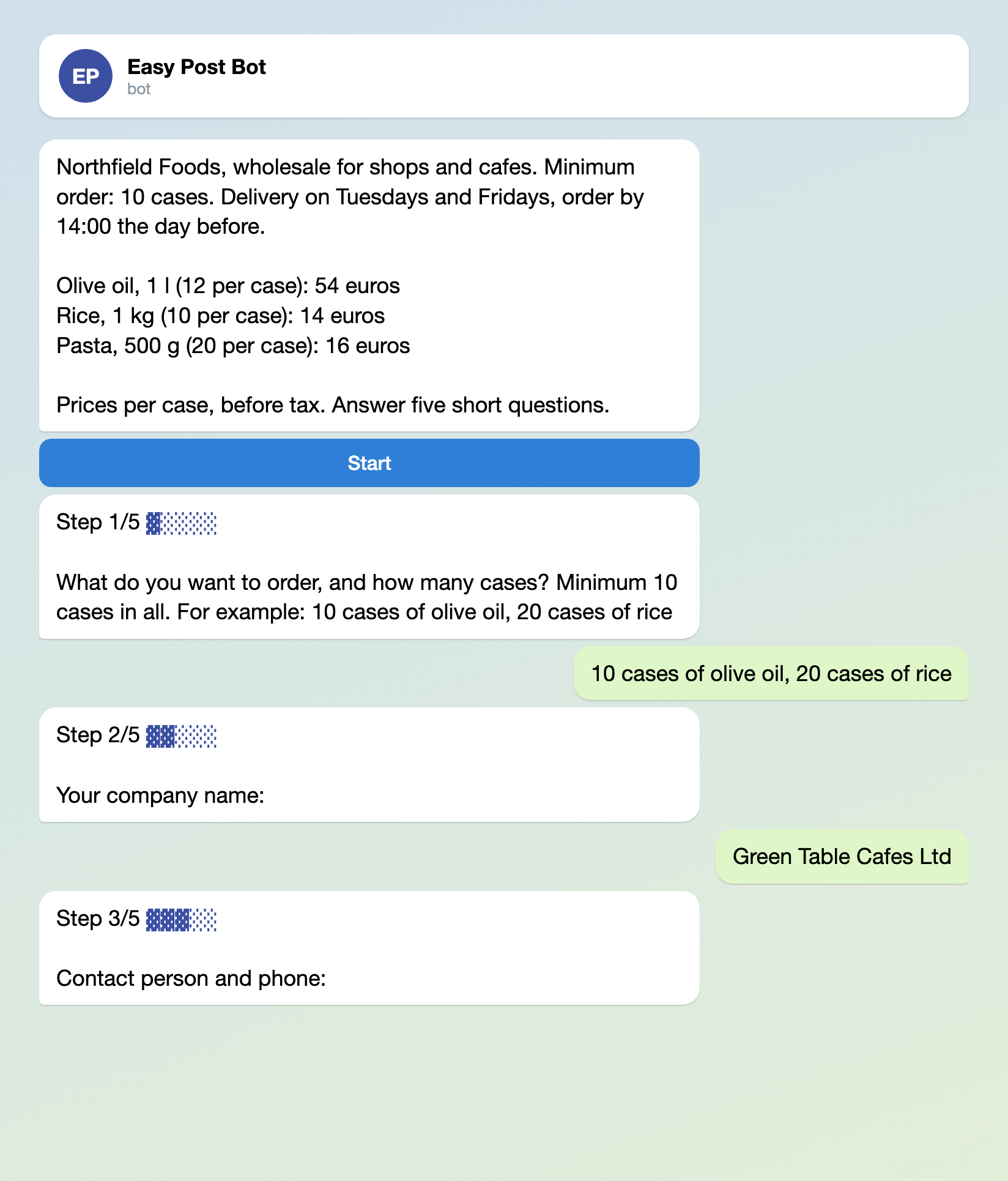
Illustration: the welcome message and questions are yours; names and data are made up.
Anyone with the link can send an order, and the form verifies no company: the card shows at most the sender's Telegram name.
Build your order form in Telegram →
What reaches you
The card goes to you and to every member of your project (more below) who has linked Telegram. It lists each answer, the sender's Telegram name and @username (if there is one) and a "Review submissions" link, with no buttons. You answer from your own Telegram to the @username, or by phone. "Saved in your dashboard" on the card means the Submissions page, your list of orders. A card cuts each answer at 300 characters; a long order is complete on that page, which the Submissions button on the pipeline page opens.
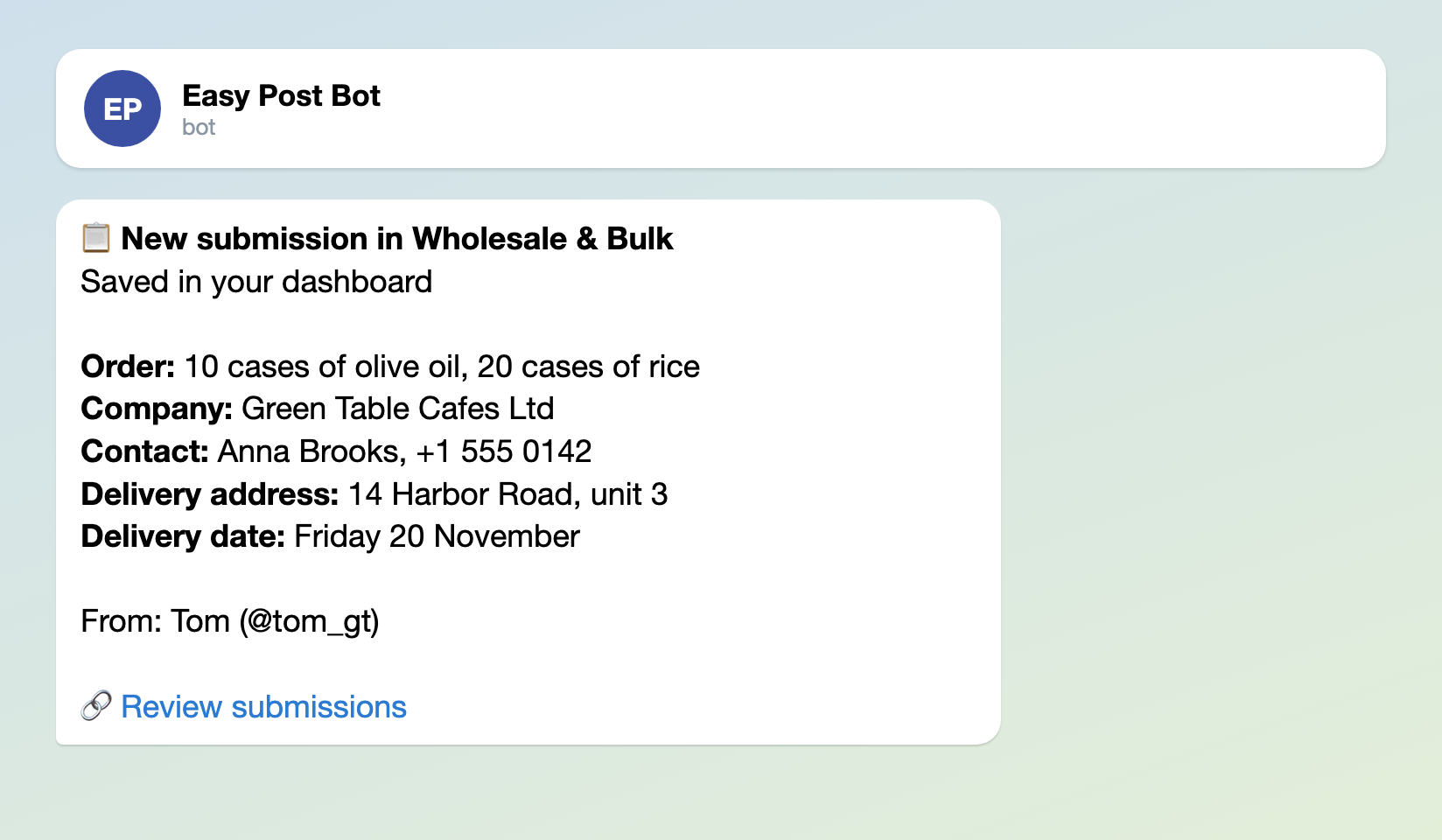
Illustration: the question names are yours; names and data are made up.
Easy Post has no "done" status today. On some plans a webhook (a message sent to another tool for each order) can copy every order into a spreadsheet, as the inventory sheet guide shows. Do not use Approve or Reject on the Submissions page to tick orders off: each press sends a Telegram buyer a fixed "Approved Message" or "Rejected Message" from Form Settings.
To give sales managers the cards, press Members on your project page (the project name at the top of the pipeline page), enter the email of their Easy Post account (they must sign up first) and press Invite. They link Telegram with "Link Telegram Account" on their profile page. A member can also change the form and delete orders, so invite only people you trust.
Two texts to paste into Form Settings
Both boxes are under "Bot Messages" in Form Settings. Replace the defaults ("Your submission is awaiting review" promises a review you do not do), then press Save under Submission Settings. Use your own name, prices and days in the examples.
The "Welcome Text" is the first message a buyer reads and holds up to 4,000 characters: put in the minimum order, the delivery days and the cut-off (the form has no opening hours), and the price list only if every buyer may see it. A price change means editing this text and pressing Save. If a buyer first needs a price, a quote request form fits that step.
Northfield Foods, wholesale for shops and cafes. Minimum order: 10 cases. Delivery on Tuesdays and Fridays, order by 14:00 the day before.
Olive oil, 1 l (12 per case): 54 euros
Rice, 1 kg (10 per case): 14 euros
Pasta, 500 g (20 per case): 16 euros
Prices per case, before tax. Answer five short questions.
The "Completion Text" is what the buyer reads after the last answer. Promise only what you will do.
Order received. We confirm stock and the delivery date within one working day, by message or phone. An order under 10 cases cannot be accepted.
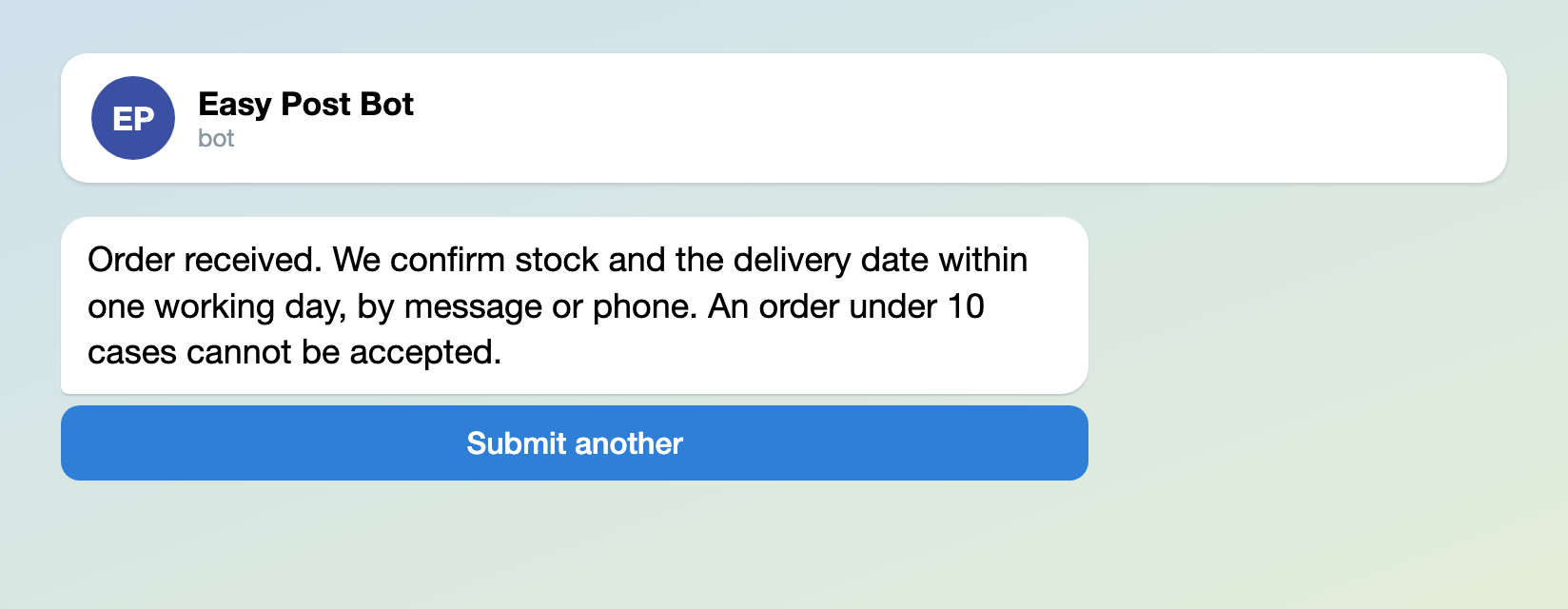
Illustration: the text is the one pasted above; names and data are made up.
Limits for regular buyers
The template allows 5 orders a day and 15 a month per buyer in Telegram, and orders a buyer started but did not send count too. A regular who orders every working day reaches 15 in three weeks and sees "Monthly limit of 15 submissions reached." while you are not told; a reseller who sends one order per branch reaches 5 in a day. Raise both under "Submission Limits" in Form Settings, for example to 10 and 60.
Buyers without Telegram
The "Web form" part of the "Where people send submissions" block of the pipeline page puts the same questions on a web page; it is already on for a pipeline built on the first screen. A web order arrives marked "Sent through the web form", with no sender name, so the contact line is your only way to reach the buyer. The page's "Sent" screen shows a "Find out the result in Telegram" button that promises a message, so say in your Completion Text how you will confirm. The guide to an order form link covers that page.
Test it, then share it
Send yourself an order with the "Open bot" button in the "Telegram bot" part of the "Where people send submissions" block. Then press "Copy link" in that part, and in the "Web form" part if you use it, and send the links to your buyers.
Other forms for similar jobs: order form for a small business, order form link for orders in Telegram and quote request form. All forms are listed by job in the guide to forms in Telegram.
More guides for business owners, grouped by job, are at the end of Telegram bots for business: 5 workflows.
Only getting started with bots? The guide to creating a Telegram bot without code explains the basics; this form works without a bot of your own.