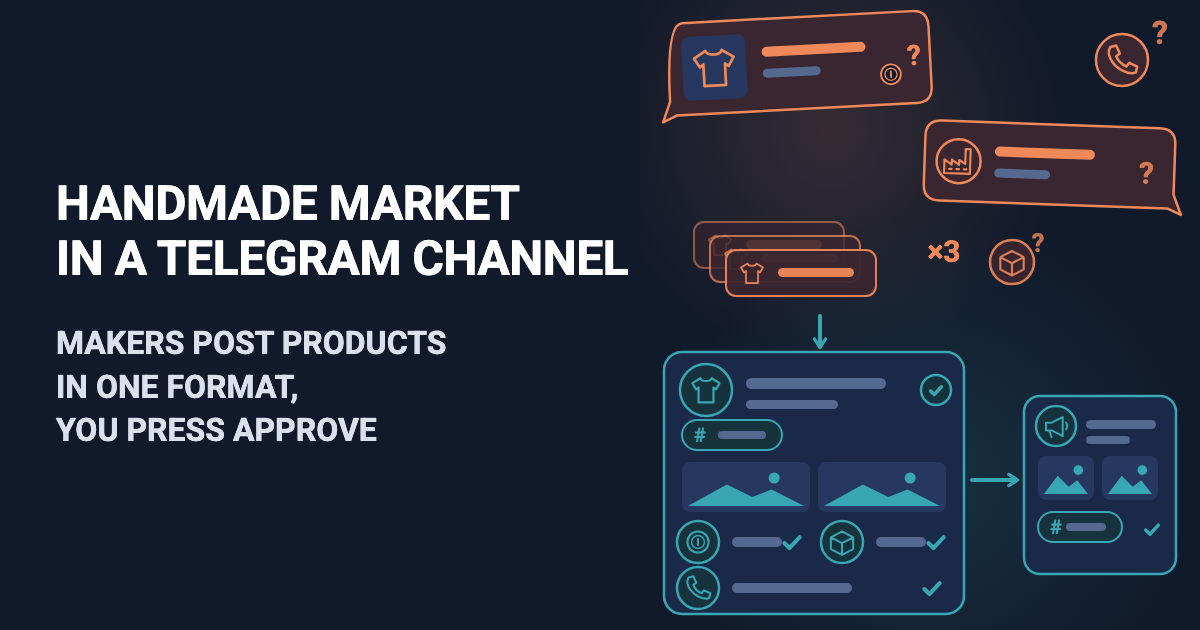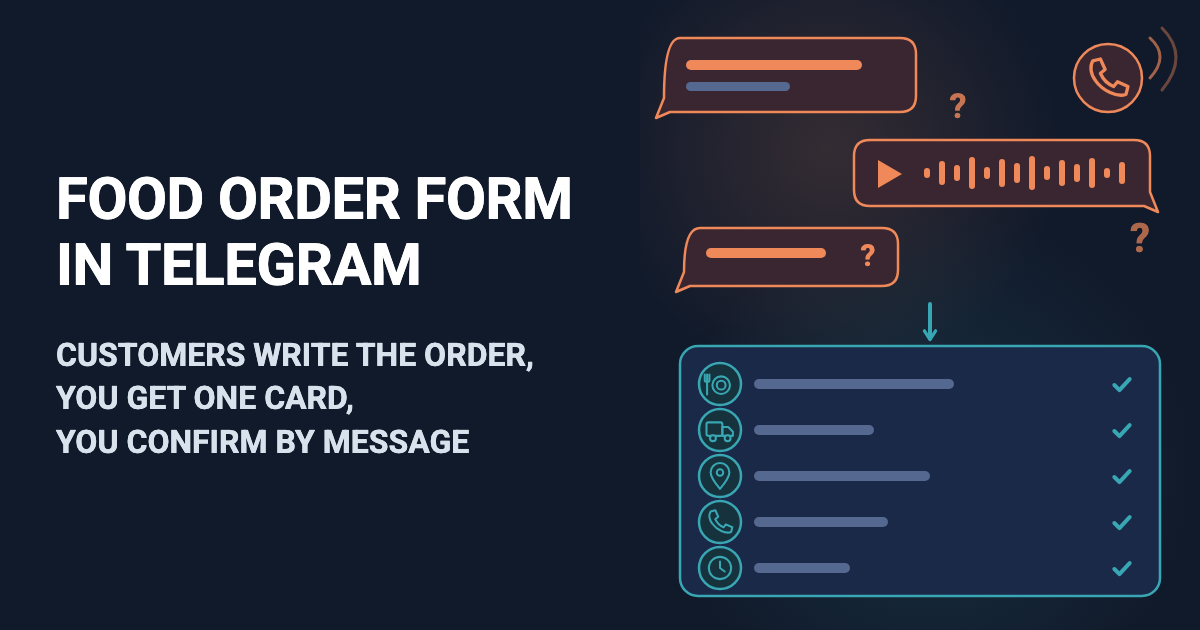
At six in the evening, tonight's orders are everywhere: two in direct messages, a comment under the menu post, a voice message and a phone call. One says "two soups" and nothing else, another asks again how much the stew costs, and you call two people back to ask what they meant.
A food order form asks every customer the same questions: what and how many, delivery or pickup, address, phone and the time they want it. Easy Post is a website where you build such a form; customers fill it in inside Telegram, and you do not create a bot yourself. The answers reach you as one Telegram message, the "card", and the customer then reads an "order received" text that you write. A customer without Telegram can fill in the same form on a web page. Easy Post calls an order a "submission"; this article says "order".
Easy Post does not make a printable order sheet, a Word or Excel file or a Google Form, and it is not a delivery app. There is no cart: a question answered with buttons takes one choice, so the customer writes the whole order as a line of text. The form adds no total, takes no payment, does not know what is sold out and does not check the address against your delivery area. By itself it sends no order number and no "ready at 19:00" message, and the customer cannot change or cancel an order; you confirm by message or phone. A cart, totals, payment, a sold-out switch and an area check are not part of the form today; they can be built as an add-on or as custom work on top of it: describe what you need on the support page. If orders arrive incomplete and scattered over chats, the form already fixes that.
Where to start
You set everything up on easy-post.app. Sign up; the first screen asks "What do you want to receive?" and lists tasks; each task builds a ready-made form, which Easy Post calls a template.
Two templates fit. "Order with Delivery", built by the "Orders" task, asks for one item and a quantity from buttons, then address, time, payment and phone, and needs the fewest edits; the guide to turning a ready order template into your own shows how to add a pickup question to it. Choose it if each order is one dish from a short list. This article follows the "Food & Delivery" template from Easy Post's Telegram forms. It was written for a cook who lists dishes, so you make eight changes, but its first question takes the whole order as free text, so a customer can ask for three dishes at once.
If you came through a button in this article, the first screen shows a large button that starts with "Start with the" and names Food & Delivery: press it. Otherwise press "pick from all ready-made forms" under the tasks and choose Food & Delivery in the Consumer list. With an account already, "+ New pipeline" on your project page offers the same list.
Easy Post then builds a "pipeline": your form, its settings and the list of orders it collects. Its page, the pipeline page, has a Submissions button for that list and a Form button for Form Settings. If your Telegram is not linked, the screen "Last step: connect Telegram" links it: scan its QR code with your phone or press its button ("Open Telegram on this computer" or "Connect Telegram"). Otherwise the "Test the form in Telegram" button on the pipeline page does the same.
Press Start in Telegram to open the bot, then the Start button under the welcome message, and fill the form in as a customer. The card arrives in the same chat without buttons, marked "Saved in your dashboard" (your list of orders, the Submissions page). After that the bot may offer a "Choose a channel" button. Ignore it, and leave "Add a channel if you want to publish" in the "Still to do" panel empty: a channel is a Telegram feed for subscribers, and with one connected, Approve would post each order, address and phone included, to it.
Try the Food & Delivery template →
Turn the template into a food order form
The template comes with seven questions, and most are what a cook writes when posting a dish. Open Form Settings with the Form button on the pipeline page. Each question is a row with a "Field name, shown only to you" box (the label on your card), a "Bot prompt" box (what the customer reads), a Type menu and a Required tickbox; the × deletes the question. The no-code form builder guide compares the ways to build such a form. Make these changes:
Template question | Do | Set it to, or why |
|---|---|---|
Dish Name, "Name of dish/product:" | Rename | Prompt "What would you like, and how many of each?"; Field name "Order" |
Description, "Description and ingredients:" | Delete | A cook's text, and its 10-character minimum would refuse "2 soups" |
Price, "Price:" | Delete | Prices go in the Welcome Text, the first message a customer reads |
Delivery, "Delivery available?" | Rename | Prompt "Delivery or pickup?"; button names "Delivery, Pickup" (separated by commas) in place of "Delivery, Pickup only, Both" |
Area, "Delivery area/location:" | Rename | Prompt "Delivery address. For pickup, write: pickup"; Field name "Address" |
Phone, "Order phone number:" | Keep, change the prompt | "Your phone number:" |
Photos, "Send food photos:" | Delete | Customers have no dish photo to send, and the form would still ask for one |
(none) | Add | Field name "When"; prompt "When do you want it? For example: today 19:00" |
To add "When", press "+ Add Field" under the last question, fill in both boxes, keep the type Text and tick Required: a new question starts optional and goes last, which is where "When" belongs. Nothing checks what a customer types there, and the address question is always asked, so a pickup customer writes "pickup". The customer then answers five questions: what and how many, delivery or pickup, address, phone, time.
Press Save under Submission Settings, further down the page; it saves the questions, texts and limits together. The Save buttons in the Web form boxes below it save only their own box.
Post Template, a box under the questions, formats channel posts, which this setup does not use; a note "No field matches {description}, {price}" under it after the deletions can stay.
What the customer sees
The customer opens your bot link, presses Telegram's Start button to open the bot, then the Start button under your welcome message to begin. The bot asks the five questions one at a time under a "Step 1/5" bar. Delivery or pickup comes as two buttons; the phone question also offers a "Send my number" button. A voice message on a text question gets "Please write it as a text message." At the end the customer sees your Completion Text (the "order received" message you write below) and a "Submit another" button. Customers talk to Easy Post Bot, so your kitchen's name appears only in your texts.
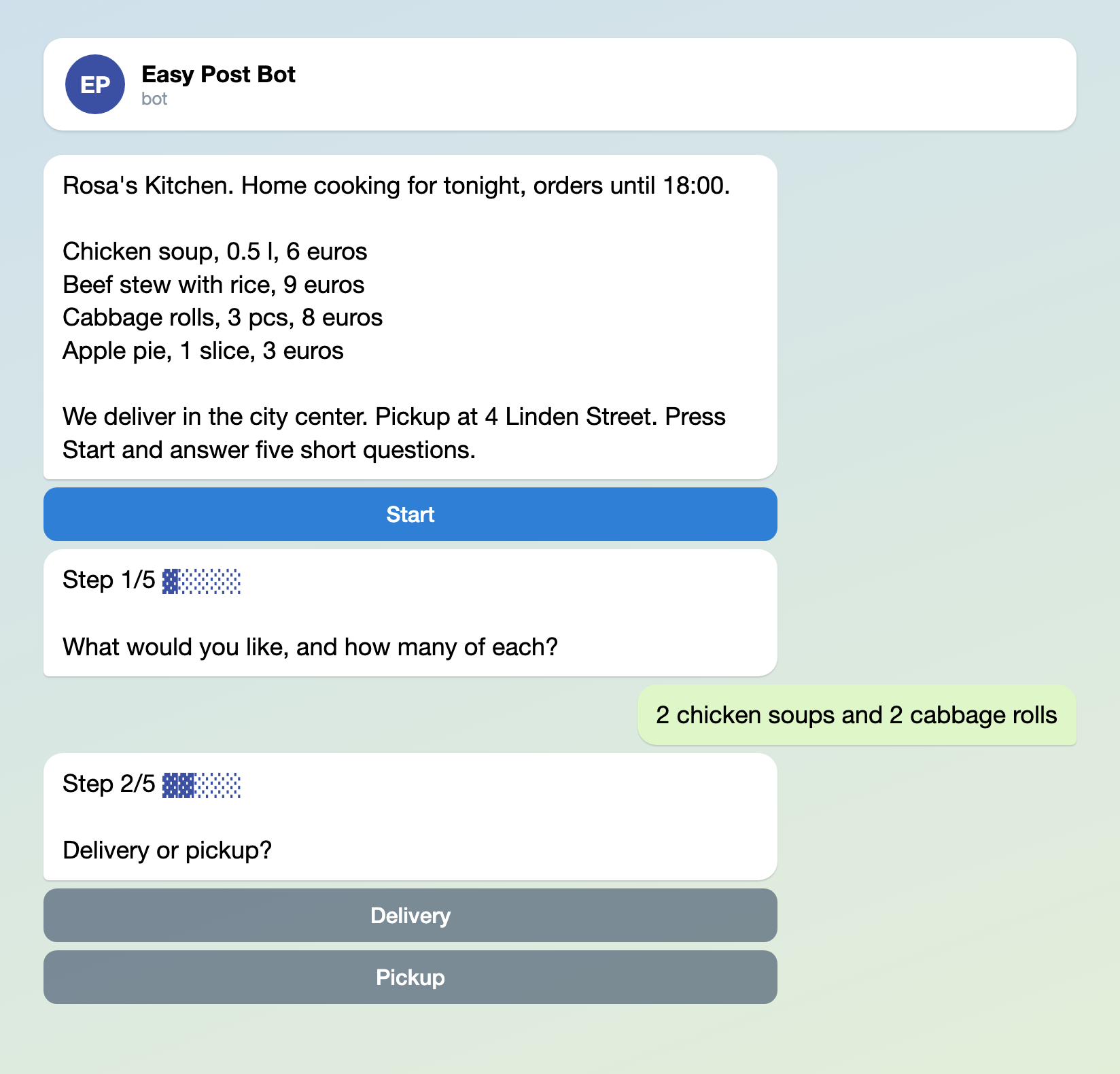
Illustration: the system texts are the bot's own; the welcome message and questions are yours; names and data are made up.
Build your order form in Telegram →
What reaches you
The card goes to you and to every member of your project who has linked Telegram (more on members below). It lists each answer, the customer's Telegram name and @username (if there is one) and a "Review submissions" link, with no buttons, because there is nothing to approve: the order is simply saved. You answer from your own Telegram to the @username, or by phone. Keep Phone required, because not everyone has set a @username.
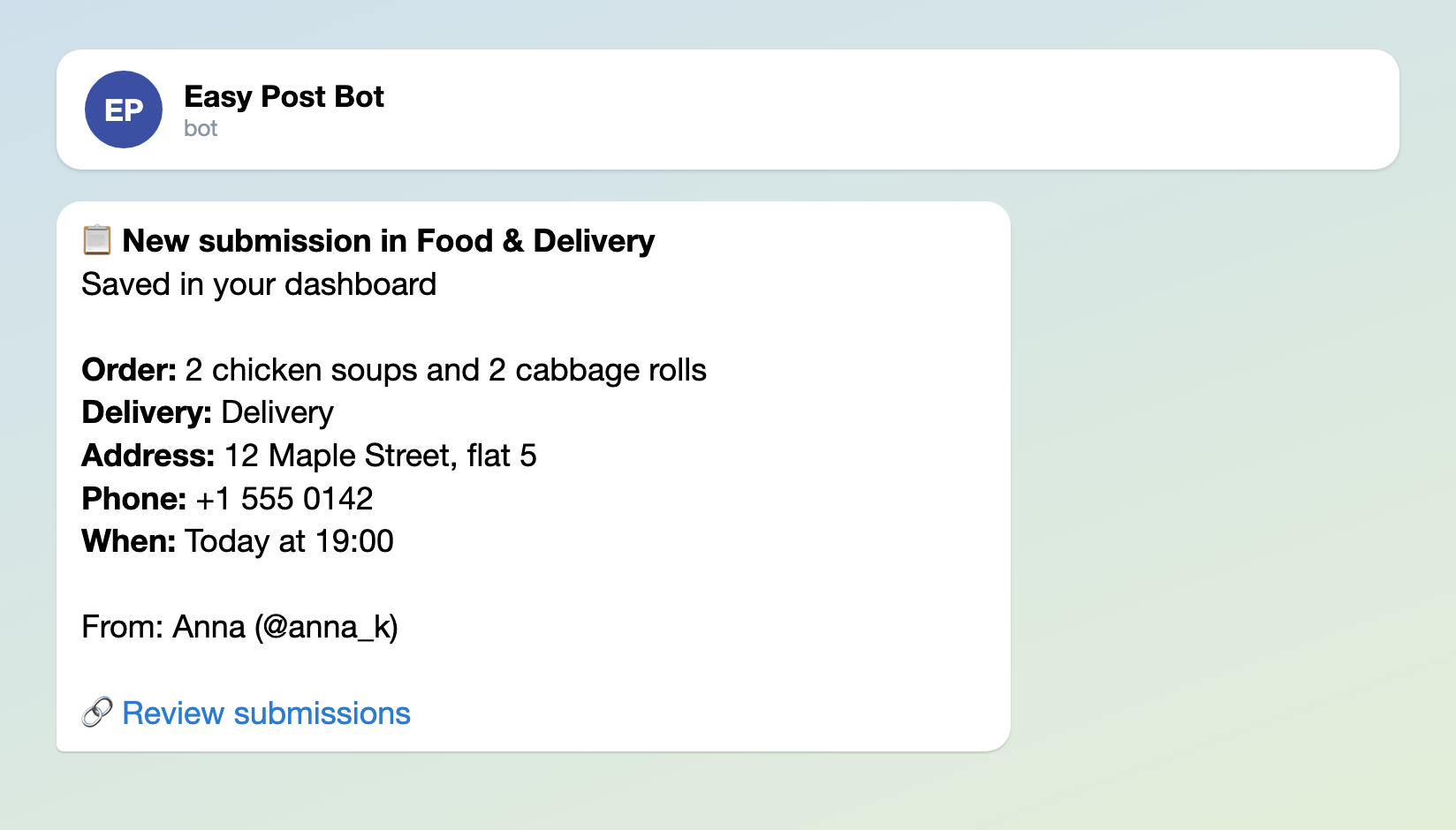
Illustration: the card layout is the bot's own; the question names are yours; names and data are made up.
Easy Post does not mark orders as done: forward each card to a Telegram group for the kitchen and delete the finished ones there. A card cuts each answer at 300 characters; the Submissions page keeps the full text.
To give a courier or a partner the cards, open your project page (the project name at the top of the pipeline page), press Members, enter the email of their Easy Post account (they must sign up first) and press Invite. They link Telegram with the "Link Telegram Account" button on their profile page. A member can also change the form and delete orders, so invite only people you trust.
Two texts to paste into Form Settings
Both boxes are under "Bot Messages" in Form Settings. Replace the defaults ("Thank you! Your submission is awaiting review." would promise a review that never happens), then press Save under Submission Settings.
The "Welcome Text" is the first message a customer reads. It holds up to 4,000 characters, so put in it the menu with prices, the hours and your delivery area. There is no sold-out switch: to drop a dish, edit this text and press Save.
Rosa's Kitchen. Home cooking for tonight, orders until 18:00.
Chicken soup, 0.5 l, 6 euros
Beef stew with rice, 9 euros
Cabbage rolls, 3 pcs, 8 euros
Apple pie, 1 slice, 3 euros
We deliver in the city center. Pickup at 4 Linden Street. Press Start and answer five short questions.
The "Completion Text" is what the customer reads after the last answer. Promise only what you will do: the form sends no "ready" or "sold out" message of its own.
Order received. We will message or phone you within 15 minutes to confirm the time. Orders after 18:00 are cooked for tomorrow.
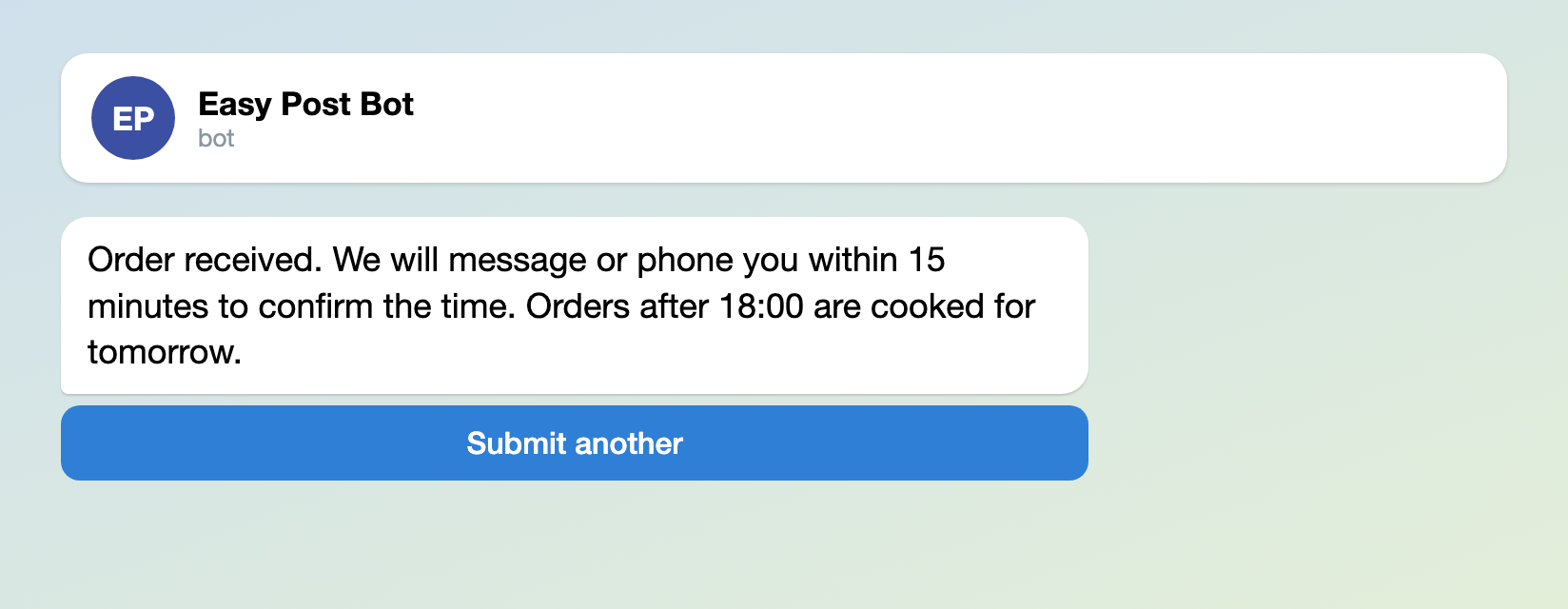
Illustration: the text is the one pasted above; names and data are made up.
Order limits and opening hours
- The template allows 5 orders a day and 20 a month per customer, and orders a customer started but did not send count too. A regular who orders lunch every working day reaches 20 near the end of the month and sees "Monthly limit of 20 submissions reached." while you are not told. Raise both under "Submission Limits" in Form Settings, the monthly one to 60, for example.
- The form has no opening hours and takes orders at any time, so the 18:00 cut-off exists only in your texts.
Customers without Telegram
The "Web form" card in the "Where people send submissions" block of the pipeline page puts the same questions on a web page, with a link and a QR code; it is already on for a pipeline built on the first screen. An order from the page arrives as a card marked "Sent through the web form", with no customer name, so the phone is your only contact. Its "Sent" screen offers a "Find out the result in Telegram" button that promises a message, so say in your Completion Text how you will confirm. For Instagram and WhatsApp customers, see the guide to an order form link.
Test it, then share it
Send yourself an order with the "Open bot" button on the "Telegram bot" card in the "Where people send submissions" block (your card arrives only once your Telegram is linked): pick a dish, choose Pickup, write "pickup" as the address and answer the last two questions. Then press "Copy link" on that card, and on the "Web form" card if you use it, and put the links where orders reach you now: under the menu post and in your profile.
Other forms for similar jobs: order form for a small business, order form link for orders in Telegram and table booking app. All forms are listed by job in the guide to forms in Telegram.
More guides for business owners, grouped by job, are at the end of Telegram bots for business: 5 workflows.
Only getting started with bots? The guide to creating a Telegram bot without code explains the basics; this form works without a bot of your own.