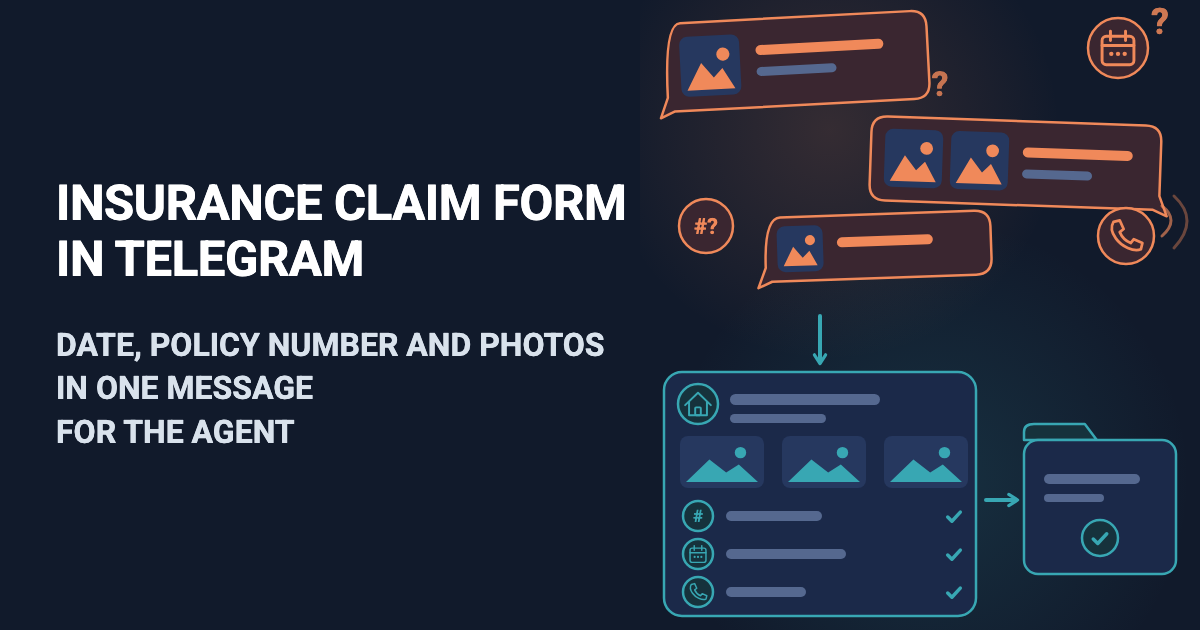
A client messages you: "hit a parked car, photos later". Two hours later three photos of a dented bumper arrive, the next morning the policy number, and the date ("I think Tuesday") only after you ask. You phone for the last missing detail before you open the claim with the insurer.
An insurance claim form asks every client the same things: type of insurance, name, policy number, what happened, photos, date and phone. It is for the agent or broker who takes the notice. Easy Post is a website where you build it. Clients fill it in inside Telegram, using Easy Post's own bot (a form bot for Telegram), so you create no bot. Each claim reaches you as one Telegram message, the "card". Easy Post calls a claim a "submission".
This is not an insurer's claim form and not a claims system. An insurer's own form, a health reimbursement form for example, comes from the insurer, and Easy Post cannot produce it. The ready-made form, called a "template", has seven questions. It does not check that a policy exists or who the sender is, and anyone with the link can send a claim. It has no claim status, and the card shows no photos and cuts each answer at 300 characters: photos and full answers are on the Submissions page, your list of claims.
A claim status, a check of the policy number against your list, a reminder when photos are missing and PDF uploads are not part of the form today. They can be built as an add-on or as custom work on top of it: describe your case on the Easy Post support page.
Where to start
Sign up on easy-post.app; the buttons in this article lead to sign-in with Google. The first screen ("What do you want to receive?") has no task for this form, so press "pick from all ready-made forms" and choose "Insurance Claim" in the Business list. If you came through a button of this article, press the large "Start with the Insurance Claim form" button instead. Easy Post builds a "pipeline", your form with its settings and claims; its page is where everything below happens.
If your Telegram is not linked yet, the next screen is "Last step: connect Telegram". Scan its QR code or press its button, then press Start in Telegram: the bot links you and opens the form, and filling it in is your first test. Your card arrives without buttons and has the line "Saved in your dashboard", which means the Submissions page. Ignore any "Choose a channel" button: claims are never published to a channel here. The "Go to the dashboard" button opens the pipeline page instead.
From here: adjust the questions, fix one setting for long descriptions, write the texts and press Save. Then read how a claim arrives, what the form does not protect and what its limits are, and test and share the link.
Try the Insurance Claim template →
Adjust the insurance claim form to your office
Press the Form button on the pipeline page to open Form Settings. Each question has a "Field name, shown only to you" (the label on your card) and a "Bot prompt", the sentence the client reads. The insurance types are button names in a box under the prompt, separated by commas. You can reword every question; the answer length limits and the number of photos cannot be changed. Make these changes:
Question | Do | Set it to |
|---|---|---|
Insurance Type | Trim | Delete the types you do not sell from the six buttons, keep Other |
Phone | Keep | It shows a "Send my number" button and refuses an email or fewer than 7 digits |
Full Name | Reword | "Your full name, as on the policy:" |
Policy Number | Reword | "Policy number, from your policy document or email:". The skip button "Don't have it now" stays |
Incident Description | Reword | "What happened? Where, who else was involved, what is damaged or hurt. Up to 1,000 characters:" |
Documentation | Reword | "Photos of the damage and of related papers, up to 10. In Telegram, send them all, then tap Done:" |
Incident Date | Reword | "Date of the incident, for example 7 November:" |
The Documentation prompt asks for papers too; drop that part if you would rather not receive them here.
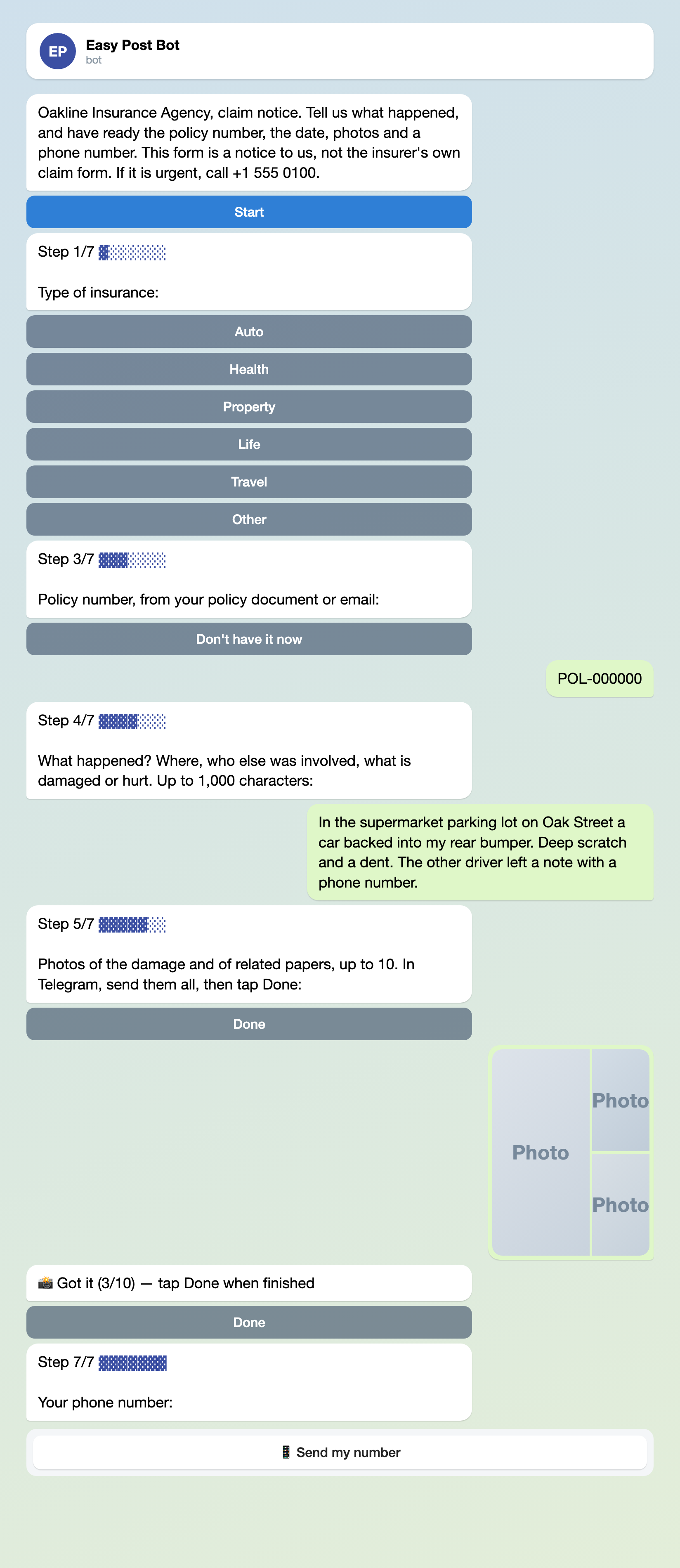
Illustration: some steps are left out; names and data are made up.
One setting for long descriptions with photos
Telegram allows 1,024 characters in the text under photos. Easy Post builds that text from the Post Template, a box in Form Settings meant for channel posts (a channel is a Telegram page where posts are published), and it checks every claim with a photo even though you use no channel. The default Post Template prints each answer with its label, so with an ordinary name, policy number, date and phone about 870 characters, some 150 words, are left for the description. A long name or a vague date leaves less, and the description may run to 1,000.
Easy Post deletes a claim over the limit. A Telegram client sees "Your submission is too long to publish with photos (max 1024 characters). Please try again and shorten your text fields." with a "Try again" button, and starts over. You receive nothing.
The fix is a short Post Template. In the Post Template box under the questions, select everything, delete it and type "Insurance claim". Do not leave the box empty: Easy Post ignores an empty box and keeps the old text. Press Save once, after the texts below. Nothing is lost, because the card and the Submissions page do not read this box. The bug report form hits the same limit with screenshots.
The texts people read
Under "Bot Messages" in Form Settings, "Welcome Text" is the first message a client sees; it appears on the web page too, so do not write "Press Start" in it. "Completion Text" is the last message, after the final answer. Replace its default, "Thank you! Your submission is awaiting review.": nothing is under review here. Use your own agency name, number and call time, and promise only what you will do.
Welcome Text:
Oakline Insurance Agency, claim notice. Tell us what happened, and have ready the policy number, the date, photos and a phone number. This form is a notice to us, not the insurer's own claim form. If it is urgent, call +1 555 0100.
Completion Text:
Thank you, we have your claim notice. We will call you by the end of the next working day. This is a notice to us, not a filing with your insurer. If it is urgent, call +1 555 0100.
Then press Save. There are two Save buttons, one under the Post Template box and one at the bottom; either saves everything.
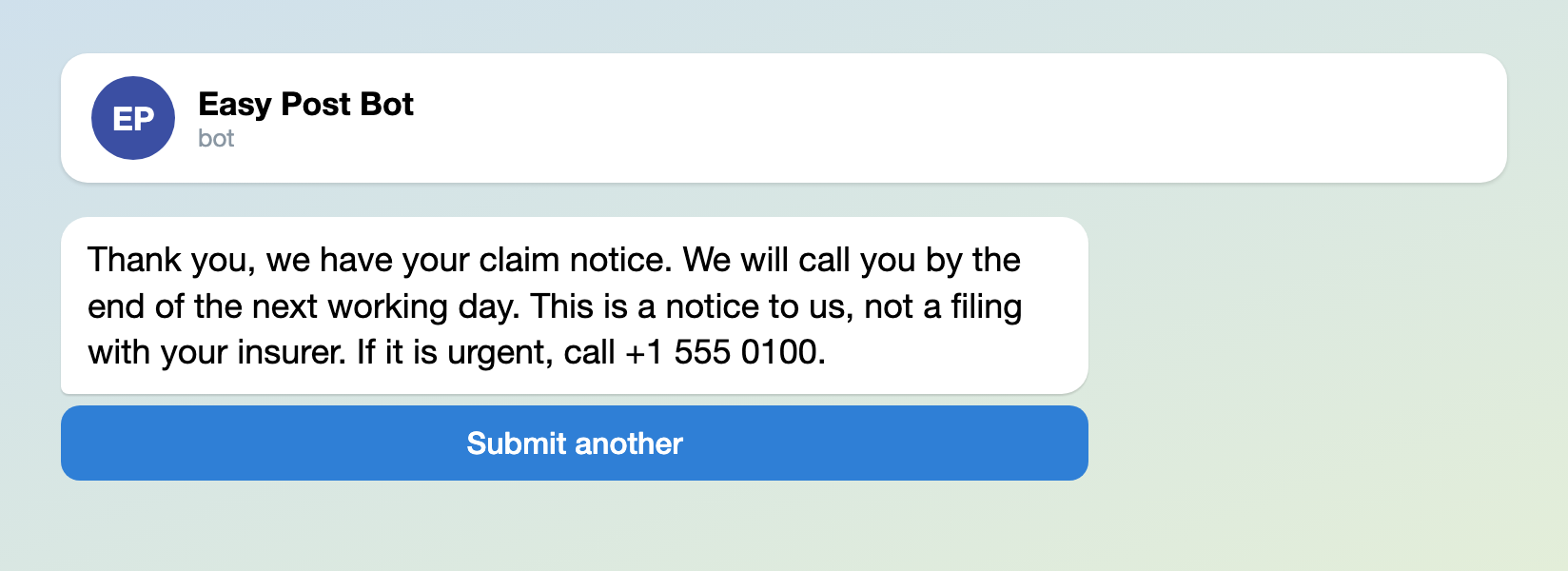
Illustration: the text is the one above; names and data are made up.
What to do when a claim arrives
The card goes to you and to each Member you invite (see "Limits, the web page and Members" below) who has linked Telegram, as in the IT request form. It lists the answers, with no sign where one is cut, and a "From" line with the Telegram name and @username the sender has set; the Full Name line is whatever the sender typed. It shows no photos, not even how many; a skipped policy number is simply missing. Its last line is a link, "Review submissions", that opens the Submissions page.
The Submissions page opens on the All tab. Claims run newest first, with answers under short internal names such as policy_number and the photos as small pictures that open the full file. A client can tap Done before sending a photo and the claim still arrives, so the only sign is a claim with no pictures. If a claim has no pictures, phone the client and ask for them.
Every claim has the badge "Approved", which means only that it arrived. Do not pick Approve or Reject in the "Bulk action..." menu on that page: each use sends a Telegram client the "Approved Message" or "Rejected Message" from Form Settings, by default "Your submission has been approved!", even for a claim marked Approved. The Delete button only moves a claim to the Deleted tab, but Delete in the Bulk action menu erases the claim for good. The page has no search and no export.
For a register of claims, a webhook (a web address that receives each claim) can send every claim to a tool that adds it to a Google Sheet. Webhooks are not included in every plan, so check the pricing page first. The inventory sheet guide has the steps. Tick Auto-approve when you add the webhook: otherwise each claim waits for an Approve press, and that press sends the client "Your submission has been approved!".
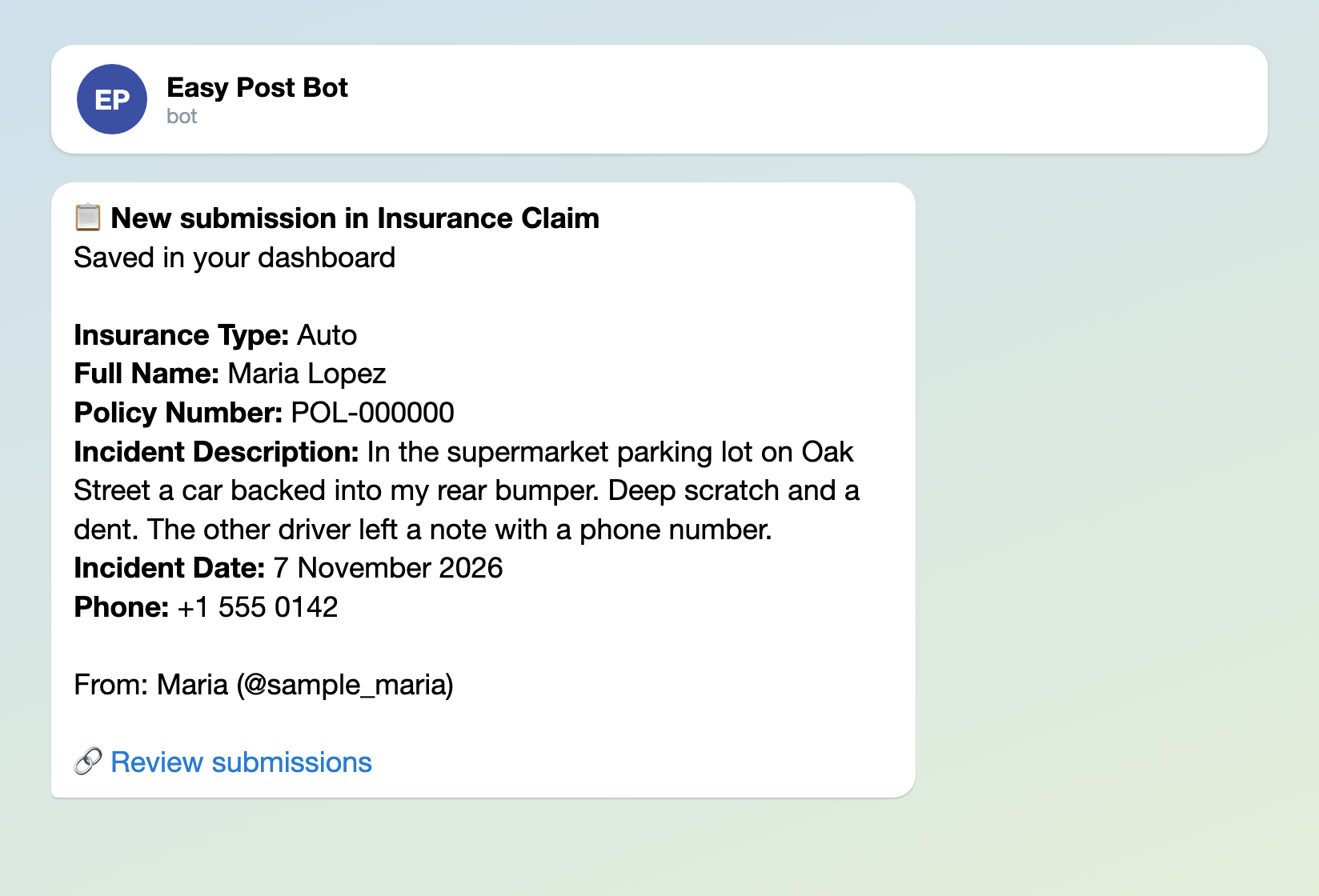
Illustration: the card has no photos; names and data are made up.
What the form does not protect
Easy Post stores photos of damage and papers, perhaps a hospital bill or an ID, on its servers, each at its own web address. Anyone who has the address can open the file without signing in, and a webhook sends the address on too. Delete hides a claim but does not remove its photos. Every Member can read all claims and delete them.
Do not connect a Telegram channel to this pipeline: Approve would post the photos to the channel's readers (and, with the default Post Template, the description, name and phone number too), and Easy Post gives no warning for this form.
Limits, the web page and Members
- A client can start 5 claims a day and 20 a month in Telegram. Unfinished and deleted claims count too, and so do your own tests. A client at the limit reads "Daily limit of 5 submissions reached. Try again tomorrow!", and you are not told. The numbers are under "Submission Limits" in Form Settings.
- The "Web form" part under "Where people send submissions" puts the same questions on a web page for clients without Telegram. It is on by default and has no limit per person; its own "Copy link" button sits there. Its claims arrive marked "Sent through the web form" with no sender name, so the phone number is your only way back. Its "Sent" screen shows a "Find out the result in Telegram" button and promises a message after review, which never comes here. To accept Telegram claims only, switch the page off with the switch on that part.
- For a second claims handler, press Members on your project page (the project name at the top of the pipeline page) and invite them by the email of their Easy Post account. They link Telegram to get cards. A Member can change the form and delete claims; only you invite.
Test it, then share it
Press "Open bot" on the "Telegram bot" part under "Where people send submissions" and send yourself a claim with a description over 900 characters and two photos. With the short Post Template it arrives, which shows the setting works. Then press "Copy link" on the same part and send the link to your clients.
Other forms for similar jobs: service request form, quote request form and IT request form. All forms are listed by job in the guide to forms in Telegram.
More guides for business owners, grouped by job, are at the end of Telegram bots for business: 5 workflows.
Only getting started with bots? The guide to creating a Telegram bot without code explains the basics; this form works without a bot of your own.